
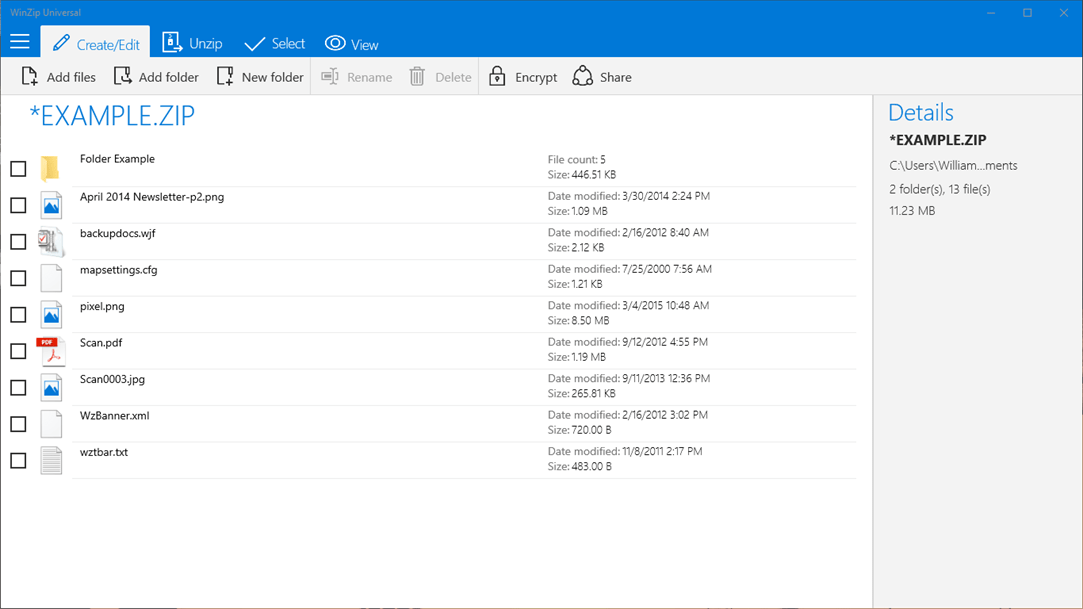
How to Download Winzip Free on All Leading Platforms: A Step-by-step Guide
Are you looking for a reliable and user-friendly compression software? Look no further than WinZip, the legendary program that has been a household name since 1991! With its intuitive interface and robust features, WinZip is an essential tool for anyone who needs to compress, extract, and share files. In this article, we’ll show you how to download WinZip free on all leading platforms, including Windows, macOS, Android, and iOS/iPadOS.
The History of Winzip
WinZip has a rich history that spans over three decades. First released in 1991, the program quickly gained popularity due to its ease of use and robust features. Over the years, WinZip has undergone significant updates and improvements, making it one of the most reliable compression software available today.
Why Choose Winzip?
So, why choose WinZip over other compression software? Here are just a few reasons:
- Intuitive Interface: WinZip’s interface is incredibly user-friendly, making it easy to navigate for both beginners and advanced users.
- Robust Features: With WinZip, you can compress, extract, and share files with ease. The program also supports various file formats, including ZIP, ZIPX, LHA/LHZ, RAR, and 7Z.
- Compatibility: WinZip is compatible with all major operating systems, including Windows, macOS, Android, and iOS/iPadOS.
How to Download Winzip on Windows
If you’re using a PC running Windows, you can download WinZip free from the Microsoft Store. Here’s how:
- Open the Microsoft Store on your Windows 10 device.
- Search for “WinZip” in the search bar.
- Click on the “Get” button to download and install the program.
- Once installed, launch WinZip and follow the prompts to activate the free trial version.
How to Download Winzip on Macos
If you’re using a Mac, you can download WinZip free from its official website. Here’s how:
- Visit the WinZip website (www.Winzip.Com) and click on the “Download” button.
- Select the correct version of WinZip for your Mac (Classic or macOS).
- Click on the “.Dmg” file to download and install the program.
- Once installed, launch WinZip and follow the prompts to activate the free trial version.
How to Download Winzip on Android
If you’re using an Android device, you can download WinZip free from the Google Play Store. Here’s how:
- Open the Google Play Store on your Android device.
- Search for “WinZip” in the search bar.
- Click on the “Install” button to download and install the program.
- Once installed, launch WinZip and follow the prompts to activate the free trial version.
How to Download Winzip on Ios/ipados
If you’re using an iOS or iPadOS device, you can download WinZip free from the App Store. Here’s how:
- Open the App Store on your iOS or iPadOS device.
- Search for “WinZip” in the search bar.
- Click on the “Get” button to download and install the program.
- Once installed, launch WinZip and follow the prompts to activate the free trial version.
Alternatives to Winzip
While WinZip is an excellent compression software, there are alternative options available that you may find useful. Here are a few:
- 7-Zip (Windows): A free and open-source compression software that’s compatible with Windows.
- Keka (macOS): A free compression software for macOS that supports various file formats.
- Archive Extractor (Online): An online tool that allows you to extract compressed files without installing any software.
Conclusion
In conclusion, WinZip is an excellent compression software that’s available on all leading platforms. With its intuitive interface and robust features, it’s an essential tool for anyone who needs to compress, extract, and share files. While there are alternative options available, WinZip remains a popular choice due to its ease of use and compatibility with various file formats.
Frequently Asked Questions
Here are some frequently asked questions about WinZip:
- Q: Is Winzip Free?
A: Yes, WinZip offers a free trial version that allows you to test the program for a limited period. - Q: What Operating Systems is Winzip Compatible With?
A: WinZip is compatible with Windows, macOS, Android, and iOS/iPadOS. - Q: How do I Download Winzip on my Device?
A: You can download WinZip from the Microsoft Store (Windows), official website (macOS), Google Play Store (Android), or App Store (iOS/iPadOS). - Q: What Are Some Alternative Options to Winzip?
A: Some alternative options include 7-Zip (Windows), Keka (macOS), and Archive Extractor (Online). - Q: Can I Use Winzip For Free Forever?
A: No, while WinZip offers a free trial version, you’ll need to purchase a license to continue using the program after the trial period expires. - Q: How do I Activate The Free Trial Version of Winzip?
A: To activate the free trial version of WinZip, simply follow the prompts during the installation process or visit the WinZip website for more information. - Q: What Are Some Features of Winzip?
A: Some key features of WinZip include its intuitive interface, robust compression and extraction capabilities, and compatibility with various file formats.
We hope this article has been helpful in answering your questions about WinZip!


