
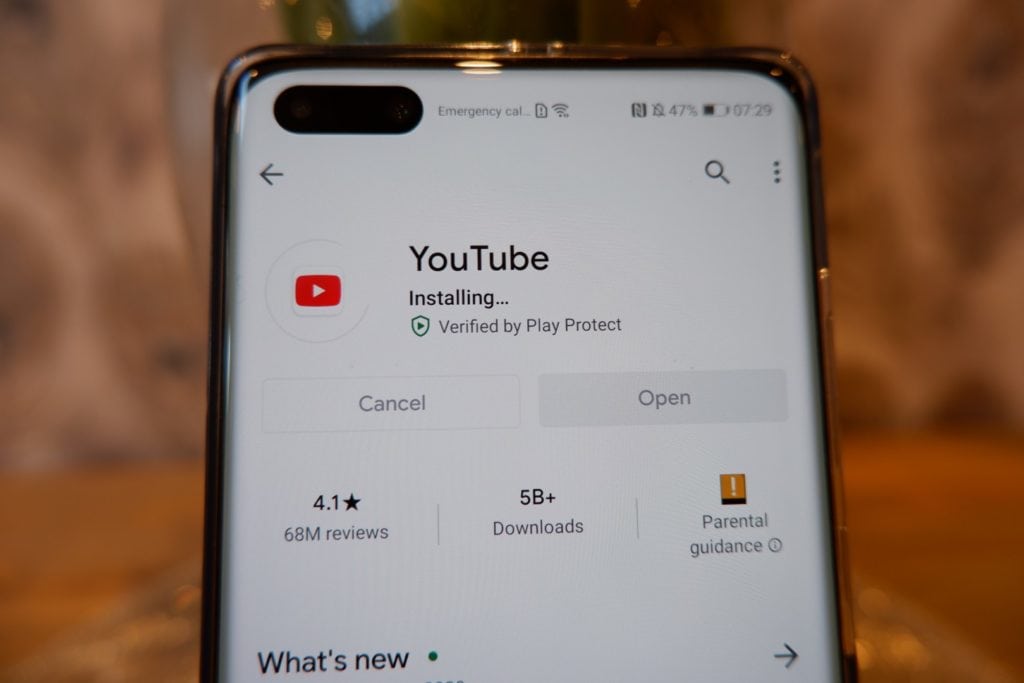
Installing Youtube on Huawei Smartphones: A Step-by-step Guide
Are you tired of not being able to download YouTube on your HUAWEI smartphone? Well, you’re in luck! In this article, we’ll show you how to install the Play Store and subsequently, the YouTube app on your device.
Why Can’t I Download Youtube?
Before we dive into the solution, let’s briefly explain why you can’t download YouTube directly from the AppGallery. As of 2019, HUAWEI smartphones have been blocked by the US government from using Google services due to security concerns. This means that devices manufactured after this date will not be able to access the Play Store or any other Google services.
What’s The Solution?
Fortunately, there are some alternative solutions available that can help you install the YouTube app on your HUAWEI smartphone. In this article, we’ll guide you through a step-by-step process to install the Gspace app, which will give you access to the Play Store and subsequently, the YouTube app.
How to Install Gspace
To start, open the AppGallery and search for “Gspace” in the search bar. You should see an icon of the Gspace app appear on your screen. Tap on it and select the “Install” button. Once installed, tap on the “Open” button to configure the app.
Configuring Gspace
To configure Gspace, you’ll need to set up a Google account or link an existing one to your device. This is necessary to access the Play Store and install apps like YouTube. Follow these steps:
- Open Gspace and select the icon of a new app (such as YouTube).
- Tap on the “Open” button to access the Play Store.
- Select the “Access” button to configure your Google account.
- Enter your email address and password, and select the “Next” button.
- Review the terms and conditions of service, and select the “Accept” button.
- Choose whether or not to enable backup on Google Drive (we recommend disabling it for privacy reasons).
Installing Youtube
Now that you have Gspace installed and configured, you can proceed with installing the YouTube app.
- Open Gspace and search for “YouTube” in the search bar.
- Tap on the “Install” button to download the app.
- Once downloaded, tap on the “Open” button to launch the app.
Tips And Tricks
To avoid seeing advertisements every time you open the YouTube app, consider creating a shortcut to the app on your home screen. This will allow you to access the app directly without going through Gspace each time.
Conclusion
Installing the YouTube app on your HUAWEI smartphone may seem daunting at first, but with these simple steps, you can have access to your favorite video streaming platform in no time. Remember to be cautious when using alternative solutions and to create a secondary Google account for privacy reasons.
Frequently Asked Questions (FAQs)
Q: Why can’t I download YouTube directly from the AppGallery?
A: Due to security concerns, HUAWEI smartphones have been blocked by the US government from using Google services.
Q: What’s an alternative solution to installing YouTube?
A: You can install the Gspace app, which will give you access to the Play Store and subsequently, the YouTube app.
Q: How do I configure Gspace?
A: To configure Gspace, you’ll need to set up a Google account or link an existing one to your device.
Q: Why should I create a secondary Google account for privacy reasons?
A: Creating a secondary Google account will help protect your primary account from potential data mishandling by alternative solutions.
Q: Can I install other apps besides YouTube using Gspace?
A: Yes, you can install any app available on the Play Store using Gspace.
Q: Will I see advertisements every time I open the YouTube app?
A: Unfortunately, yes. You’ll need to consider creating a shortcut to the app on your home screen to avoid seeing ads each time.
References
- [1] HUAWEI Official Website
- [2] Google Official Website
- [3] Gspace AppGallery Listing


