
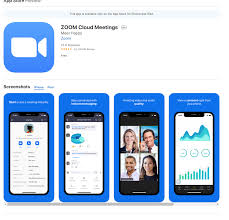
Downloading Zoom on Your Mobile Device: A Step-by-step Guide
Are you one of those friends who’s been meaning to organize a “repatriated digital” on Zoom, but haven’t had the chance to use your smartphone? Well, you’re not alone! Many people have found themselves in this situation. But don’t worry, we’ve got you covered. In this article, we’ll guide you through the process of downloading Zoom on your mobile device, whether it’s an Android or iPhone.
Requirements For Downloading Zoom
Before we dive into the step-by-step guide, let’s take a look at the requirements needed to download and install Zoom on your mobile device.
- For Android devices: You need to have an Android 5.0 Or later version installed.
- For iPhone users: You need to have an iOS 8.0 Or later version installed.
If your phone meets these requirements, then you’re good to go! Let’s move on to the next step.
Downloading Zoom on Android Devices
To download Zoom on your Android device, follow these steps:
- Open The Play Store: If you have a Google account associated with your device, open the Play Store app. You can find it on your home screen or in the drawer.
- Search For Zoom: Type “zoom” in the search bar and select the first result.
- Download And Install Zoom: Once the installation is complete, tap on the green button to install and wait for the procedure to finish.
Alternative Store
If you don’t have access to the Play Store, you can use a store alternative like Amazon Appstore. To do this:
- Enable Installation From Unknown Sources: Go to Settings > Safety and privacy > Allow unknown apps.
- Download The Amazon Appstore Apk: Visit the Amazon Appstore website on your device and download the APK file.
- Install The Appstore: Follow the instructions to install the app.
- Download Zoom: Once installed, open the Amazon Appstore and search for Zoom.
Downloading Zoom on Iphone Devices
If you’re an iPhone user, follow these steps:
- Open The App Store: Tap on the Apple icon on your home screen to open the App Store.
- Search For Zoom: Type “zoom” in the search bar and select the first result.
- Download And Install Zoom: Once the installation is complete, tap on the blue button to install and confirm using Face ID, Touch ID, or your Apple password.
Tips And Tricks
- Make sure you have a stable internet connection for smooth download and installation.
- If you encounter any issues during installation, try restarting your device and retrying the process.
- Zoom is free to download and use!
Conclusion
Downloading Zoom on your mobile device is a straightforward process. With these steps, you should be able to get started with video conferencing in no time. Whether it’s for work or personal use, Zoom offers a user-friendly interface that’s easy to navigate.
Frequently Asked Questions (FAQs)
- Q: Do I Need to Pay For Zoom?
A: No, Zoom is free to download and use! - Q: Can I Use Zoom on Multiple Devices?
A: Yes, you can use Zoom on multiple devices with the same account. - Q: Is my Data Secure When Using Zoom?
A: Yes, Zoom prioritizes user security and data protection. - Q: Can I Use Zoom For Personal or Business Purposes?
A: Both! Zoom is suitable for both personal and professional use. - Q: Do I Need a Stable Internet Connection to Use Zoom?
A: Yes, you’ll need a reliable internet connection to use Zoom smoothly. - Q: Can I Join a Meeting Without Downloading The App?
A: Yes, you can join meetings using your browser or via phone calls. - Q: Is There a Time Limit For Meetings on Zoom?
A: No, there’s no time limit for meetings on Zoom. - Q: How do I Join a Meeting as an Attendee?
A: To join a meeting as an attendee, click the “Join” button and enter your meeting code.
Download Zoom Today!
Get started with video conferencing using Zoom today!


