
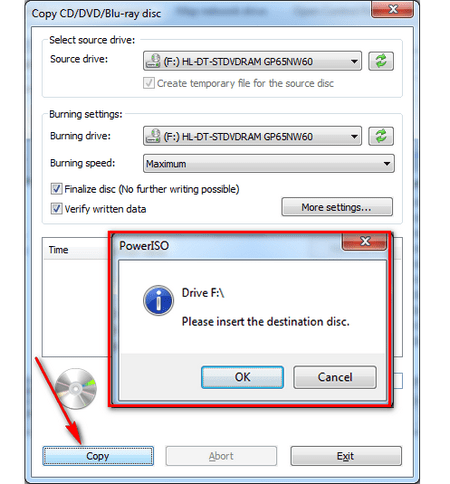
How to Duplicate a CD on Windows 10: A Step-by-step Guide
Are you looking for a way to duplicate a CD on your Windows 10 computer? Look no further! In this article, we will guide you through the process of duplicating a CD using various software options available on Windows 10.
Why Duplicate a Cd?
Before we dive into the steps, let’s talk about why duplicating a CD might be useful. Perhaps you want to create a backup copy of your favorite music or video CDs before they get scratched or damaged. Or maybe you need to share a CD with someone else and don’t have access to a physical copy. Whatever your reason, duplicating a CD is a simple and efficient way to ensure that you always have a spare copy.
Software Options For Duplication
There are several software options available on Windows 10 that can help you duplicate a CD. Here are some of the most popular ones:
- Imgburn: A free and powerful CD/DVD burning software that supports all kinds of files, including audio CDs.
- Cdburnerxp: Another free software that allows you to burn CDs, DVDs, and Blu-ray discs with various file types.
- Burnaware: A user-friendly software that offers advanced features like disc spanning, error checking, and more.
Step-by-step Guide
Now that we’ve covered the software options, let’s walk through the steps of duplicating a CD using ImgBurn:
- Download And Install Imgburn: First, download and install ImgBurn on your Windows 10 computer.
- Insert The CD to Duplicate: Place the CD you want to duplicate into your computer’s disc drive.
- Launch Imgburn: Open ImgBurn and select the “Create image” option from the menu.
- Choose The Output Settings: Select the output settings for the duplicated CD, such as the file format and location.
- Start The Duplicating Process: Click on the “Start” button to begin the duplicating process.
Other Software Options
While ImgBurn is an excellent choice, there are other software options available that can help you duplicate a CD on Windows 10. Here are some of them:
- Handbrake: A free and open-source video transcoder that also offers disc copying capabilities.
- Vlc Media Player: A popular media player that can also be used to rip CDs and convert audio files.
Conclusion
Duplicating a CD on Windows 10 is a simple process that requires the right software. With ImgBurn, CDBurnerXP, BurnAware, HandBrake, or VLC Media Player, you can create a perfect copy of your favorite music or video CDs. Whether you’re looking to back up your CDs or share them with someone else, duplicating a CD is an excellent way to ensure that you always have a spare copy.
Faqs
Here are some frequently asked questions related to duplicating a CD on Windows 10:
- Q: How Long Does The Duplication Process Take?
A: The duration of the duplication process depends on the size of the CD and the speed of your computer. - Q: Can I Duplicate a CD Without Software?
A: No, you need to use specialized software like ImgBurn or CDBurnerXP to duplicate a CD. - Q: How Many Copies Can I Make at Once?
A: The number of copies you can make at once depends on the software and your computer’s capabilities.
More Articles


