
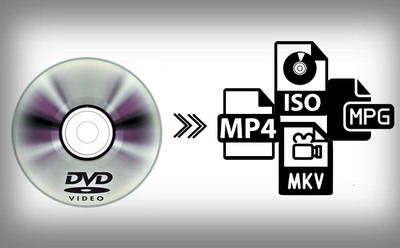
How to Duplicate a Dvd: A Step-by-step Guide
Are you looking for ways to make a copy of your favorite DVD? Maybe you want to create a backup or share it with friends and family. Whatever the reason, duplicating a DVD can be a bit tricky, but don’t worry, we’ve got you covered.
In this article, we’ll show you how to duplicate a DVD using various software available for Windows, macOS, and Linux. We’ll cover the basics of each program, including ImgBurn, Burn, HandBrake, VLC, Black, and Toast Titanium.
What You Need to Know Before Starting
Before we dive into the step-by-step guide, it’s essential to understand that duplicating a DVD can be a bit complex, especially when dealing with protected content. Make sure you have the necessary permissions and follow the instructions carefully to avoid any issues.
Why Duplicate a Dvd?
There are several reasons why you might want to duplicate a DVD:
- Create a backup of your favorite movie or game
- Share it with friends and family
- Preserve old media for future use
- Transfer content from one format to another
Method 1: Using Imgburn (Windows)
ImgBurn is a popular software for Windows that allows you to create exact copies of DVDs. Here’s how to use it:
Step 1: Download And Install Imgburn
Download the latest version of ImgBurn from their official website.
Step 2: Create an Image of Your Dvd
Insert your DVD into the drive, launch ImgBurn, and select “Create image” from the main menu. Choose the correct format (e.G., ISO) and destination folder.
Step 3: Masterize The Image
Insert a blank DVD, select “Masterize” from the menu, and follow the prompts to create an exact copy of your original DVD.
Method 2: Using Burn (macOS)
Burn is a user-friendly software for macOS that allows you to duplicate DVDs. Here’s how to use it:
Step 1: Download And Install Burn
Download the latest version of Burn from their official website.
Step 2: Create an Image of Your Dvd
Insert your DVD into the drive, launch Burn, and select “Copy” from the main menu. Choose the correct format (e.G., ISO) and destination folder.
Step 3: Masterize The Image
Insert a blank DVD, select “Masterize” from the menu, and follow the prompts to create an exact copy of your original DVD.
Method 3: Using Handbrake (Windows/macOS/Linux)
HandBrake is a free software for Windows, macOS, and Linux that allows you to convert DVDs to digital formats like MP4 or MKV. Here’s how to use it:
Step 1: Download And Install Handbrake
Download the latest version of HandBrake from their official website.
Step 2: Convert Your Dvd to Digital Format
Insert your DVD into the drive, launch HandBrake, and select “Convert” from the main menu. Choose the desired format (e.G., MP4) and destination folder.
Step 3: Masterize The Image
Insert a blank DVD, select “Masterize” from the menu, and follow the prompts to create an exact copy of your original DVD.
Method 4: Using Vlc (Windows/macOS/Linux)
VLC is a popular media player that also includes features for duplicating DVDs. Here’s how to use it:
Step 1: Download And Install Vlc
Download the latest version of VLC from their official website.
Step 2: Rip Your Dvd
Insert your DVD into the drive, launch VLC, and select “Media” > “Convert/Save” from the main menu. Choose the correct format (e.G., MP4) and destination folder.
Step 3: Masterize The Image
Insert a blank DVD, select “Masterize” from the menu, and follow the prompts to create an exact copy of your original DVD.
Conclusion
Duplicating a DVD can be a bit complex, but with these step-by-step guides, you should be able to create exact copies using various software available for Windows, macOS, and Linux. Remember to always follow the instructions carefully to avoid any issues.
Frequently Asked Questions (FAQs)
- What is The Best Software For Duplicating Dvds?
ImgBurn, Burn, HandBrake, VLC, Black, and Toast Titanium are all excellent options. - Can I Duplicate a Dvd With Protected Content?
Yes, but make sure you have the necessary permissions and follow the instructions carefully to avoid any issues. - How Long Does it Take to Duplicate a Dvd?
The time required depends on the software used, the size of your DVD, and the quality of your computer or device. - Can I Use These Software to Copy Other Types of Media?
Yes, many of these software can be used to convert and masterize CDs, BDs, and other formats. - Are There Any Free Alternatives to Commercial Software?
Yes, many of these software are available for free or as open-source projects. - Can I Use my Smartphone to Duplicate Dvds?
Some smartphones may have built-in features or apps that allow you to duplicate DVDs, but this is not always the case. - What Should I do if my Duplicated Dvd Doesn’t Work Properly?
Try re-mastering the image or using a different software to create an exact copy. - Can I Sell or Distribute my Duplicated Dvds?
Check local laws and regulations regarding copyright and distribution of copyrighted material.
By following these guides and FAQs, you should be able to duplicate your favorite DVD with ease!


