
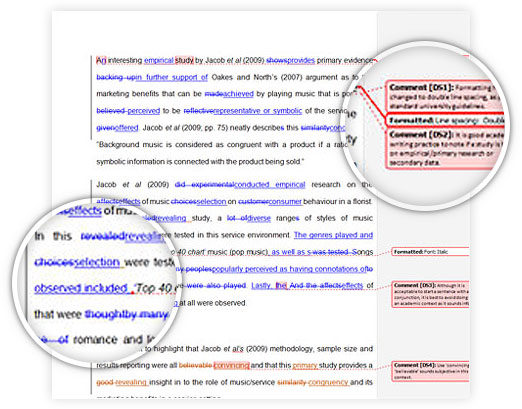
How to Modify a Document: A Step-by-step Guide
Are you struggling to modify documents on your computer, smartphone, or tablet? Look no further! In this comprehensive guide, we will walk you through the process of modifying documents in various formats, including PDF, Word, and scannerized documents.
Understanding The Basics of Document Modification
Before we dive into the specifics, let’s understand the basics of document modification. Modifying a document involves making changes to its content, layout, or formatting. This can include adding text, images, forms, links, and more. The process of modifying a document may vary depending on the software or service being used.
Modifying a Pdf Document
PDF documents are widely used for sharing and printing purposes. However, they can be difficult to modify if you don’t know how. Here’s a step-by-step guide to modifying a PDF document:
Modifying a Pdf Document on Computer
To modify a PDF document on your computer, you’ll need a software that supports editing. Some popular options include LibreOffice and Adobe Acrobat.
- Using Libreoffice: LibreOffice is a free and open-source office suite that can be used to edit PDF documents. To do this, follow these steps:
- Download and install LibreOffice on your computer.
- Open the PDF document you want to modify in LibreOffice.
- Use the editing tools to make changes to the document.
- Save the modified document as a new PDF file.
Modifying a Pdf Document on Smartphone or Tablet
Modifying a PDF document on your smartphone or tablet can be done using various apps, such as Foxit PDF Reader and Xodo PDF Reader and Editor. Here’s how:
- Using Foxit Pdf Reader: Foxit PDF Reader is a popular app for viewing and editing PDF documents.
- Download and install the app on your smartphone or tablet.
- Open the PDF document you want to modify in the app.
- Use the editing tools to make changes to the document.
- Save the modified document as a new PDF file.
Modifying a Word Document
Word documents are widely used for sharing and printing purposes. However, they can be difficult to modify if you don’t know how. Here’s a step-by-step guide to modifying a Word document:
Modifying a Word Document on Computer
To modify a Word document on your computer, you’ll need Microsoft Word or a compatible alternative like LibreOffice.
- Using Microsoft Word: Microsoft Word is the most popular word processing software used for creating and editing documents.
- Open the Word document you want to modify in Microsoft Word.
- Use the editing tools to make changes to the document.
- Save the modified document as a new Word file.
Modifying a Word Document on Smartphone or Tablet
Modifying a Word document on your smartphone or tablet can be done using various apps, such as Microsoft Word and Google Docs. Here’s how:
- Using Microsoft Word: Microsoft Word is available for mobile devices and can be used to edit Word documents.
- Download and install the app on your smartphone or tablet.
- Open the Word document you want to modify in the app.
- Use the editing tools to make changes to the document.
- Save the modified document as a new Word file.
Modifying a Scannerized Document
Scannerized documents are created when you scan physical documents using a scanner. These documents can be saved in various formats, including PDF and Word.
- Using Ocr Software: To modify a scannerized document, you’ll need to use Optical Character Recognition (OCR) software.
- Download and install the OCR software on your computer or mobile device.
- Open the scannerized document in the OCR software.
- Use the editing tools to make changes to the document.
- Save the modified document as a new PDF or Word file.
Conclusion
Modifying documents can be a daunting task, but with the right guidance and resources, it becomes much easier. Whether you’re working on a computer, smartphone, or tablet, there are various software and services available that can help you edit and modify your documents. Remember to use the correct tools for the job and follow the step-by-step instructions provided in this guide.
Frequently Asked Questions
Here are some frequently asked questions related to document modification:
Q: How do I modify a PDF document?
A: You can modify a PDF document using software like LibreOffice or Adobe Acrobat on your computer, or apps like Foxit PDF Reader and Xodo PDF Reader and Editor on your smartphone or tablet.
Q: Can I modify a Word document on my mobile device?
A: Yes, you can modify a Word document on your smartphone or tablet using apps like Microsoft Word or Google Docs.
Q: What is OCR software and how do I use it to modify a scannerized document?
A: OCR software is used to recognize and convert scanned documents into editable text. You can download and install OCR software on your computer or mobile device, open the scannerized document in the software, and use the editing tools to make changes.
Q: Are there any online services that allow me to modify documents?
A: Yes, there are several online services like Google Drive and Microsoft Word Online that allow you to create and edit documents from anywhere.
Q: Can I modify a document on my tablet or smartphone without internet connectivity?
A: Some apps like Foxit PDF Reader and Xodo PDF Reader and Editor allow offline editing, while others may require an internet connection to function properly.


