
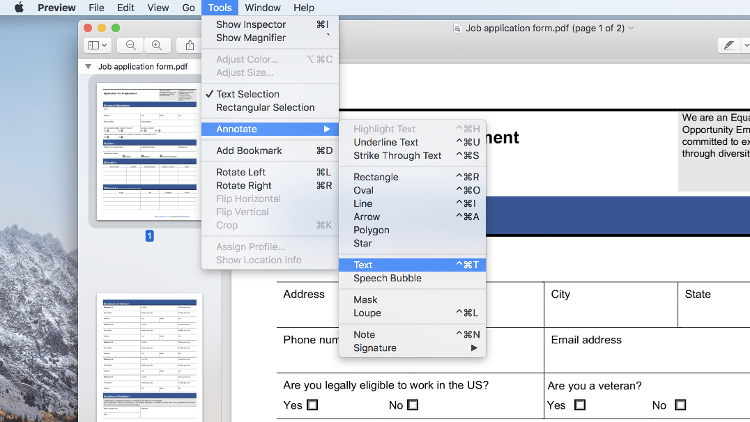
How to Modify a Pdf File: A Step-by-step Guide
Are you struggling to modify a PDF file? Do you want to edit the text, add images, or make other changes without losing the original formatting? Look no further! In this article, we’ll show you how to modify a PDF file using various free software and online tools.
Why Modify a Pdf File?
PDF files are often used for sharing documents, reports, and presentations. However, sometimes you may need to edit or modify the content without changing the original formatting. This can be especially useful when working with sensitive information, such as confidential documents or legal contracts.
Method 1: Using Libreoffice (Windows, Macos, Linux)
LibreOffice is a free and open-source productivity suite that includes a PDF editor. Here’s how to use it:
- Download and install LibreOffice from the official website.
- Open the PDF file in LibreOffice using the “Open” button.
- Select the “Draw” tab to access the editing tools.
- Use the mouse to select and edit the text, add images, or make other changes.
- Save the modified PDF file by clicking on the “Export” button.
Method 2: Using Online Tools (iLovePDF, Sejda)
There are several online tools that allow you to modify PDF files without installing any software. Here’s how to use them:
- Go to the iLovePDF website and select the “Modify PDF” tool.
- Upload your PDF file or select it from Google Drive or Dropbox.
- Use the editing tools to add text, images, or make other changes.
- Save the modified PDF file by clicking on the “Download” button.
Method 3: Using Other Software (PDFill, Pdftk)
There are several other software programs that can help you modify PDF files. Here’s how to use them:
- Download and install PDFill from the official website.
- Open the PDF file in PDFill using the “Open” button.
- Select the editing tools to add text, images, or make other changes.
- Save the modified PDF file by clicking on the “Export” button.
Method 4: Using Google Documents (Google Drive)
You can also use Google Documents to modify a PDF file. Here’s how to do it:
- Upload your PDF file to Google Drive.
- Open the PDF file in Google Documents using the “Open with Google Docs” button.
- Use the editing tools to add text, images, or make other changes.
- Save the modified PDF file by clicking on the “Download” button.
Conclusion
Modifying a PDF file can be a bit tricky, but with the right software and online tools, it’s definitely possible. Whether you’re using LibreOffice, iLovePDF, PDFill, or Google Documents, these methods will guide you through the process of editing and modifying your PDF files. So go ahead, give it a try, and see how easy it is to make changes to your PDF documents!


