
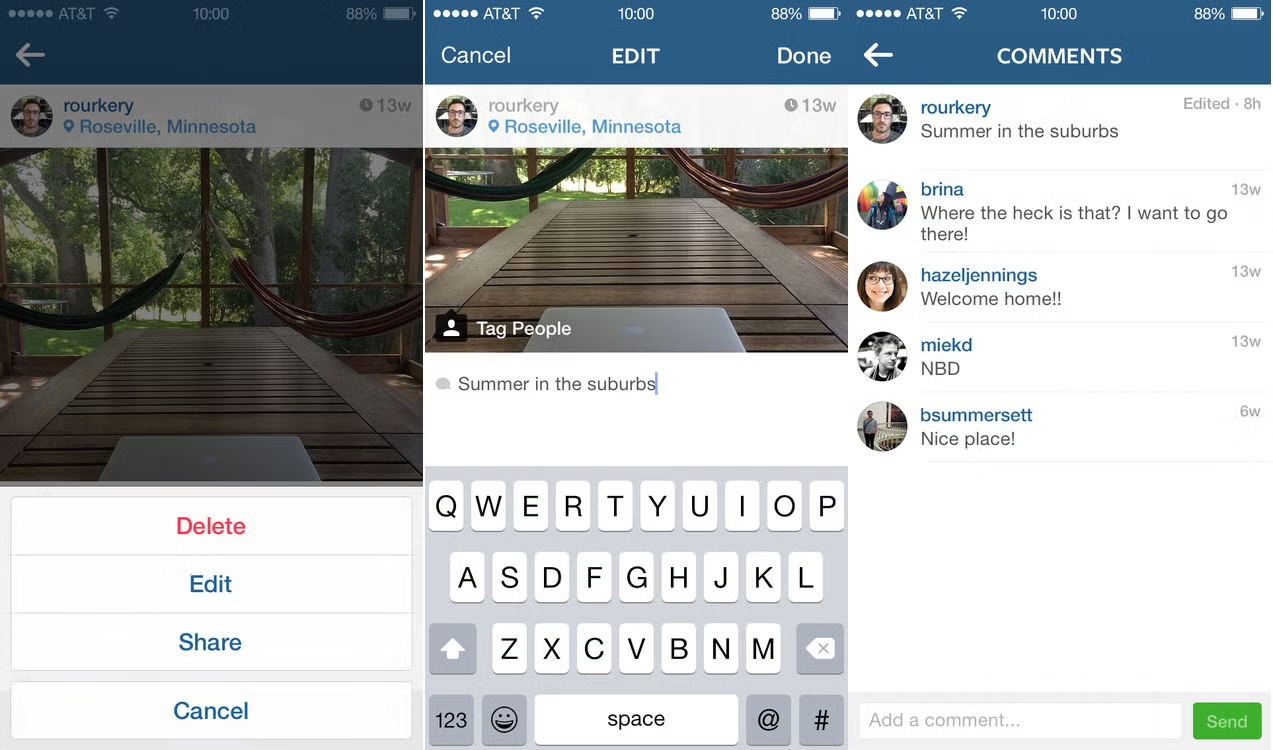
Modifying a Post on Instagram: A Step-by-step Guide
As an avid user of social media, you’ve probably encountered situations where you need to modify a post after it’s been published. Whether it’s correcting a typo, adding a location tag, or changing the caption, Instagram provides several options for modifying posts without deleting them. In this article, we’ll explore how to modify various aspects of an Instagram post, including its description, date, and command.
Modifying a Post on Instagram Without Deleting It
Did you know that you can make some changes to your post after it’s been published? While you can’t rewrite the entire caption or change the photo, there are a few details that can be modified. If you’ve accidentally committed an error of spelling or forgot to add the city where the photo was taken, don’t worry! You can make these corrections without deleting the original post.
To modify your post on Instagram:
- Open The App: On your smartphone or tablet, open the Instagram app (available for Android and iOS devices).
- Go to Your Profile: Tap on the miniature of your photo profile, located in the lower-right corner.
- Select The Post: Choose the post you want to modify by tapping on it.
- Tap on Three Dots: In the upper-right corner, tap on the three dots next to the “Like” button.
- Choose “Edit Post”: Select the option that says “Edit Post.”
- Make Changes: You can now edit the caption, add a location tag, and modify the alternative text.
Modifying The Date of a Post on Instagram
Unfortunately, you cannot change the date of a post after it’s been published. However, there are ways to program the publication of a future post using third-party apps or tools. This way, you can ensure that your post is shared at the desired time without any issues.
Modifying The Command of a Photo in an Instagram Post
While you can’t change the command of a photo after it’s been published, there are ways to prepare and plan ahead. When creating a new post, take the time to choose the perfect command for your image. Remember that once the post is published, you won’t be able to modify the command.
To select the best command for your photo:
- Create a New Post: Tap on the “+” icon at the top of the screen to create a new post.
- Select Multiple Photos: Choose up to 10 photos to include in your post.
- Edit The Selection: Use the “Edit” button to reorder or delete photos as needed.
Instagram’s Algorithm And Post Modifications
While Instagram allows you to modify certain aspects of a post, excessive changes can negatively impact engagement. Remember that the algorithm favors original content, so it’s essential to keep modifications minimal and avoid making significant changes after publication.
Frequently Asked Questions (FAQs)
- Can I Modify an Instagram Comment?
Unfortunately, no! Comments on Instagram cannot be modified once they’ve been posted. - How do I Add a Location Tag to an Existing Post?
Follow the steps outlined above under “Modifying a Post on Instagram without Deleting It.” - Can I Change The Date of a Published Post?
No, you can’t modify the date of a post after it’s been shared. - What if I Accidentally Post a Photo With The Wrong Command?
Don’t worry! While you can’t change the command of a photo in an existing post, you can prepare and select the perfect command when creating a new one.
Conclusion
Instagram provides several options for modifying posts without deleting them. Whether it’s correcting typos or changing captions, remember to keep modifications minimal to avoid affecting engagement. By understanding what can be modified and what can’t, you’ll be able to share high-quality content that resonates with your audience.
Additional Tips
- Always review your post before publishing to catch any errors.
- Use third-party apps or tools to program future posts and save time.
- Experiment with different commands when creating new posts to find the perfect fit.
Sources
- Instagram’s official help center
- Third-party apps and tools for modifying posts and programming future publications
Table 1: Modifying a Post on Instagram Without Deleting It
| Step | Action |
|---|---|
| 1 | Open the Instagram app on your smartphone or tablet. |
| 2 | Go to your profile by tapping on the miniature of your photo profile. |
| 3 | Select the post you want to modify by tapping on it. |
| 4 | Tap on three dots in the upper-right corner next to the “Like” button. |
| 5 | Choose “Edit Post” and make changes as needed. |
Table 2: Modifying The Date of a Post on Instagram
| Step | Action |
|---|---|
| 1 | Use third-party apps or tools to program future posts. |
| 2 | Ensure that your post is published at the desired time without any issues. |
Table 3: Modifying The Command of a Photo in an Instagram Post
| Step | Action |
|---|---|
| 1 | Create a new post by tapping on the “+” icon at the top of the screen. |
| 2 | Select multiple photos to include in your post (up to 10). |
| 3 | Edit the selection using the “Edit” button to reorder or delete photos as needed. |
Note: The tables above summarize key steps and actions for modifying posts on Instagram, but please refer to the main article for more detailed information and clarification.


