
How to Edit a Video: A Step-by-step Guide
Are you looking to edit a video like a pro? With the right tools and techniques, you can take your videos to the next level and make them more engaging for your audience. In this article, we’ll explore the best ways to edit a video, whether you’re using a computer, smartphone, or online service.
Why Edit a Video?
Editing a video is an essential step in creating high-quality content that resonates with your viewers. By editing a video, you can:
- Remove unnecessary footage and improve pacing
- Add transitions, effects, and music to enhance visual appeal
- Correct audio levels and ensure clear sound quality
- Add text overlays and captions for better understanding
Best Software For Video Editing
There are many software options available for video editing, each with its own strengths and weaknesses. Here are some of the best software options:
PC And Mac:
- Adobe Premiere Pro: A professional-level editor that’s part of Adobe’s Creative Cloud suite.
- Final Cut Pro X: A powerful editor specifically designed for Mac users.
- Avidemux: A free, open-source editor with a user-friendly interface.
Smartphone And Tablet:
- Imovie (iOS): A free, user-friendly editor that comes pre-installed on iOS devices.
- Kinemaster (Android/iOS): A powerful editor with advanced features like color correction and keyframe animation.
- Inshot (Android/iOS): A free editor with a range of advanced features.
Online Services:
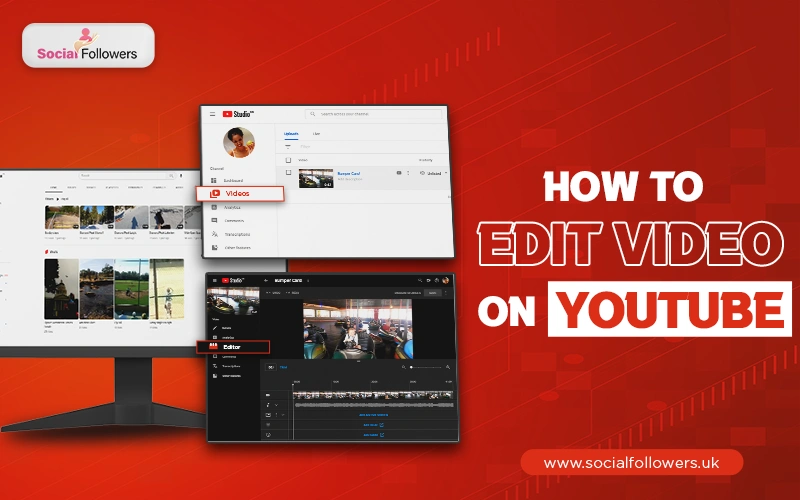
- Youtube: A built-in editor that allows you to edit videos directly on the platform.
- Wevideo: A cloud-based editor that allows collaboration and sharing.
- Clipchamp: A free online editor with advanced features like color correction and keyframe animation.
How to Edit a Video: Step-by-step Guide
Editing a video can seem daunting, but it’s actually quite straightforward once you get the hang of it. Here’s a step-by-step guide to editing a video using PC or Mac software:
- Import Your Footage: Add your video files to the editor by clicking on “Import” or dragging and dropping them into the timeline.
- Trim And Split Clips: Use the trim tool to remove unnecessary parts of the video, and split clips to separate different scenes.
- Add Transitions And Effects: Choose from a range of pre-made transitions and effects to add visual interest to your video.
- Correct Audio Levels: Ensure that the audio is clear and even throughout the video.
- Export Your Final Edit: Once you’re happy with your edited video, export it in the desired format (e.G., MP4, AVI).
Tips For Editing a Video:
- Keep it Simple: Don’t overcomplicate your edit – stick to a clear and concise narrative.
- Use Color Correction: Correct the colors in your footage to ensure consistency throughout the video.
- Add Captions And Text Overlays: Enhance understanding by adding captions, titles, and other text elements.
Conclusion
Editing a video is an essential step in creating high-quality content that resonates with your audience. By using the right software and techniques, you can take your videos to the next level and make them more engaging for your viewers. Remember to keep it simple, use color correction, and add captions and text overlays to enhance understanding.
Frequently Asked Questions (FAQs)
- What is The Best Video Editing Software?
- Adobe Premiere Pro is a professional-level editor that’s part of Adobe’s Creative Cloud suite.
- Can I Edit a Video on my Smartphone?
- Yes, you can use apps like iMovie (iOS) or KineMaster (Android/iOS) to edit videos directly on your mobile device.
- What Online Services Allow Video Editing?
- YouTube, WeVideo, and Clipchamp are popular online editors that allow collaboration and sharing.
- How do I Export my Edited Video?
- Export your final edit in the desired format (e.G., MP4, AVI) by clicking on “Export” or dragging and dropping it into a new project.
- Can I Add Captions And Text Overlays to my Video?
- Yes, most editors allow you to add captions, titles, and other text elements to enhance understanding.
Sources:
- Adobe Premiere Pro
- Final Cut Pro X
- Avidemux
- IMovie (iOS)
- KineMaster (Android/iOS)
- InShot (Android/iOS)
- YouTube
- WeVideo
- Clipchamp


