
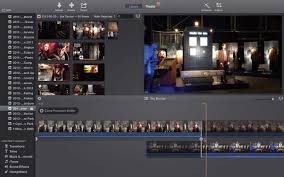
Editing a Video With Imovie: A Comprehensive Guide
Are you looking to edit a video like a pro? Look no further than iMovie, the free video editing software produced by Apple. With its user-friendly interface and robust features, iMovie is the perfect tool for creating stunning videos that will leave your audience impressed.
Getting Started With Imovie
Before we dive into the nitty-gritty of using iMovie, let’s cover the basics. To access iMovie on your Mac, simply click on the Launchpad icon in your Dock or search for it in Spotlight. If you’re using an iPhone or iPad, iMovie is already installed and ready to use.
Creating a New Project
Once you’ve opened iMovie, you’ll be presented with two options: “Rows” and “Blueprints”. Clicking on the Blueprints option will give you access to a new project. From here, you can choose from several video templates, including Filmed and Trailer.
Importing Media And Organizing Your Timeline
To add media to your project, click on the “+” button in the top-left corner of the screen or drag files directly into the timeline. You can also import media from other devices using AirDrop or iCloud Drive. To organize your media, use the drag-and-drop functionality to arrange clips in the order you want them to appear.
Applying Effects And Modifications
IMovie comes with a range of effects and modifications that you can apply to your video. These include filters, transitions, and color adjustments. You can access these features by clicking on the “Effects” tab in the top toolbar or using the keyboard shortcuts provided.
Saving Your Project And Exporting Your Video
Once you’ve finished editing your project, save it by clicking on the “Save As…” Option in the File menu. To export your video, click on the “Share” button in the top-right corner of the screen. From here, you can choose to share your video on YouTube, Facebook, Vimeo, or via email.
Editing a Video With Imovie on Iphone And Ipad
If you’re using an iPhone or iPad, editing a video with iMovie is just as easy. To access iMovie, tap on the app icon on your home screen. Once open, click on the “+” button to create a new project. From here, choose from several templates or start from scratch.
Importing Media And Organizing Your Timeline
To add media to your project, tap on the “+” button in the top-right corner of the screen or drag files directly into the timeline. You can also import media from other devices using AirDrop or iCloud Drive. To organize your media, use the drag-and-drop functionality to arrange clips in the order you want them to appear.
Applying Effects And Modifications
IMovie comes with a range of effects and modifications that you can apply to your video. These include filters, transitions, and color adjustments. You can access these features by tapping on the “Effects” tab in the bottom toolbar or using the keyboard shortcuts provided.
Saving Your Project And Exporting Your Video
Once you’ve finished editing your project, save it by clicking on the “Save As…” Option in the File menu. To export your video, click on the “Share” button in the top-right corner of the screen. From here, you can choose to share your video on YouTube, Facebook, Vimeo, or via email.
Tips And Tricks
- Use the drag-and-drop functionality to arrange clips in the order you want them to appear.
- Experiment with different effects and modifications to enhance your video.
- Save your project regularly to avoid losing any changes.
- Export your video in the highest quality possible to ensure it looks its best on various devices.
Conclusion
Editing a video with iMovie is easier than ever, thanks to its user-friendly interface and robust features. Whether you’re using a Mac or an iPhone/iPad, iMovie has got you covered. With this comprehensive guide, you’ll be well on your way to creating stunning videos that will leave your audience impressed.
Frequently Asked Questions
- What is The Minimum System Requirement For Running Imovie?
- A Mac with macOS High Sierra 10.13 Or later
- Can I Edit a Video With Imovie on my Iphone or Ipad?
- Yes, iMovie is pre-installed on all iOS devices
- How do I Import Media Into Imovie?
- Drag files directly into the timeline or use AirDrop/Icloud Drive to import from other devices
- What Are Some Tips For Exporting a Video in High Quality?
- Export your video in 4K, use the highest bitrate possible, and select the best format for your device
- Can I Add Effects And Modifications to my Video?
- Yes, iMovie comes with a range of filters, transitions, and color adjustments that you can apply to your video
- How do I Save my Project in Imovie?
- Click on the “Save As…” Option in the File menu
- Can I Share my Video on Social Media Platforms?
- Yes, iMovie allows you to share your video directly to YouTube, Facebook, Vimeo, and more


