
Creating Your Own Memoji: A Step-by-step Guide
Are you tired of using the same old emoji to express yourself? Do you want to add a personal touch to your messages? Look no further than creating your own Memoji on iPhone! In this article, we’ll take you through the steps to create and modify your very own Memoji.
What is a Memoji?
A Memoji is an emoji that uses facial recognition technology to create a digital representation of your face. It’s like having a personalized avatar that can express various emotions and reactions. Unlike Animoji, which are animal-based emojis, Memoji allow you to customize the appearance of your emoji to match your own features.
When Can I Use Memoji?
Unfortunately, not all iPhone users can create and use Memoji. This feature is available on iOS 13 and later devices, as well as iPadOS 13 and later tablets. Additionally, you’ll need an iPhone with Face ID capabilities to access this feature.
How to Create a Memoji on Iphone
Creating a Memoji is relatively easy. Here’s how:
- Take Your Iphone: First, take your iPhone and unlock it.
- Open Messages: Open the Messages app, which is typically found on the home screen.
- Compose a New Message: Tap on the pencil icon in the top-right corner to start composing a new message.
- Access Memoji: Look for the Animoji icon (a monkey) below the text input field and tap on it. This will open up the Memoji section.
- Choose Your Memoji: Select your existing Memoji or create a new one by tapping on the “+” icon.
How to Modify a Memoji
Want to make some changes to your existing Memoji? Follow these steps:
- Access The Memoji Menu: Tap on the three dots in the top-right corner of the Messages screen.
- Select Memoji: Choose the Memoji you want to modify from the list.
- Tap on The Pencil Icon: Select the pencil icon next to your Memoji name.
Modifying Your Memoji
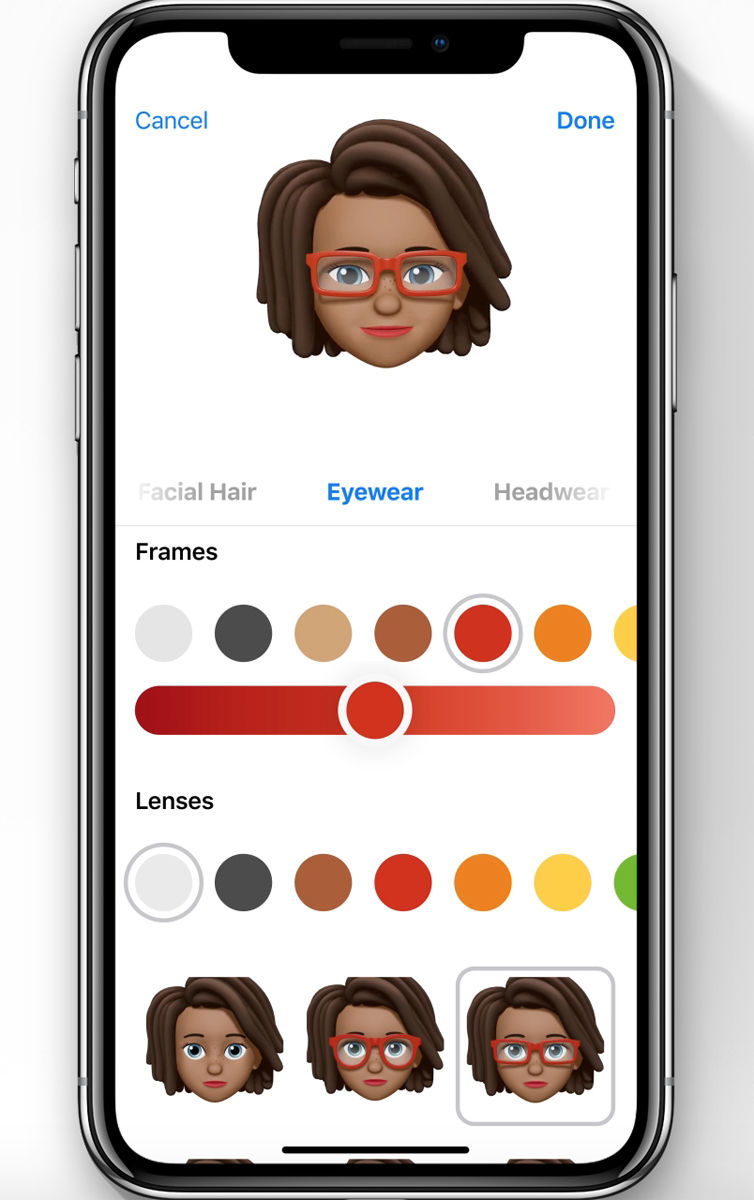
Now, it’s time to get creative! Here are some steps to help you customize your Memoji:
- Complexion: Choose a skin tone and apply freckles or moles if desired.
- Hair: Select the hairstyle and color that suits you best.
- Eyebrows: Choose the shape, color, and add signs on your forehead (if needed).
- Eyes: Define eye color, shape, and size, as well as eyelash style.
- Head: Specify age, face shape, or other characteristics.
- Nose: Select nose type and add piercings if desired.
- Mouth: Define lip shape, color, and decide on piercing (if needed).
- Ears: Choose ear shape, size, and whether to add earrings.
Save Your Changes
When you’re happy with your Memoji modifications, tap the “Done” button in the top-right corner. You’ll see your updated Memoji reflected in real-time!
Conclusion
Creating a custom Memoji on iPhone is an exciting way to personalize your digital interactions. With this guide, you’ve learned how to create and modify your very own Memoji. Remember that Memoji are not available on all devices, so check your compatibility before getting started.
Frequently Asked Questions (FAQs)
Here are some frequently asked questions about creating a custom Memoji:
- Q: Can I Use Memoji in Other Messaging Apps?
A: Yes! You can access and modify your Memoji within the Messages app on iPhone, but also within other compatible messaging apps like Mail, WhatsApp, or Facebook Messenger. - Q: How do I Reset my Memoji to Its Original State?
A: Simply go back to the Memoji menu, select “Reset,” and your emoji will revert to its default appearance. - Q: Can I Create Multiple Memoji Profiles?
A: Yes! You can have multiple Memoji profiles saved on your iPhone. Just access the Memoji section within Messages and select a different profile from the list.
We hope this guide has helped you unleash your creativity with custom Memoji on iPhone!


