
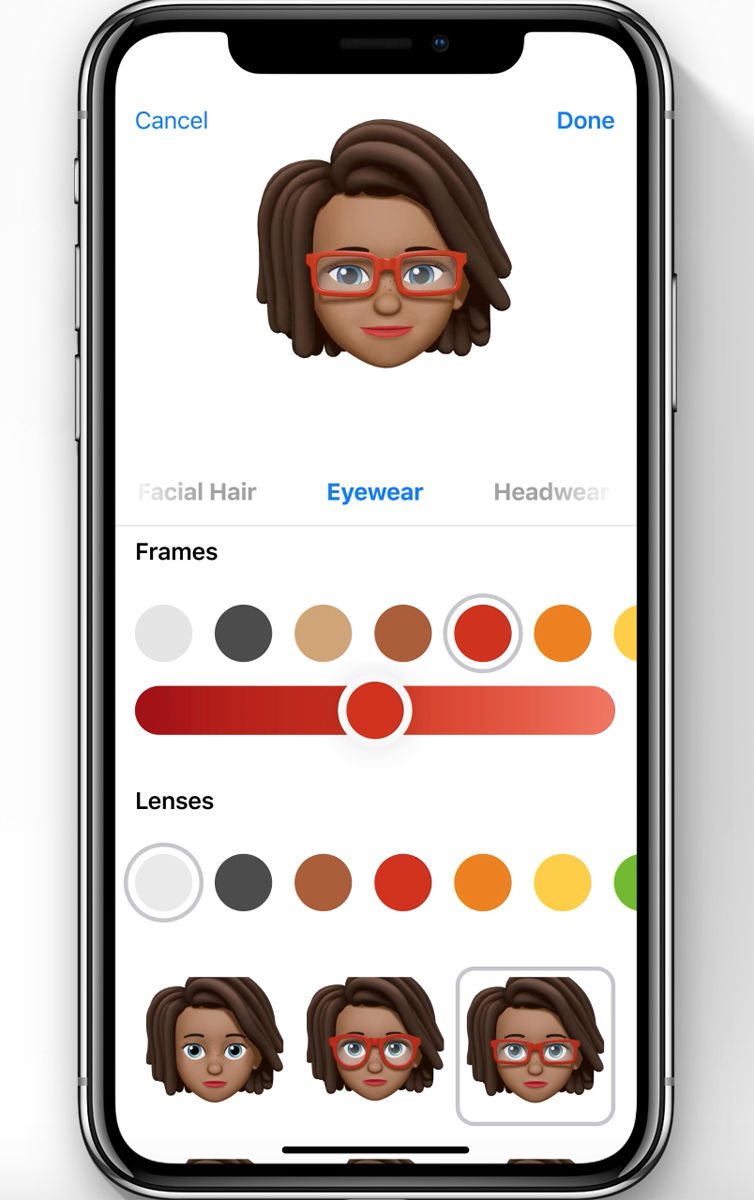
How to Modify Memoji on Iphone
Are you tired of using the same old Memoji on your iPhone? Do you want to give your avatar a fresh new look? Look no further! In this article, we will guide you through the step-by-step process of modifying your Memoji on your iPhone.
What Are Memojis?
Memojis are personalized avatars that you can use in Messages and other Apple apps. They allow you to express yourself with different emotions, hairstyles, and accessories. With the latest update to iOS, you can now create custom Memojis using your own facial expressions and features.
How to Modify Memoji on Iphone
Modifying your Memoji is a straightforward process that can be done in just a few minutes. Here’s how:
- Access The Messages App: Open the Messages app on your iPhone by tapping on its icon.
- Create or Open a Conversation: Tap on the “Compose” button to create a new message, or open an existing conversation.
- Tap on The Memoji Icon: Tap on the Memoji icon in the bottom-left corner of the screen.
- Select Your Memoji: Select your Memoji from the list of available Memojis.
- Modify Your Memoji: Tap on the “…” Icon to access the Memoji editor. From here, you can modify various aspects of your Memoji, such as:
- Complexion
- Hair color and style
- Eyebrows
- Eyes
- Head shape
- Nose
- Mouth
- Ears
- Beard
- Glasses
- Hat
- Clothing
How to Modify Memoji on Ipad
Modifying your Memoji on an iPad is just as easy as on an iPhone. Here’s how:
- Access The Messages App: Open the Messages app on your iPad by tapping on its icon.
- Create or Open a Conversation: Tap on the “Compose” button to create a new message, or open an existing conversation.
- Tap on The Memoji Icon: Tap on the Memoji icon in the bottom-left corner of the screen.
- Select Your Memoji: Select your Memoji from the list of available Memojis.
- Modify Your Memoji: Tap on the “…” Icon to access the Memoji editor.
How to Modify Memoji on Mac
Modifying your Memoji on a Mac is also possible, and here’s how:
- Access The Messages App: Open the Messages app on your Mac by clicking on its icon in the Dock.
- Create or Open a Conversation: Click on the “Compose” button to create a new message, or open an existing conversation.
- Tap on The Memoji Icon: Tap on the Memoji icon in the top-right corner of the screen.
- Select Your Memoji: Select your Memoji from the list of available Memojis.
- Modify Your Memoji: Click on the “…” Icon to access the Memoji editor.
How to Modify Adhesive Memoji
Adhesive Memojis are special memojis that come with a set of stickers and emojis that can be used in Messages. Modifying an adhesive Memoji is not possible directly, but you can create a new Memoji by duplicating your existing avatar. Here’s how:
- Access The Messages App: Open the Messages app on your iPhone or iPad.
- Create or Open a Conversation: Tap on the “Compose” button to create a new message, or open an existing conversation.
- Tap on The Memoji Icon: Tap on the Memoji icon in the bottom-left corner of the screen.
- Duplicate Your Avatar: Tap on the “…” Icon and select the “Duplicate” option.
How to Modify ID Apple Memojis
Modifying your ID Apple Memoji is possible, but it requires you to access your contact settings. Here’s how:
- Access The Contacts App: Open the Contacts app on your iPhone or iPad.
- Edit Your Contact Information: Tap on the edit button next to your name at the top of the screen.
- Modify Your Memoji: Select your Memoji from the list of available Memojis.
Frequently Asked Questions
Here are some frequently asked questions about modifying memojis:
Q: How do I create a new Memoji?
A: To create a new Memoji, open the Messages app and tap on the Memoji icon. From here, you can select your existing avatar or create a new one using the Memoji editor.
Q: Can I modify my ID Apple Memoji?
A: Yes, you can modify your ID Apple Memoji by accessing your contact settings in the Contacts app.
Q: How do I duplicate my Memoji to create more adhesives?
A: To duplicate your Memoji, open the Messages app and tap on the Memoji icon. From here, select your existing avatar and tap on the “…” Icon to access the Memoji editor. Select the “Duplicate” option to create a new avatar.
Q: Can I use memojis on Android devices?
A: Unfortunately, no. Memojis are exclusive to Apple devices, but you can create custom avatars using third-party apps on Android devices.
Q: How do I modify my Memoji on an iPad?
A: To modify your Memoji on an iPad, open the Messages app and tap on the Memoji icon. From here, select your existing avatar and tap on the “…” Icon to access the Memoji editor.
Q: Can I use memojis in other Apple apps?
A: Yes! You can use your memojis in various Apple apps, including Messages, FaceTime, and even as your contact photo in the Contacts app.
In conclusion, modifying your Memoji is a simple process that can be done on iPhone, iPad, and Mac devices. Whether you want to give your avatar a fresh new look or create more adhesives, we’ve got you covered!


