
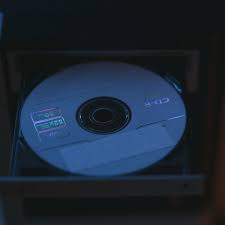
How to Expel a CD From Your Mac: A Step-by-step Guide
Are you struggling to remove a CD from your MacBook’s superdrive? Don’t worry, we’ve got you covered! In this article, we’ll show you how to expel a CD from your Mac in various circumstances, including normal conditions and when the drive is stuck.
Table 1: Methods to Expel a CD From Your Mac
| Method | Description |
|---|---|
| Tasto Eject | Pressing the Eject key on your keyboard |
| Finder | Using the Finder to expel the CD |
| Scorciatoia di Tastiera | Using keyboard shortcuts |
| Cestino | Dragging and dropping the CD icon into the Trash |
| Utility Disco | Using the Utility Disc tool |
Table 2: Troubleshooting Tips For Stuck Cds
| Problem | Solution |
|---|---|
| CD Stuck in Drive | Try restarting your Mac, logging out and back in, or using the drutil eject command |
| CD Not Expelling Despite Using Methods Above | Shut down your Mac, wait 10 minutes, and try again |
Why is my CD Stuck?
Before we dive into the solutions, let’s explore why CDs get stuck in the first place. It could be due to a software glitch, hardware malfunction, or simply because you’ve had it inserted for too long.
Method 1: Using The Tasto Eject Key
If you’re new to using a Mac, don’t worry! Expelling a CD is as easy as pressing a key. Locate the Eject key on your keyboard (usually marked with an arrow pointing away from the computer). Press this key, and the CD should come out.
Method 2: Using The Finder
If the Tasto Eject method doesn’t work for you, try using the Finder to expel the CD. Here’s how:
- Click on “Go” in the menu bar
- Select “Computer”
- Open the Finder window
- Locate the icon of your Mac on the left-hand side
- Right-click (or control-click) on the diskette icon and select “Eject”
Method 3: Using Keyboard Shortcuts
If you’re a keyboard enthusiast, you’ll love this method. To expel a CD using keyboard shortcuts:
- Select the diskette icon on your desktop or in the Finder
- Press Command (⌘) + E
Method 4: Using The Cestino
The Trash is another way to get rid of unwanted CDs. Here’s how:
- Drag and drop the CD icon into the Trash
- The CD should come out, just like magic!
Method 5: Using Utility Disco
If none of the above methods work for you, try using the Utility Disc tool. This method might require some technical expertise, but don’t worry – we’ve got you covered!
To use Utility Disc:
- Open Launchpad
- Select the icon of Utility Disc
- Locate your CD drive on the left-hand side and select it
- Click the Eject button
Troubleshooting Tips
If none of these methods work for you, fear not! We’ve got some additional tips to help you troubleshoot the issue:
- Try restarting your Mac
- Log out and back in
- Use the drutil eject command (for advanced users)
Conclusion
Removing a CD from your MacBook’s superdrive might seem daunting at first, but we hope this guide has shown you that it’s actually quite simple. Remember to try different methods until you find one that works for you.
Frequently Asked Questions
Q: Why is my CD stuck?
A: CDs get stuck due to software glitches, hardware malfunctions, or prolonged insertion.
Q: Can I use a keyboard shortcut to expel a CD from my Mac?
A: Yes, Command (⌘) + E should do the trick!
Q: What if none of these methods work for me?
A: Try restarting your Mac, logging out and back in, or using the drutil eject command.
Q: Is it safe to use the Utility Disc tool?
A: Yes, but only if you’re comfortable with technical jargon and understand how to use the Terminal.
Q: What should I do if my CD is stuck after trying all these methods?
A: Contact Apple Support for assistance.


