
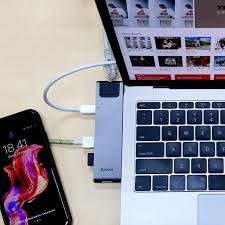
How to Safely Remove a Usb Drive From Your Mac
Removing a USB drive from your Mac is a crucial operation that should not be taken lightly. If you don’t follow the proper procedure, you risk damaging your data or even your computer. In this article, we’ll guide you through the safe and easy ways to remove a USB drive from your Mac.
Why Safe Removal Matters
When you plug in a USB drive, it becomes an external device that can be accessed by your Mac. If you don’t properly eject the drive before removing it, you may experience data corruption or even damage to your computer’s operating system. This is why safe removal is essential when working with USB drives.
Methods For Safe Removal
There are several ways to safely remove a USB drive from your Mac. Here are some of the most common methods:
1. Using The Finder
The first and easiest method is to use the Finder. To do this:
- Open the Finder on your Mac.
- Locate the USB drive in the sidebar or by searching for it in the top-right corner.
- Click on the “Eject” button next to the drive’s name.
- Wait for the drive to be safely ejected before removing it.
2. Using The Disk Utility
Another method is to use the Disk Utility app that comes with your Mac. To do this:
- Open the Disk Utility app from the Applications/Utilities folder.
- Select the USB drive from the list of devices on the left-hand side.
- Click on the “Eject” button at the top-right corner of the window.
- Wait for the drive to be safely ejected before removing it.
3. Using The Terminal
If you’re comfortable using the command line, you can use the Terminal app to eject a USB drive. To do this:
- Open the Terminal app from the Applications/Utilities folder.
- Type in the command
diskutil eject /dev/diskx(where “x” is the number of the USB drive) and press Enter. - Wait for the drive to be safely ejected before removing it.
4. Using Undock
Lastly, you can use a third-party app called unDock that makes safe removal easy. To do this:
- Download and install the unDock app from the Mac App Store.
- Launch the app and select the USB drive you want to eject.
- Click on the “Eject” button at the bottom of the window.
- Wait for the drive to be safely ejected before removing it.
What If The Drive is Blocked?
If your USB drive becomes blocked, you may not be able to safely remove it. In this case, try restarting your Mac and then attempting to eject the drive again. If the problem persists, try using one of the other methods listed above.
Conclusion
Removing a USB drive from your Mac should always be done with care. By following these easy steps, you can ensure that your data is safe and your computer remains in good working order. Remember to always safely remove any external devices before disconnecting them from your Mac.
Frequently Asked Questions (FAQs)
- Q: What Happens if I Don’t Safely Remove a Usb Drive?
A: If you don’t safely remove a USB drive, you may experience data corruption or damage to your computer’s operating system. - Q: Can I Use Any Method to Safely Remove a Usb Drive?
A: No, not all methods are safe for removing a USB drive. Always follow the proper procedure for safe removal. - Q: What if my Usb Drive is Blocked?
A: If your USB drive becomes blocked, try restarting your Mac and then attempting to eject the drive again. If the problem persists, try using one of the other methods listed above. - Q: Is There an App That Can Make Safe Removal Easy?
A: Yes, you can use a third-party app called unDock that makes safe removal easy.
Conclusion
Removing a USB drive from your Mac is a simple process when done correctly. Always follow the proper procedure for safe removal to ensure that your data remains safe and your computer continues to function properly.


