
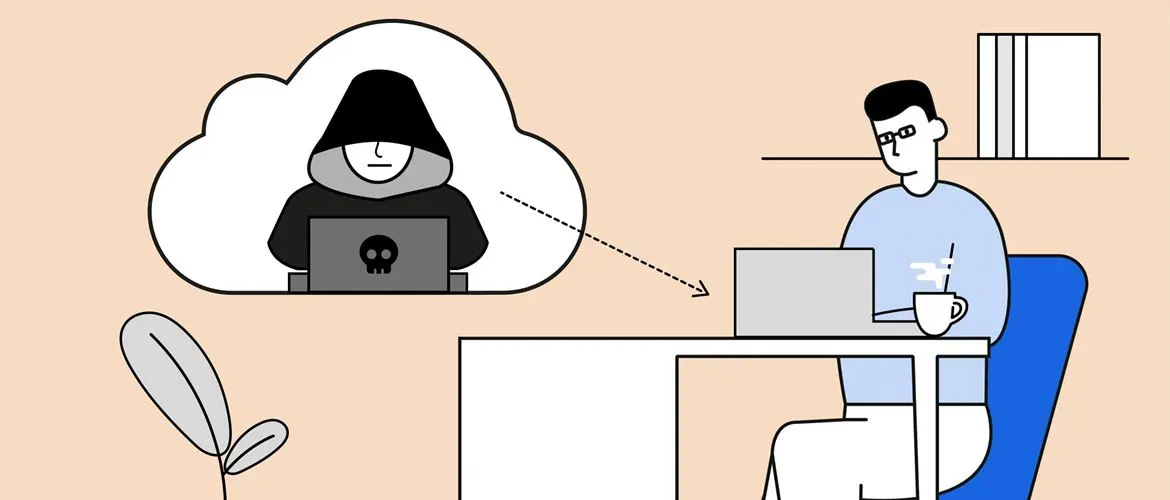
How to Delete a Hacker From Your Pc: A Step-by-step Guide
Are you concerned about the security of your computer? Have you fallen victim to a hacker who has compromised your system? Don’t worry, we’ve got you covered! In this article, we’ll guide you through a step-by-step process on how to delete a hacker from your PC and keep it safe.
Understanding The Threat
Before we dive into the solution, let’s understand the threat. Hackers are individuals who exploit vulnerabilities in software or systems to gain unauthorized access to sensitive information. They can use various tactics, including phishing, malware, and SQL injection, to compromise your system.
Step 1: Contain The Situation
The first step is to contain the situation by stopping any malicious activity on your PC. This involves:
- Closing All Unnecessary Applications: Close all apps, browsers, and other programs running in the background.
- Disconnecting From The Internet: Disconnect your computer from the internet to prevent further data breaches.
- Booting in Safe Mode: Boot your PC in safe mode to prevent any malicious software from loading.
Step 2: Check For Suspicious Programs
Next, you need to check if there are any suspicious programs running on your system. This involves:
- Checking The Task Manager: Open the Task Manager and look for any processes that seem suspicious or unknown.
- Running a System Scan: Run a full system scan using an anti-virus software to detect and remove any malware.
Step 3: Update Your Software
Make sure your operating system, browser, and other software are up-to-date. This will help patch any vulnerabilities that may be exploited by hackers.
Step 4: Use a Firewall
A firewall is a crucial tool in blocking unauthorized access to your computer. Make sure it’s enabled and configured correctly:
- Windows Firewall: If you’re using Windows, make sure the Windows Firewall is enabled.
- Mac Firewall: If you’re using a Mac, use the built-in firewall or consider using a third-party app.
Step 5: Monitor Your Activity
Keep an eye on your computer activity by monitoring:
- System Logs: Check system logs for any suspicious activity.
- Network Traffic: Monitor network traffic to detect any unauthorized access.
Additional Tips
To prevent hackers from compromising your PC in the future, follow these additional tips:
- Regularly Update Software: Keep your operating system, browser, and other software up-to-date.
- Use Strong Passwords: Use unique and complex passwords for all accounts.
- Be Cautious With Emails: Avoid opening suspicious emails or attachments.
- Use a Reputable Antivirus: Install a trusted antivirus software to protect against malware.
Conclusion
Deleting a hacker from your PC requires careful planning, execution, and ongoing monitoring. By following these steps and tips, you can protect your system from unauthorized access and keep your sensitive information safe.
Frequently Asked Questions (FAQs)
Here are some frequently asked questions related to this topic:
- Q: How do I Know if my PC Has Been Hacked?
A: Look for suspicious activity on your computer, such as unfamiliar programs or processes running in the background. - Q: What Should I do if I Suspect my PC Has Been Hacked?
A: Disconnect from the internet, close all unnecessary applications, and boot in safe mode. - Q: How Can I Prevent Hackers From Compromising my Pc?
A: Regularly update software, use strong passwords, be cautious with emails, and install a reputable antivirus.
Remember: Protecting your computer is an ongoing process that requires regular monitoring and maintenance. By following these tips and guidelines, you can keep your system safe from unauthorized access and prevent hackers from compromising your sensitive information.


