
How to Block Annoying Pop-ups on Your Browser
Are you tired of dealing with annoying pop-ups on your browser? You’re not alone! Pop-ups can be frustrating, especially when they interrupt your online experience. But don’t worry, we’ve got the solution for you. In this article, we’ll show you how to block pop-ups on various browsers, including Google Chrome, Mozilla Firefox, Microsoft Edge, Safari, and Internet Explorer.
What Are Pop-ups?
Pop-ups are those pesky windows that appear suddenly when you visit a website or click on a link. They can be annoying, especially if they’re trying to sell you something or prompt you to download an app. But did you know that some pop-ups can even compromise your security?
Why Block Pop-ups?
Blocking pop-ups is essential for several reasons:
- Security: Some pop-ups can be malicious and try to install malware on your device.
- Frustration: Constantly dealing with pop-ups can be frustrating, especially if they’re intrusive or annoying.
- Privacy: By blocking pop-ups, you can maintain your online privacy and avoid unwanted tracking.
How to Block Pop-ups on Google Chrome
To block pop-ups on Google Chrome, follow these steps:
- Click on the three dots in the top-right corner of the browser window.
- Select “Settings” from the dropdown menu.
- Scroll down to the “Privacy and security” section.
- Click on “Site settings.”
- Scroll down to the “Pop-ups and redirects” section.
- Toggle the switch to turn off pop-ups.
How to Block Pop-ups on Mozilla Firefox
To block pop-ups on Mozilla Firefox, follow these steps:
- Click on the three horizontal lines in the top-right corner of the browser window.
- Select “Options” from the dropdown menu.
- Scroll down to the “Privacy and security” section.
- Click on “Permissions.”
- Toggle the switch to turn off pop-ups.
How to Block Pop-ups on Microsoft Edge
To block pop-ups on Microsoft Edge, follow these steps:
- Click on the three dots in the top-right corner of the browser window.
- Select “Settings” from the dropdown menu.
- Scroll down to the “Privacy and security” section.
- Click on “Cookie and site permissions.”
- Toggle the switch to turn off pop-ups.
How to Block Pop-ups on Safari
To block pop-ups on Safari, follow these steps:
- Open the Settings app on your device.
- Scroll down to the “Safari” section.
- Tap on “Block Pop-Ups.”
- Toggle the switch to turn on blocking.
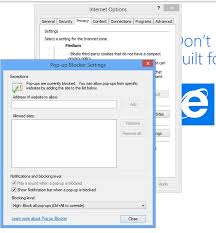
How to Block Pop-ups on Internet Explorer
To block pop-ups on Internet Explorer, follow these steps:
- Click on the gear icon in the top-right corner of the browser window.
- Select “Internet options” from the dropdown menu.
- Click on the “Privacy” tab.
- Toggle the switch to turn off pop-ups.
Tips And Tricks
Here are some additional tips and tricks for blocking pop-ups:
- Use a Vpn: Consider using a virtual private network (VPN) to protect your online identity and block unwanted tracking.
- Update Your Browser: Make sure you’re running the latest version of your browser to ensure you have the most up-to-date security features.
- Be Cautious With Downloads: Avoid downloading software or apps from unfamiliar websites, as they may contain malware.
Conclusion
Blocking pop-ups is an essential step in maintaining online security and preventing frustration. By following these simple steps on various browsers, including Google Chrome, Mozilla Firefox, Microsoft Edge, Safari, and Internet Explorer, you can enjoy a smoother and more secure browsing experience.
Faqs
- What Are The Benefits of Blocking Pop-ups?
Blocking pop-ups helps maintain online security, prevents frustration, and preserves your online privacy. - How do I Block Pop-ups on Google Chrome?
To block pop-ups on Google Chrome, follow these steps: Click on the three dots in the top-right corner of the browser window, select “Settings,” scroll down to the “Privacy and security” section, click on “Site settings,” scroll down to the “Pop-ups and redirects” section, and toggle the switch to turn off pop-ups. - Can I Block Pop-ups on Safari?
Yes, you can block pop-ups on Safari by opening the Settings app, scrolling down to the “Safari” section, tapping on “Block Pop-Ups,” and toggling the switch to turn on blocking. - How do I Update my Browser For Better Security Features?
To update your browser, click on the gear icon in the top-right corner of the browser window, select “About [Browser Name],” and follow the prompts to download and install the latest version. - Can Pop-ups Harm my Device?
Yes, some pop-ups can contain malware that can harm your device or compromise your online security. - How do I Block Unwanted Tracking on my Device?
To block unwanted tracking, consider using a VPN or updating your browser with the latest security features.
We hope this article has helped you understand how to block annoying pop-ups on your browser. If you have any further questions or concerns, feel free to ask!


