
How to Clean Up Your Gmail Account: A Step-by-step Guide
Are you tired of dealing with a cluttered Gmail account? Do you struggle to find the time to sort through your emails and delete the ones that are no longer relevant? If so, this article is for you.
In this guide, we’ll show you how to clean up your Gmail account using both desktop and mobile devices. We’ll cover the steps involved in deleting unwanted emails, as well as some tips on how to manage your inbox more efficiently.
The Importance of Cleaning Up Your Gmail Account
Before we dive into the nitty-gritty of cleaning up your Gmail account, let’s take a step back and consider why this is so important. A cluttered email inbox can lead to frustration, wasted time, and even decreased productivity.
When you have too many emails in your inbox, it can be difficult to find the ones that are actually important. You may miss important messages from friends, family, or colleagues because they get lost amidst the clutter.
Additionally, a cluttered inbox can also impact your mental health. Studies have shown that having too much email stress can lead to feelings of anxiety and burnout.
Step 1: Identify Unwanted Emails
The first step in cleaning up your Gmail account is to identify which emails are no longer relevant or important. This may include:
- Old newsletters and promotional emails
- Spam messages
- Duplicate emails
- Emails from people you no longer communicate with
Once you’ve identified these unwanted emails, you can begin the process of deleting them.
How to Delete Unwanted Emails on Desktop
To delete unwanted emails on desktop, follow these steps:
- Log in to your Gmail account using a web browser.
- Click on the “Search” button at the top of the page and type in keywords related to the emails you want to delete (e.G., Newsletters, spam).
- Select the emails you want to delete by checking the boxes next to them.
- Click on the “Delete” button at the top of the page.
How to Delete Unwanted Emails on Mobile
To delete unwanted emails on mobile, follow these steps:
- Open the Gmail app on your smartphone or tablet.
- Tap on the three horizontal lines in the top left corner of the screen.
- Select the “Search” option and type in keywords related to the emails you want to delete (e.G., Newsletters, spam).
- Select the emails you want to delete by checking the boxes next to them.
- Tap on the “Delete” button at the bottom of the screen.
Step 2: Delete Emails From The Promotions Tab
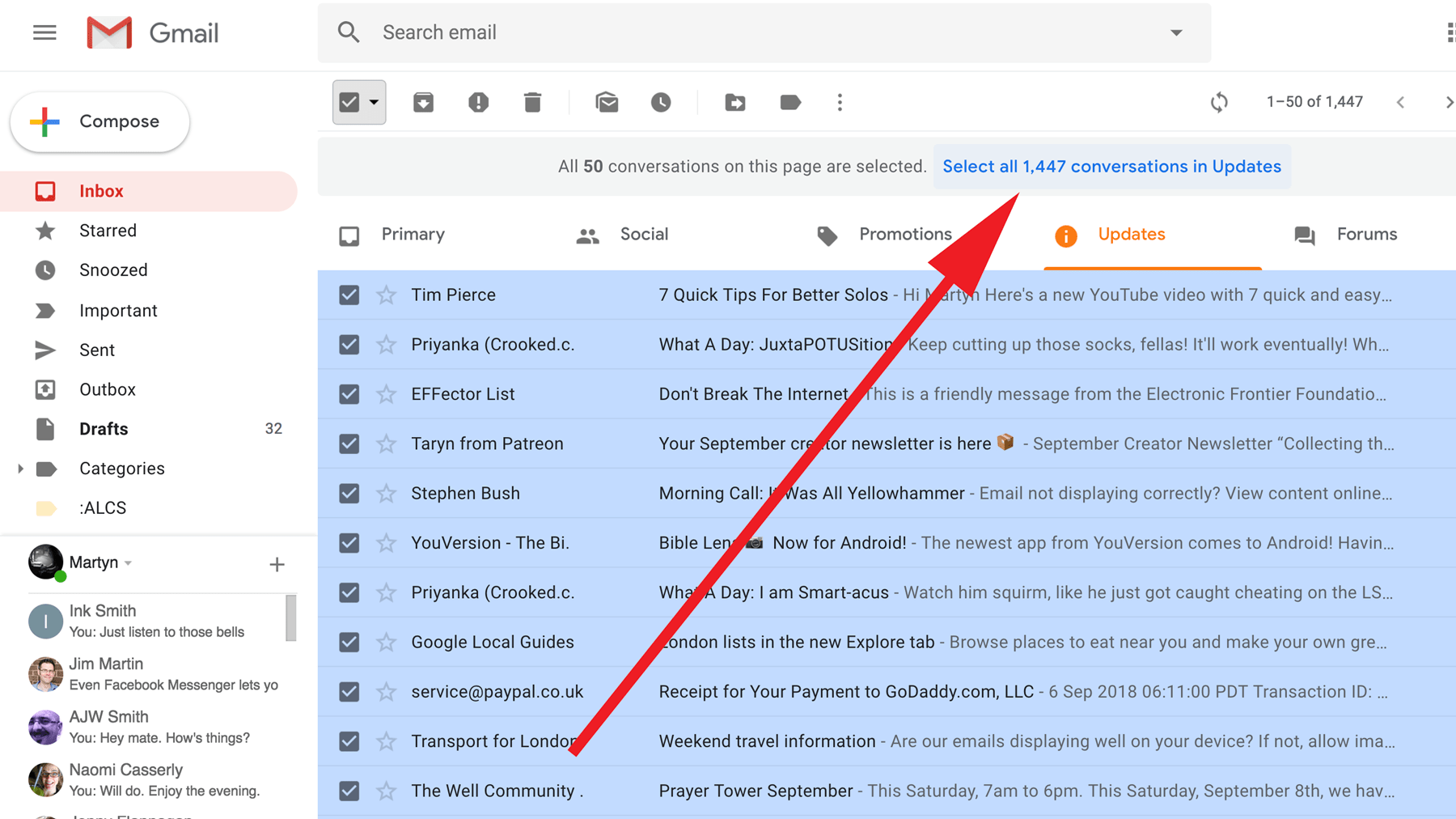
If you have a lot of promotional emails in your inbox, it may be worth deleting them all at once. To do this:
- Log in to your Gmail account using a web browser.
- Click on the “Promotions” tab at the top of the page.
- Select all the emails in this folder by checking the box next to each one.
- Click on the “Delete” button at the top of the page.
Step 3: Empty Your Spam Folder
To empty your spam folder:
- Log in to your Gmail account using a web browser.
- Click on the “Spam” tab at the top of the page.
- Select all the emails in this folder by checking the box next to each one.
- Click on the “Delete” button at the top of the page.
Step 4: Empty Your Trash Folder
To empty your trash folder:
- Log in to your Gmail account using a web browser.
- Click on the “Trash” tab at the top of the page.
- Select all the emails in this folder by checking the box next to each one.
- Click on the “Empty” button at the bottom of the page.
Step 5: Clean Up Your Email Labels
Email labels can be a great way to organize your inbox, but they can also get cluttered over time. To clean up your email labels:
- Log in to your Gmail account using a web browser.
- Click on the “Labels” tab at the top of the page.
- Select all the labels you no longer use by checking the box next to each one.
- Click on the “Delete” button at the bottom of the page.
Tips For Managing Your Inbox
While cleaning up your inbox is a great start, it’s also important to develop habits that will help you manage your inbox more efficiently in the long run. Here are some tips:
- Check your email regularly to stay on top of new messages.
- Use filters and labels to organize your emails as you receive them.
- Prioritize your emails based on importance and relevance.
- Consider implementing a “2-minute rule” where you respond or take action on an email within 2 minutes of receiving it.
Conclusion
Cleaning up your Gmail account can be a daunting task, but with these steps and tips, you’ll be able to get started right away. Remember to regularly check and clean out your inbox to keep it clutter-free and manageable.
FAQs
- How do I Delete Unwanted Emails on Mobile?
- To delete unwanted emails on mobile, follow the same steps as deleting them on desktop.
- Can I Delete All my Promotional Emails at Once?
- Yes, you can delete all your promotional emails at once by following the steps outlined in Step 2.
- How do I Empty my Spam Folder?
- To empty your spam folder, select all the emails and click on the “Delete” button.
- Can I Recover Deleted Emails From my Trash Folder?
- No, deleted emails are permanently removed after a certain period of time. Make sure to double-check before deleting.
- How do I Clean up my Email Labels?
- To clean up your email labels, select all the labels you no longer use and click on the “Delete” button.
- Why Should I Clean up my Inbox Regularly?
- Regularly cleaning up your inbox can help reduce stress and improve productivity.
- Can I Delete Emails From Specific Senders?
- Yes, you can delete emails from specific senders by selecting their name in the “To” field and checking the box next to each email.
- How do I Implement a 2-minute Rule For Responding to Emails?
- To implement a 2-minute rule, set an alarm or reminder on your phone to respond or take action within 2 minutes of receiving an email.


