
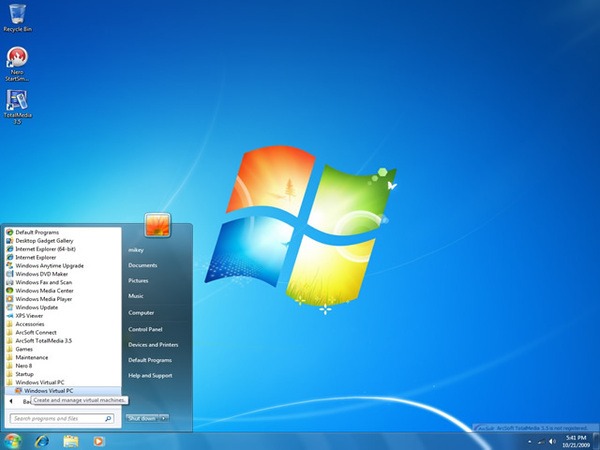
Emulating Windows XP on Windows 7: A Step-by-step Guide
Are you struggling to use old software that was designed specifically for Windows XP? Worry no more! You can still run those programs on your updated Windows 7 system without reinstalling the old operating system. This article will show you how to emulate Windows XP on Windows 7 using two popular virtualization tools: VirtualBox and VMware.
Why Emulate Windows Xp?
Before we dive into the tutorials, let’s quickly discuss why you might want to emulate Windows XP on your Windows 7 system. There are several reasons:
- Legacy Software: You have old software that was designed for Windows XP and won’t run on newer operating systems.
- Gaming: Some classic games were only compatible with Windows XP, and emulating the OS can help you play those games again.
- Nostalgia: You might simply want to relive some nostalgic moments from your Windows XP days.
Method 1: Emulating Windows XP With Virtualbox
VirtualBox is a free and open-source virtualization tool that allows you to create and run virtual machines. Here’s how to use it to emulate Windows XP:
Step 1: Download And Install Virtualbox
Head over to the VirtualBox website and download the appropriate version for your system (32-bit or 64-bit). Run the installer, and follow the prompts to install the software.
Step 2: Create a New Virtual Machine
Launch VirtualBox, and click on the “New” button in the top-left corner. Name your virtual machine, and select “Microsoft Windows” as the operating system. Choose the correct version (Windows XP 32-bit) and follow the prompts to create the virtual machine.
Step 3: Install Windows Xp
Insert your Windows XP installation CD or use an ISO image of the OS. Follow the installation wizard to install Windows XP on your virtual machine.
Step 4: Configure Virtualbox Settings
Once Windows XP is installed, click on the “Settings” icon in the top-right corner of the VirtualBox window. Here, you can configure settings like display resolution, network settings, and more.
Method 2: Emulating Windows XP With Vmware
VMware Workstation Player is another popular virtualization tool that allows you to create and run virtual machines. Here’s how to use it to emulate Windows XP:
Step 1: Download And Install Vmware
Head over to the VMware website and download the appropriate version for your system (32-bit or 64-bit). Run the installer, and follow the prompts to install the software.
Step 2: Create a New Virtual Machine
Launch VMware, and click on the “New” button in the top-left corner. Name your virtual machine, and select “Microsoft Windows” as the operating system. Choose the correct version (Windows XP 32-bit) and follow the prompts to create the virtual machine.
Step 3: Install Windows Xp
Insert your Windows XP installation CD or use an ISO image of the OS. Follow the installation wizard to install Windows XP on your virtual machine.
Step 4: Configure Vmware Settings
Once Windows XP is installed, click on the “Settings” icon in the top-right corner of the VMware window. Here, you can configure settings like display resolution, network settings, and more.
Tips And Tricks
- To enhance integration between Windows XP and Windows 7, install the Guest Additions in VirtualBox or VMware.
- You can use your virtual machine to entire monitor by accessing the “Visualize” menu in VirtualBox or VMware.
- If you’re experiencing issues with your virtual machine, try reinstalling it or adjusting settings like CPU cores or RAM allocation.
Conclusion
Emulating Windows XP on Windows 7 is a straightforward process that can be achieved using either VirtualBox or VMware. By following the step-by-step guides provided above, you should be able to run your old software without worrying about compatibility issues. Happy gaming and nostalgic reminiscing!
Frequently Asked Questions (FAQs)
- Q: Can I Use my Existing Windows XP Installation Cd?
A: Unfortunately, it’s not possible to download or purchase a legitimate Windows XP installation CD anymore. - Q: How do I Install Guest Additions in Virtualbox or Vmware?
A: Refer to the “Tips and Tricks” section for instructions on installing Guest Additions. - Q: Can I Run my Virtual Machine on a Remote Server?
A: Yes, you can run your virtual machine on a remote server using either VirtualBox or VMware’s cloud connectivity features. - Q: How do I Configure Network Settings in Virtualbox or Vmware?
A: Refer to the “Tips and Tricks” section for instructions on configuring network settings. - Q: Can I Use my Virtual Machine as a Regular Windows XP Installation?
A: Yes, you can use your virtual machine as a regular Windows XP installation by installing it on a separate hard drive or partition. - Q: How do I Troubleshoot Issues With my Virtual Machine?
A: Refer to the “Tips and Tricks” section for troubleshooting tips and tricks. - Q: Can I Run Multiple Virtual Machines at Once?
A: Yes, you can run multiple virtual machines using either VirtualBox or VMware’s multi-VM feature. - Q: How do I Update my Virtual Machine With The Latest Patches And Updates?
A: Refer to the “Tips and Tricks” section for instructions on updating your virtual machine.


