
How to Qualify Cookies on Different Browsers
Are you tired of receiving notifications about cookie indisponibilità on your favorite websites? Do you want to know how to qualify cookies on different browsers? Look no further! In this article, we’ll guide you through the process of qualifying cookies on Chrome, Edge, Firefox, and Safari.
Why Qualify Cookies?
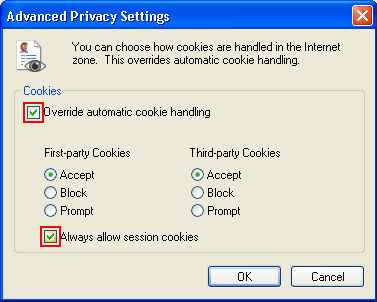
Cookies are small files that websites store on your device to remember your preferences, login details, or other information. While they can be useful, some people are concerned about their privacy and security. By qualifying cookies, you can control which ones are stored on your device and how they’re used.
Qualifying Cookies on Chrome
If you use Google Chrome as your browser, qualifying cookies is a straightforward process. Here’s how to do it:
- On PC: Open the Chrome settings by clicking the three dots in the top right corner of the browser window.
- Select “Settings” from the dropdown menu.
- Scroll down to the “Privacy and security” section.
- Click on “Cookies” and then select “More details.”
- Choose whether you want to block or allow cookies from third-party websites.
- If you want to add exceptions for specific websites, click on “Add exception” and enter the website’s URL.
Qualifying Cookies on Edge
Microsoft Edge is another popular browser that allows you to qualify cookies. Here’s how to do it:
- On PC: Open the Edge settings by clicking the three dots in the top right corner of the browser window.
- Select “Settings” from the dropdown menu.
- Scroll down to the “Cookies and site permissions” section.
- Click on “Cookies” and then select “Block or allow cookies.”
- Choose whether you want to block or allow cookies from third-party websites.
- If you want to add exceptions for specific websites, click on “Add exception” and enter the website’s URL.
Qualifying Cookies on Firefox
Mozilla Firefox also allows you to qualify cookies. Here’s how to do it:
- On PC: Open the Firefox settings by clicking the three dots in the top right corner of the browser window.
- Select “Settings” from the dropdown menu.
- Scroll down to the “Privacy and security” section.
- Click on “Cookies and site data.”
- Choose whether you want to block or allow cookies from third-party websites.
- If you want to add exceptions for specific websites, click on “Add exception” and enter the website’s URL.
Qualifying Cookies on Safari
If you use Apple Safari as your browser, qualifying cookies is a bit more complicated. Here’s how to do it:
- On Mac: Open the Safari preferences by clicking Safari in the top menu bar.
- Select “Preferences” from the dropdown menu.
- Click on the “Privacy” tab.
- Choose whether you want to block or allow cookies from third-party websites.
- If you want to add exceptions for specific websites, click on “Add exception” and enter the website’s URL.
Conclusion
Qualifying cookies is an important step in maintaining your online privacy and security. By following these steps, you can control which cookies are stored on your device and how they’re used. Remember to always be cautious when clicking on links or downloading files from unknown sources, as this can lead to malware infections and other security risks.
Frequently Asked Questions (FAQs)
- Q: What are cookies?
- A: Cookies are small files that websites store on your device to remember your preferences, login details, or other information.
- Q: Why do I need to qualify cookies?
- A: Qualifying cookies allows you to control which ones are stored on your device and how they’re used. This can help protect your online privacy and security.
- Q: How do I qualify cookies on Chrome?
- A: To qualify cookies on Chrome, open the settings by clicking the three dots in the top right corner of the browser window, select “Settings” from the dropdown menu, scroll down to the “Privacy and security” section, click on “Cookies,” and then choose whether you want to block or allow cookies from third-party websites.
- Q: How do I qualify cookies on Edge?
- A: To qualify cookies on Edge, open the settings by clicking the three dots in the top right corner of the browser window, select “Settings” from the dropdown menu, scroll down to the “Cookies and site permissions” section, click on “Cookies,” and then choose whether you want to block or allow cookies from third-party websites.
- Q: How do I qualify cookies on Firefox?
- A: To qualify cookies on Firefox, open the settings by clicking the three dots in the top right corner of the browser window, select “Settings” from the dropdown menu, scroll down to the “Privacy and security” section, click on “Cookies and site data,” and then choose whether you want to block or allow cookies from third-party websites.
- Q: How do I qualify cookies on Safari?
- A: To qualify cookies on Safari, open the preferences by clicking Safari in the top menu bar, select “Preferences” from the dropdown menu, click on the “Privacy” tab, choose whether you want to block or allow cookies from third-party websites, and then add exceptions for specific websites if needed.


