
How to Enable Javascript on Your Browser
Are you experiencing difficulties visualizing dynamic elements on your website, such as disappearing menus or white pages when trying to watch a video on YouTube? Don’t panic! It’s likely that someone has disabled JavaScript in your browser settings.
JavaScript is a scripting language used to create interactive and dynamic effects on the web. Disabling it can compromise the correct visualization of many online pages, including videos, interactive menus, and more.
In this article, we’ll guide you through the process of enabling JavaScript on various browsers, including Google Chrome, Mozilla Firefox, Microsoft Edge, Safari, and mobile devices like Android and iPhone.
Why Enable Javascript?
Enabling JavaScript is crucial for a seamless browsing experience. It allows websites to display dynamic content, such as videos, animations, and interactive elements, which can enhance your overall online experience.
How to Enable Javascript on PC (Windows)
To enable JavaScript on Google Chrome:
- Open Google Chrome.
- Click on the three dots ⋮ in the top-right corner.
- Select Settings from the dropdown menu.
- Scroll down and click on Privacy and security.
- Click on Site settings.
- Search for JavaScript in the search bar.
- Toggle the switch next to JavaScript to enable it.
How to Enable Javascript on Chrome
To enable JavaScript on Google Chrome:
- Open Google Chrome.
- Type
chrome://Settings/in the address bar. - Scroll down and click on Advanced.
- Click on Content settings.
- Search for JavaScript in the search bar.
- Toggle the switch next to JavaScript to enable it.
How to Enable Javascript on Firefox
To enable JavaScript on Mozilla Firefox:
- Type
about:Configin the address bar. - Press Enter and click Accept the Risk and Continuously.
- Search for
javascript.Enabledin the search bar. - Double-click on the result to toggle the switch next to JavaScript to enable it.
How to Enable Javascript on Edge
To enable JavaScript on Microsoft Edge:
- Click on the three dots ⋮ in the top-right corner.
- Select Settings from the dropdown menu.
- Scroll down and click on Cookies and site permissions.
- Search for JavaScript in the search bar.
- Toggle the switch next to JavaScript to enable it.
How to Enable Javascript And Cookie on Mac
To enable JavaScript and cookie on Safari:
- Open Safari.
- Click on Safari (in high) from the menu bar.
- Select Preferences.
- Click on Safety.
- Ensure that the checkbox next to JavaScript is enabled.
How to Enable Javascript on Mobile Devices
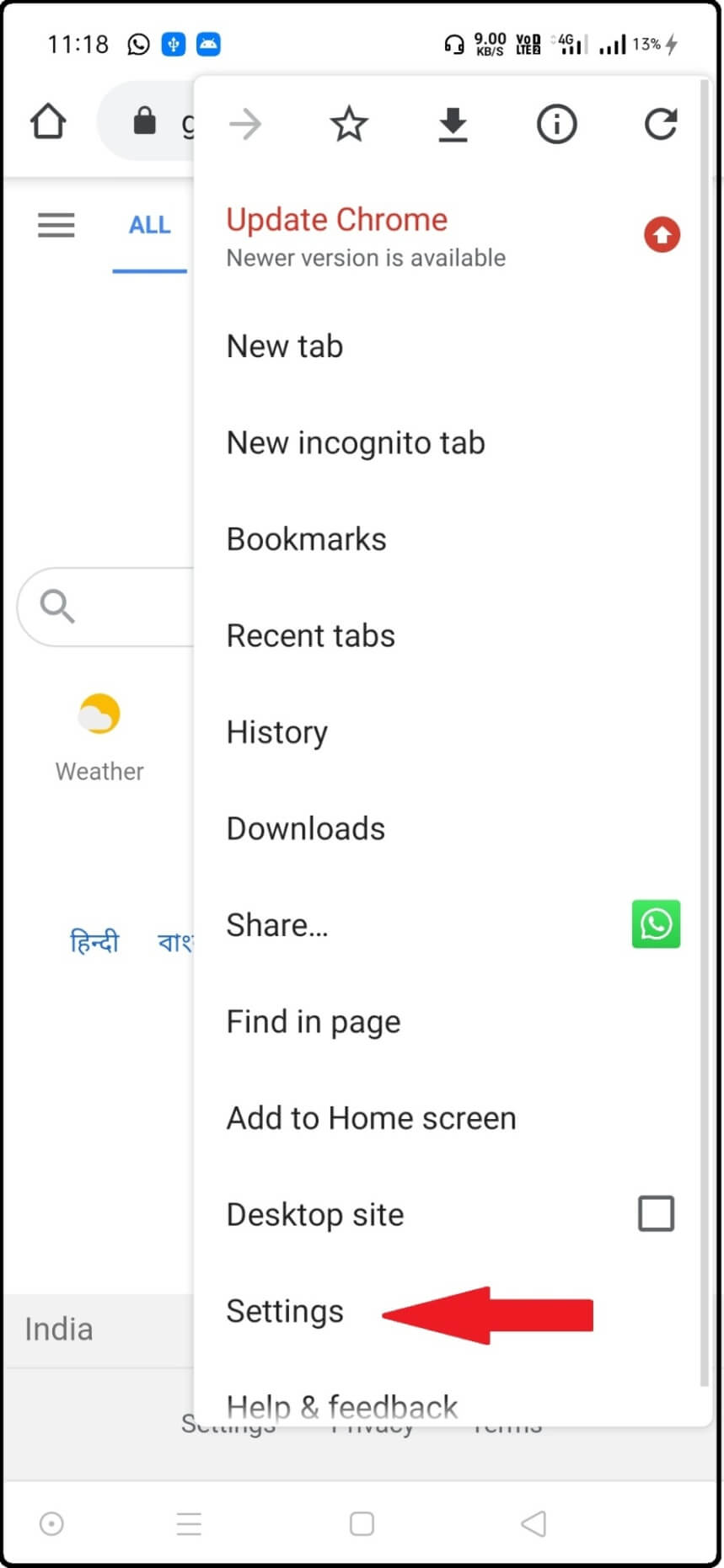
To enable JavaScript on Android devices using Google Chrome:
- Tap on the three dots ⋮ in the top-right corner.
- Select Settings from the dropdown menu.
- Scroll down and click on Site settings.
- Search for JavaScript in the search bar.
- Toggle the switch next to JavaScript to enable it.
To enable JavaScript on iPhone using Safari:
- Open Settings.
- Tap on Safari.
- Scroll down and tap on Advanced of iOS.
- Ensure that the toggle switch next to JavaScript is enabled.
Why Enable Cookie?
Cookies are small files stored on your device that remember your preferences for certain websites. Disabling cookies can hinder your online experience, as some websites may not function properly without them.
If you’re experiencing issues with cookies, we recommend checking out our specific guide on how to enable cookies on various browsers.
Conclusion
Enabling JavaScript is a straightforward process that can greatly enhance your browsing experience. By following the steps outlined in this article, you should be able to enable JavaScript on your preferred browser, including Google Chrome, Mozilla Firefox, Microsoft Edge, Safari, and mobile devices like Android and iPhone.
Remember, enabling JavaScript can also allow websites to display cookies, which can compromise your online security. Be cautious when enabling JavaScript and ensure that you’re not compromising your security.


