
How to Disable Pop-ups on Safari: A Step-by-step Guide
Are you tired of those pesky pop-ups that keep appearing on your screen while browsing the internet? do you wish there was a way to disable them permanently? well, you’re in luck! in this article, we’ll show you how to disable pop-ups on safari across all your devices – iphone, ipad, and mac.
Why Disable Pop-ups on Safari?
Pop-ups can be annoying and distracting, especially when browsing the internet. They often appear without warning, disrupting your online experience and making it difficult to focus on what you’re reading or doing. By disabling pop-ups on safari, you can enjoy a smoother and more enjoyable browsing experience.
How to Disable Pop-ups on Iphone
Disabling pop-ups on iphone is a straightforward process that requires just a few steps:
-
Tap on Settings: Open the settings app on your iPhone.
-
Scroll Down to Safari: Tap on “safari” from the list of options.
-
Block Windows to Apparel: Scroll down to the section labeled “general” and tap on the toggle next to “block windows to apparel”.
-
Turn Off Block Windows to Pop-up: Toggle the switch to the left to disable pop-ups.
How to Disable Pop-ups on Ipad
Disabling pop-ups on ipad is similar to disabling them on iphone:
-
Tap on Settings: Open the settings app on your iPad.
-
Scroll Down to Safari: Tap on “safari” from the list of options.
-
Block Windows to Apparel: Scroll down to the section labeled “general” and tap on the toggle next to “block windows to apparel”.
-
Turn Off Block Windows to Pop-up: Toggle the switch to the left to disable pop-ups.
How to Disable Pop-ups on Mac
Disabling pop-ups on mac is a bit more involved, but still relatively easy:
-
Open Safari: Launch the safari browser on your mac.
-
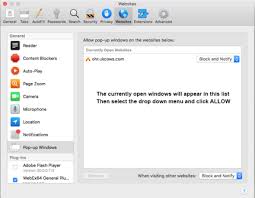
Go to Preferences: Click on “safari” in the top menu bar and select “preferences”.
-
Websites: Click on the “websites” tab from the left-hand panel.
-
Windows to Apparel: Scroll down to the section labeled “general” and click on the toggle next to “block windows to apparel”.
-
Turn Off Block Windows to Pop-up: Toggle the switch to the left to disable pop-ups.
How to Disable Pop-ups For Specific Websites
If you only want to disable pop-ups for specific websites, you can do so by following these steps:
-
Open Safari: Launch the safari browser on your mac.
-
Go to Preferences: Click on “safari” in the top menu bar and select “preferences”.
-
Websites: Click on the “websites” tab from the left-hand panel.
-
Specific Website: Select the specific website for which you want to disable pop-ups.
Common Issues And Solutions
If you’re experiencing issues disabling pop-ups, here are a few common problems and their solutions:
-
Pop-ups Still Appear Despite Disabling Them: Make sure that javascript is enabled in safari preferences.
-
Disable Javascript Doesn’t Work: Try restarting your browser or device.
Conclusion
Disabling pop-ups on safari across all your devices – iphone, ipad, and mac – is a straightforward process. By following these step-by-step guides, you can enjoy a smoother and more enjoyable browsing experience. Remember to disable pop-ups for specific websites if needed, and don’t hesitate to reach out if you encounter any issues along the way.


