
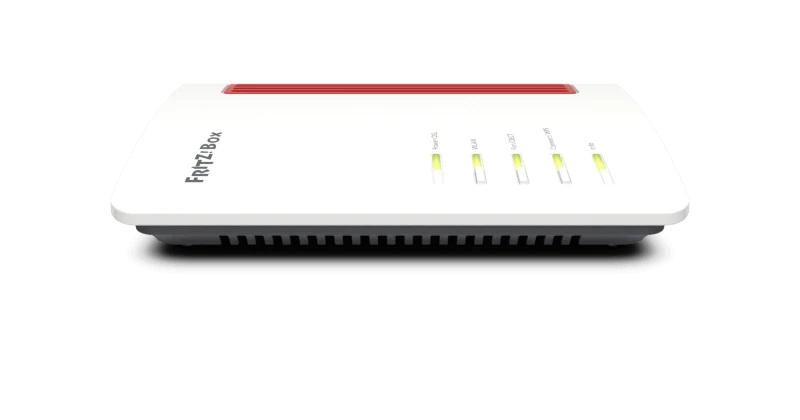
Qualifying Vpn on Fritz! Box: A Step-by-step Guide
Are you looking to enhance your online security by setting up a Virtual Private Network (VPN) on your FRITZ! Box router? Look no further! In this comprehensive guide, we will walk you through the process of configuring and activating a VPN on your FRITZ! Box, ensuring that all devices connected to your network are protected from potential threats.
Understanding The Importance of Vpn
Before diving into the configuration process, it’s essential to understand why VPNs are crucial for online security. A VPN encrypts internet traffic between your device and the VPN server, making it impossible for hackers or third-party entities to intercept sensitive information. With a VPN, you can browse the internet safely, securely, and privately.
Choosing The Right Vpn Service
To set up a VPN on your FRITZ! Box, you’ll need to select a reliable VPN service provider. Some of the top VPN services that support WireGuard protocol (which we’ll discuss later) include:
- Surfshark: Offers high-performance servers worldwide and allows for custom configuration settings.
- Nordvpn: Provides fast and secure connections with features like double encryption and a strict no-logs policy.
Step 1: Gain The Vpn Configuration File
The first step is to obtain the VPN configuration file from your chosen service provider. This file will contain essential information necessary for setting up your VPN connection.
To download the file, follow these steps:
1. Log in to your VPN account and access the manual configuration section.
2. Select the WireGuard protocol and choose a server location.
3. Click on the “Download” button next to the WireGuard option.
4. Save the downloaded file as a .Conf file.
Step 2: Create a Myfritz! Account
To configure your VPN connection, you’ll need to create a MyFRITZ! account. This will provide you with a dynamic DNS (DDNS) address, which is necessary for setting up your VPN on the FRITZ! Box.
1. Open a web browser and navigate to http://Fritz.Box.
2. Log in using your FRITZ! Box admin credentials.
3. Click on “Internet” > “Account MyFRITZ!”.
4. Enter your email address and password.
5. Follow the prompts to create a MyFRITZ! account.
Step 3: Configure Your Vpn Connection
With your MyFRITZ! account set up, you can now configure your VPN connection on the FRITZ! Box.
1. Open the FRITZ! Box menu and navigate to “Internet” > “Habilitations”.
2. Select the “VPN (WireGuard)” option.
3. Click on the “Add connection” button.
4. Enter a name for your VPN connection (e.G., SurfShark).
5. Select the MyFRITZ! account you created earlier.
6. Choose the WireGuard protocol and select a server location.
7. Upload the VPN configuration file (.Conf) you downloaded earlier.
8. Click on the “Save” button to save your changes.
Step 4: Activate Your Vpn Connection
Now that you’ve configured your VPN connection, it’s time to activate it. Follow these steps:
1. Open the FRITZ! Box menu and navigate to “Internet” > “Habilitations”.
2. Select the “VPN (WireGuard)” option.
3. Click on the “Activate” button next to your VPN connection name.
4. Confirm that you want to activate the VPN connection.
Conclusion
Congratulations! You have successfully configured and activated a VPN on your FRITZ! Box router. With this setup, all devices connected to your network will be protected by a secure and encrypted internet connection.
Frequently Asked Questions (FAQs)
- Q: What is a Virtual Private Network (VPN)?
A: A VPN encrypts internet traffic between your device and the VPN server, making it impossible for hackers or third-party entities to intercept sensitive information. - Q: Which Vpn Services Support Wireguard Protocol?
A: Some top VPN services that support WireGuard include SurfShark and NordVPN. - Q: How do I Configure my Vpn Connection on The Fritz! Box?
A: To configure your VPN connection, follow steps 1-4 outlined in this guide. - Q: Can I Use a Vpn With Multiple Devices Connected to my Network?
A: Yes, a VPN can be used with multiple devices connected to your network.


