
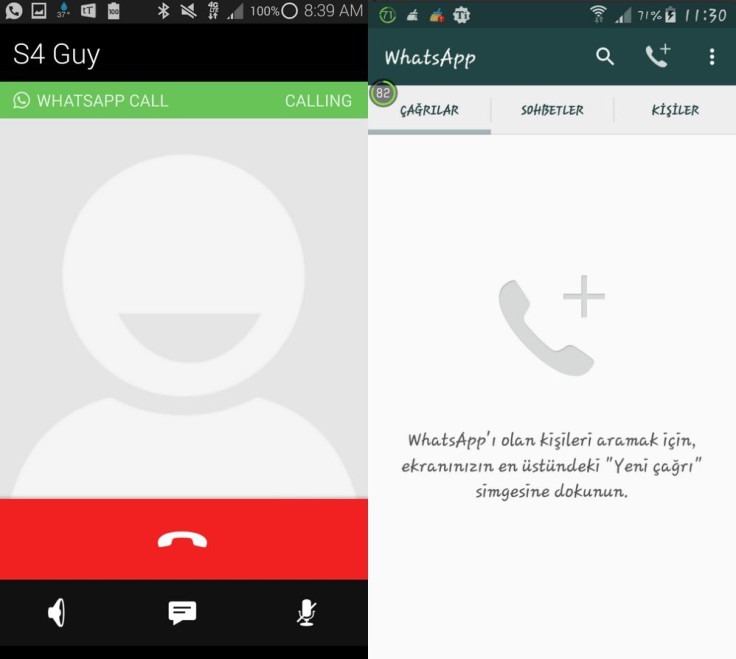
How to Enable Calling on Whatsapp
Are you having trouble enabling calling on WhatsApp? You’re not alone! Many users face this issue, but don’t worry, we’ve got you covered. In this tutorial, we’ll guide you through the steps to enable calling on WhatsApp on Android and iOS devices.
Why Can’t I Make Calls on Whatsapp?
Before we dive into the solutions, let’s understand why you might be unable to make calls on WhatsApp. The primary reason is that WhatsApp needs access to your device’s microphone and camera to function properly. If these permissions are not granted, you won’t be able to make calls.
Enabling Calling on Whatsapp on Android
To enable calling on WhatsApp on Android, follow these steps:
- Go to Settings: Open the settings app on your Android device.
- Find Whatsapp: Navigate to “Apps” or “Application Manager” and find WhatsApp.
- Permissions: Go to “Permissions” and ensure that both microphone and camera permissions are turned ON.
- Update Whatsapp: Check if there’s an update available for WhatsApp. If so, update the app.
Enabling Calling on Whatsapp on Ios
If you’re using an iPhone, follow these steps:
- Go to Settings: Open the settings app on your device.
- Find Whatsapp: Navigate to “WhatsApp” and ensure that both microphone and camera permissions are turned ON.
- Update Whatsapp: Check if there’s an update available for WhatsApp. If so, update the app.
Troubleshooting: Update or Reinstall Whatsapp
If you’re still facing issues after enabling calling on WhatsApp, try updating or reinstalling the app:
- Check For Updates: Go to the App Store (for iOS) or Play Store (for Android) and check if there’s an update available for WhatsApp.
- Reinstall Whatsapp: If updating doesn’t resolve the issue, try uninstalling and reinstalling WhatsApp.
Calling on Whatsapp From PC
If you’re using WhatsApp Web or trying to make calls on WhatsApp from your PC, please note that calling functionality is not currently available on WhatsApp Web. However, you can use WhatsApp for desktop by downloading the app from Microsoft Store (for Windows) or Mac App Store (for macOS).
Troubleshooting: Permissions on Windows 10 And Windows 11
If you’re using a Windows device, ensure that WhatsApp has access to your microphone and camera:
- Go to Start: Open the start menu.
- Find Settings: Navigate to “Settings” > “Privacy & Security”.
- Permissions: Ensure that both microphone and camera permissions are turned ON for WhatsApp.
Troubleshooting: Permissions on Macos
If you’re using a Mac, ensure that WhatsApp has access to your microphone and camera:
- Go to System Preferences: Open the system preferences app.
- Find Security & Privacy: Navigate to “Security & Privacy”.
- Permissions: Ensure that both microphone and camera permissions are turned ON for WhatsApp.
Conclusion
Enabling calling on WhatsApp is a straightforward process, but it requires you to grant necessary permissions to your device’s microphone and camera. By following these steps, you should be able to enable calling on WhatsApp on Android and iOS devices.
Frequently Asked Questions (FAQs)
- Why Can’t I Make Calls on Whatsapp?
You might be unable to make calls on WhatsApp if the app doesn’t have access to your device’s microphone and camera. - How do I Enable Calling on Whatsapp on Android?
To enable calling on WhatsApp on Android, go to Settings > Apps > WhatsApp, and ensure that both microphone and camera permissions are turned ON. - How do I Enable Calling on Whatsapp on Ios?
To enable calling on WhatsApp on iOS, go to Settings > WhatsApp, and ensure that both microphone and camera permissions are turned ON. - Why is Calling Not Available on Whatsapp Web?
Calling functionality is not currently available on WhatsApp Web, but you can use WhatsApp for desktop by downloading the app from Microsoft Store (for Windows) or Mac App Store (for macOS). - How do I Troubleshoot Permissions Issues on Windows 10 And Windows 11?
To troubleshoot permissions issues on Windows 10 and Windows 11, go to Start > Settings > Privacy & Security, and ensure that both microphone and camera permissions are turned ON for WhatsApp. - How do I Troubleshoot Permissions Issues on Macos?
To troubleshoot permissions issues on macOS, go to System Preferences > Security & Privacy, and ensure that both microphone and camera permissions are turned ON for WhatsApp.
We hope this tutorial has been helpful in enabling calling on WhatsApp! If you have any further questions or concerns, please don’t hesitate to reach out.


