
How to Encrypt a Folder: A Step-by-step Guide
Are you tired of worrying about your personal data being accessed by others? Do you want to protect your sensitive files from unauthorized users? Look no further! In this article, we will show you how to encrypt a folder on various operating systems, including Windows, Mac, Android, and iPhone.
Why Encrypt a Folder?
Encrypting a folder is an excellent way to safeguard your sensitive data. By using encryption, you can protect your files from being accessed by unauthorized users, even if they have physical access to your device or storage media. Encryption works by scrambling the data so that it cannot be read without the correct decryption key.
How to Encrypt a Folder on Windows
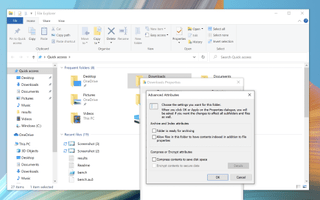
Encrypting a folder on Windows is relatively straightforward. However, the process varies depending on the version of Windows you are using.
Windows 10/11:
On Windows 10 and 11, there is no built-in function to encrypt a folder directly. However, you can use a third-party software like 7-Zip or VeraCrypt to achieve this. Here’s how:
- Download and install 7-Zip on your computer.
- Right-click on the folder you want to encrypt and select “Add to archive.”
- In the 7-Zip window, select the “zip” option and choose a password.
- Click on the “OK” button to create an encrypted file.
Alternative Method:
Alternatively, you can use VeraCrypt to encrypt a folder on Windows. Here’s how:
- Download and install VeraCrypt on your computer.
- Create a new volume by selecting the “Create Volume” option.
- Choose the folder you want to encrypt and select the encryption method (AES or ChaCha20).
- Set a password for the encrypted folder.
How to Encrypt a Folder on Mac
Encrypting a folder on Mac is relatively easy using the built-in Disk Utility app.
- Open the Disk Utility app on your Mac.
- Select the folder you want to encrypt from the sidebar.
- Click on the “Image” button and select the encryption method (AES or 256-bit AES).
- Set a password for the encrypted folder.
- Click on the “Save” button to create an encrypted volume.
How to Encrypt a Folder on Android
Encrypting a folder on Android is not possible natively, but you can use the Google Files app to achieve this.
- Download and install the Google Files app on your Android device.
- Open the app and select the “Folder” option.
- Choose the folder you want to encrypt from the list of available folders.
- Set a PIN or password for the encrypted folder.
- Click on the “OK” button to create an encrypted volume.
How to Encrypt a Folder on Iphone
Unfortunately, there is no built-in method to encrypt a folder directly on an iPhone. However, you can use third-party apps like Private Photo Vault to achieve this.
- Download and install the Private Photo Vault app on your iPhone.
- Create a new vault by selecting the “Create Vault” option.
- Choose the folder you want to encrypt from the list of available folders.
- Set a password for the encrypted folder.
- Click on the “OK” button to create an encrypted volume.
Conclusion
Encrypting a folder is an excellent way to protect your sensitive data from unauthorized access. By following the steps outlined in this article, you can easily encrypt a folder on various operating systems, including Windows, Mac, Android, and iPhone. Remember to always use strong passwords and keep your encryption keys safe to ensure maximum protection for your encrypted folders.
Frequently Asked Questions (FAQs)
- Q: Why do I Need to Encrypt my Folder?
A: Encrypting a folder helps protect your sensitive data from unauthorized access. - Q: Can I Use Built-in Methods to Encrypt my Folder on Various Operating Systems?
A: On Windows, you can use 7-Zip or VeraCrypt to achieve this. On Mac, use the Disk Utility app. On Android, use the Google Files app. Unfortunately, there is no built-in method on iPhone. - Q: What Are Some Third-party Apps I Can Use to Encrypt my Folder?
A: Some popular options include 7-Zip, VeraCrypt, Private Photo Vault, and Keka. - Q: How do I Create an Encrypted Folder Using a Third-party App?
A: The process varies depending on the app you choose, but generally involves creating a new volume or vault, selecting the encryption method, setting a password, and saving the encrypted folder. - Q: Can I Encrypt Multiple Folders at Once?
A: Yes, most encryption apps allow you to select multiple folders for encryption.
References
- [1] How to Encrypt a Folder on Windows
- [2] How to Encrypt a Folder on Mac
- [3] How to Encrypt a Folder on Android
- [4] How to Encrypt a Folder on iPhone


