
How to Encrypt a Message on Whatsapp
Are you tired of feeling like your personal conversations are not private enough? Do you want to ensure that only the intended recipient can read your messages on WhatsApp? In this article, we will guide you through the process of encrypting a message on WhatsApp, so you can have peace of mind knowing that your conversations are safe and secure.
What is End-to-end Encryption?
Before we dive into the step-by-step guide, let’s quickly explain what end-to-end encryption means. In simple terms, it’s like sending a secret code to someone that only they can decipher. When you encrypt a message on WhatsApp, it’s protected with a virtual key that only you and the recipient have access to.
How to Encrypt a Message on Whatsapp
To encrypt a message on WhatsApp, follow these easy steps:
- Check if Encryption is Enabled: Open WhatsApp and go to a conversation by tapping on the name of one of your contacts.
- Tap on The Contact’s Name: Tap on the contact’s name at the top of the screen to open their profile page.
- Swipe Down: Swipe down on the chat window to access more options.
- Tap on “Encryption”: Tap on the “Encryption” option, which should be in the bottom menu bar.
- Verify Encryption is Enabled: If you see a green checkmark and a code with 60 digits, then encryption is enabled for this conversation.
How to Enable Encryption on Whatsapp
If you’re starting from scratch or want to enable encryption for an existing chat, follow these steps:
- Open Whatsapp: Open the WhatsApp app on your smartphone.
- Tap on The Three Dots: Tap on the three dots at the top right corner of the screen.
- Select “Settings”: Select “Settings” from the menu.
- Scroll Down to “Chat”: Scroll down to the “Chat” section and tap on it.
- Enable End-to-end Encryption: Enable end-to-end encryption for all chats or select a specific chat to enable encryption.
How to Backup Whatsapp With Encryption
Want to back up your WhatsApp conversations with encryption? Follow these steps:
- Open Whatsapp: Open the WhatsApp app on your smartphone.
- Tap on The Three Dots: Tap on the three dots at the top right corner of the screen.
- Select “Settings”: Select “Settings” from the menu.
- Scroll Down to “Chat”: Scroll down to the “Chat” section and tap on it.
- Enable End-to-end Encryption Backup: Enable end-to-end encryption for backups, which will secure your chat history.
How to Encrypt a Message on Telegram
Telegram is another popular messaging app that offers end-to-end encryption. To encrypt a message on Telegram:
- Open Telegram: Open the Telegram app on your smartphone.
- Start a New Chat: Start a new chat with the person you want to send an encrypted message to.
- Tap on The Contact’s Name: Tap on the contact’s name at the top of the screen to open their profile page.
- Swipe Down: Swipe down on the chat window to access more options.
- Tap on “Secret Chat”: Tap on the “Secret Chat” option, which will start a new secret conversation with end-to-end encryption.
How to Encrypt a Message on Instagram
Instagram is primarily a photo-sharing platform, but it also offers messaging features that include end-to-end encryption. To encrypt a message on Instagram:
- Open Instagram: Open the Instagram app on your smartphone.
- Tap on The Three Dots: Tap on the three dots at the top right corner of the screen.
- Select “Settings”: Select “Settings” from the menu.
- Scroll Down to “Account”: Scroll down to the “Account” section and tap on it.
- Enable End-to-end Encryption: Enable end-to-end encryption for messaging, which will secure your conversations.
How to Encrypt a Message Online
Want to encrypt a message online without using any specific app? You can use online tools like Fine-DEC. To encrypt a message online:
- Open Fine-dec: Open the Fine-DEC website on your computer or smartphone.
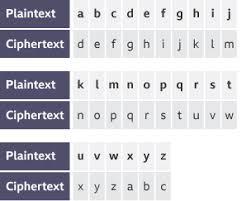
- Select Encryption Option: Select the encryption option you want to use, such as Fine-ROT.
- Type in Your Message: Type in the message you want to encrypt and click on the “Convert” button.
- Copy And Share Encrypted Message: Copy the encrypted message and share it with the intended recipient.
Conclusion
Encrypting messages on WhatsApp, Telegram, Instagram, or online is an easy process that ensures your conversations remain private and secure. By following these step-by-step guides, you can rest assured that only the intended recipient can read your messages. Remember to always verify encryption is enabled before sharing sensitive information.
Frequently Asked Questions
Q: How do I know if my messages are encrypted on WhatsApp?
A: Check for a green checkmark and a code with 60 digits in the chat window.
Q: Can I enable end-to-end encryption for all chats on WhatsApp?
A: Yes, you can enable end-to-end encryption for all chats or select specific chats to encrypt.
Q: How do I backup my WhatsApp conversations with encryption?
A: Enable end-to-end encryption for backups in the Settings menu.
Q: Is Telegram’s secret chat feature secure?
A: Yes, Telegram’s secret chat feature uses end-to-end encryption to secure your conversations.
Q: Can I enable end-to-end encryption on Instagram?
A: Yes, you can enable end-to-end encryption for messaging in the Settings menu.
Q: How do I encrypt a message online without using an app?
A: Use online tools like Fine-DEC to encrypt messages online.


