
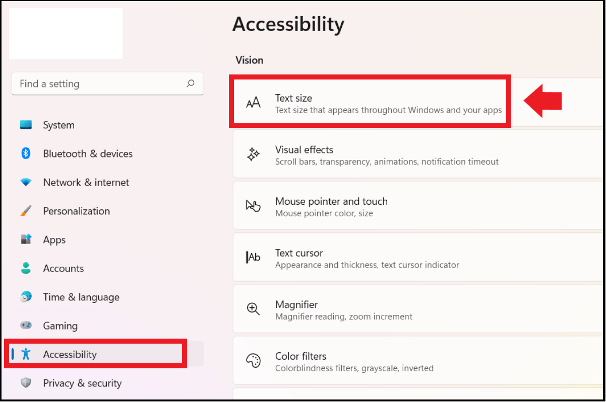
How to Enlarge The Characters of an Electronic Mail
Are you tired of straining your eyes to read emails on your computer or mobile device? Do you want to make the text larger and more readable? Look no further! In this article, we will show you how to enlarge the characters of an electronic mail in various email clients and browsers.
Why Enlarge Email Characters?
Enlarging email characters can be helpful for people with vision impairments or those who simply prefer a larger font size. It can also make it easier to read emails on small screens or devices.
How to Enlarge Email Characters in Webmail
If you use webmail, such as Gmail or Outlook.Com, you can easily enlarge the email characters by using keyboard shortcuts or menu options.
- Gmail: To enlarge email characters in Gmail, click on the gear icon in the upper right corner and select “See all settings.” From there, go to the “General” tab and scroll down to the “Zoom” section. Click on the percentage value to increase or decrease the font size.
- Outlook.Com: To enlarge email characters in Outlook.Com, click on the gear icon in the upper right corner and select “Options.” From there, go to the “General” tab and scroll down to the “Font” section. Click on the drop-down menu next to “Font Size” and select a larger font size.
How to Enlarge Email Characters in Desktop Clients
If you use a desktop email client, such as Microsoft Outlook or Mozilla Thunderbird, you can enlarge the email characters by changing the font settings.
- Microsoft Outlook: To enlarge email characters in Microsoft Outlook, go to the “File” menu and select “Options.” From there, go to the “General” tab and scroll down to the “Font” section. Click on the drop-down menu next to “Font Size” and select a larger font size.
- Mozilla Thunderbird: To enlarge email characters in Mozilla Thunderbird, go to the “Edit” menu and select “Preferences.” From there, go to the “Display” tab and scroll down to the “Font” section. Click on the drop-down menu next to “Font Size” and select a larger font size.
How to Enlarge Email Characters in Mobile Devices
If you use a mobile device, such as an iPhone or Android phone, you can enlarge email characters by using gestures or settings options.
- Iphone: To enlarge email characters on an iPhone, go to the “Settings” app and select “Mail.” From there, scroll down to the “Display” section and toggle off “Large Text.” Then, tap on the font size button at the bottom of the screen to increase or decrease the font size.
- Android: To enlarge email characters on an Android device, go to the “Settings” app and select “Accounts & Sync.” From there, scroll down to the “Mail” section and toggle off “Large Text.” Then, tap on the font size button at the bottom of the screen to increase or decrease the font size.
Tips For Enlarging Email Characters
Here are some additional tips for enlarging email characters:
- Use Keyboard Shortcuts: If you use webmail or a desktop client, you can use keyboard shortcuts to enlarge email characters. For example, in Gmail, you can press “Ctrl + +” (Windows) or “Command + +” (Mac) to increase the font size.
- Adjust Font Settings: Make sure to adjust the font settings on your device or computer to ensure that the enlarged text is readable and comfortable for your eyes.
- Experiment With Different Font Sizes: Experiment with different font sizes to find what works best for you.
Conclusion
Enlarging email characters can be a simple yet effective way to improve the reading experience. By following the steps outlined in this article, you can easily enlarge email characters in various email clients and browsers. Remember to experiment with different font sizes to find what works best for you!


