
How to Enlarge Characters on Your Monitor
Are you tired of straining your eyes while working or browsing on your computer? Do you wish there was a way to make the text and characters on your screen bigger and more readable? Look no further! In this article, we will guide you through the simple steps to enlarge characters on various devices, including Windows 10, macOS, smartphones, and tablets.
Why Enlarge Characters?
Enlarging characters on your monitor can be a game-changer for people with vision impairments or those who simply prefer a more comfortable viewing experience. By making the text and characters larger, you can reduce eye strain and improve your overall productivity.
How to Enlarge Characters on Windows 10
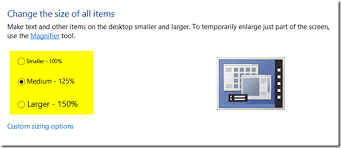
To enlarge characters on Windows 10, follow these steps:
- Click on the Start button (the icon with the windows logo) in the bottom left corner of the screen.
- Select Settings from the menu that appears.
- Click on the icon labeled “Accessibility” and select the option for Monitor.
- In the Monitor section, click on the option to “Make text larger”.
- Drag the slider to adjust the font size to your desired level.
How to Enlarge Characters on Macos
To enlarge characters on macOS, follow these steps:
- Click on an empty area of the desktop to deselect any open windows.
- Right-click (or control-click) on the desktop and select “Display Preferences”.
- In the Display Preferences window, click on the “Display” tab.
- Select the option for “Text Size” and drag the slider to adjust the font size to your desired level.
How to Enlarge Characters on Smartphones And Tablets
To enlarge characters on smartphones and tablets, follow these steps:
- On Android devices:
- Go to Settings > Display > Text Size.
- Drag the slider to adjust the font size to your desired level.
- On iOS devices:
- Go to Settings > Accessibility > Zoom.
- Select the option for “Large Text” and drag the slider to adjust the font size to your desired level.
How to Enlarge Characters on Google
To enlarge characters on Google, follow these steps:
- Open the Google browser on your device.
- Click on the three dots in the top right corner of the screen.
- Select Settings from the menu that appears.
- In the Settings window, click on the option for “Appearance”.
- Select the option for “Zoom” and adjust the font size to your desired level.
How to Enlarge Characters on Whatsapp
To enlarge characters on WhatsApp, follow these steps:
- On Android devices:
- Open WhatsApp and go to Settings.
- Select Chat > Dimensions character.
- Affix a checkmark beside the “Big” option.
- Note: This feature is not available on iOS devices.
How to Enlarge Characters on Email
To enlarge characters on email, follow these steps:
- To enlarge text in an outgoing message:
- Use the formatting bar (usually indicated by the symbol “T”) at the top of the composer window.
- Select the font size and adjust it to your desired level.
- To enlarge the characters with which messages are displayed:
- Access the settings of the client software or browser being used.
- Adjust the relative options for font size and elements.
Conclusion
Enlarging characters on your monitor can be a simple yet effective way to improve your viewing experience. By following these step-by-step guides, you can make the text and characters on your screen bigger and more readable. Whether you’re using Windows 10, macOS, smartphones, or tablets, we’ve got you covered.
Faqs
- Q: Why is Enlarging Characters Important?
A: Enlarging characters can be beneficial for people with vision impairments or those who prefer a more comfortable viewing experience. - Q: How do I Enlarge Characters on Windows 10?
A: To enlarge characters on Windows 10, go to Settings > Accessibility > Monitor and select the option to “Make text larger”. - Q: Can I Enlarge Characters on Smartphones And Tablets?
A: Yes, you can enlarge characters on Android devices by going to Settings > Display > Text Size and iOS devices by going to Settings > Accessibility > Zoom. - Q: How do I Enlarge Characters on Google?
A: To enlarge characters on Google, go to the browser settings and select the option for “Appearance” then adjust the font size. - Q: Can I Enlarge Characters on Whatsapp?
A: On Android devices, yes, you can enlarge characters by going to Settings > Chat > Dimensions character and selecting the “Big” option. - Q: How do I Enlarge Characters on Email?
A: To enlarge text in an outgoing message, use the formatting bar at the top of the composer window. To enlarge characters with which messages are displayed, adjust the relative options in the client software or browser settings. - Q: What is The Best Way to Enlarge Characters on my Device?
A: The best way to enlarge characters depends on your device and operating system. Consult the guides provided above for specific instructions.
Additional Resources
- How to Enlarge Characters on Google: A detailed guide on how to enlarge characters in Google browser.
- How to Enlarge Characters on Email: A step-by-step guide on how to enlarge text in outgoing messages and display characters.
- How to Enlarge Characters on Whatsapp: A guide on how to enlarge characters in WhatsApp for Android devices.


