
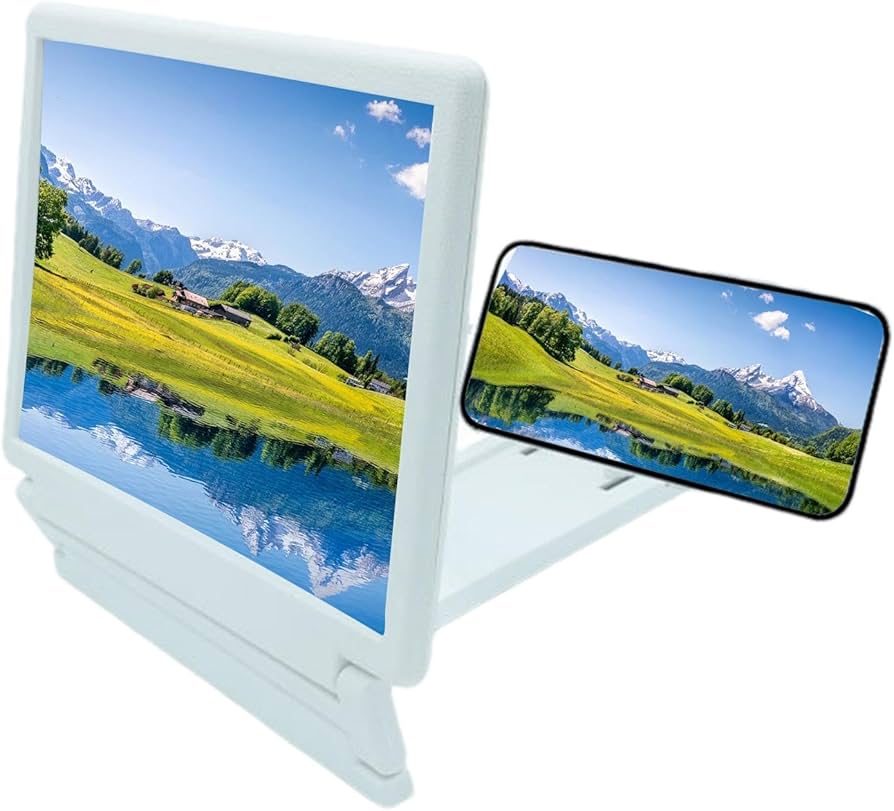
How to Magnify The Monitor of Your Mobile
Are you tired of struggling to see what’s on your mobile screen? Do you find yourself having to zoom in just to read text or view images? You’re not alone! Many of us face this issue, especially as we age or our eyesight changes. But fear not, dear reader, for I have some good news: Magnifying the monitor of your mobile is easier than you think.
In this article, I’ll guide you through the process of magnifying your mobile screen, step by step, on various devices, including Android, Samsung, Xiaomi, Huawei, and iPhone. We’ll also explore how to use a virtual zoom lens on your iPhone and how to customize the zoom settings for different apps.
Why Magnify Your Mobile Screen?
Before we dive into the nitty-gritty, let’s talk about why magnifying your mobile screen is a good idea. As our eyesight changes with age or due to other factors, it can become increasingly difficult to see what’s on our screens. This can lead to eye strain, headaches, and even decreased productivity.
By magnifying your mobile screen, you can:
- Improve readability
- Reduce eye strain
- Increase productivity
- Enhance overall mobile experience
How to Magnify The Monitor of Your Android Mobile
If you’re using an Android device, follow these steps to magnify your screen:
- Open Settings: Tap on the gear icon (Settings) usually found on the home screen or in the app drawer.
- Go to Display: Scroll down and select “Display” from the list of options.
- Select Text Size: Choose a larger text size from the menu that appears.
- Adjust Font Size: You can adjust the font size further by selecting “Large text” or “Extra large text”.
- Customize Zoom Settings: If you want to customize the zoom settings, go to “Accessibility” > “Display and sound” > “Display zoom”.
How to Magnify The Monitor of Your Samsung Mobile
If you’re using a Samsung device, follow these steps:
- Open Settings: Tap on the gear icon (Settings) usually found on the home screen or in the app drawer.
- Go to Display: Scroll down and select “Display” from the list of options.
- Select Zoom Monitor: Choose “Zoom monitor” from the menu that appears.
- Adjust Zoom Level: You can adjust the zoom level by selecting a larger size (e.G., +) Or smaller size (-).
- Customize Zoom Settings: If you want to customize the zoom settings, go to “Accessibility” > “Help for visual impairments” > “Zoom”.
How to Magnify The Monitor of Your Xiaomi Mobile
If you’re using an Xiaomi device, follow these steps:
- Open Settings: Tap on the gear icon (Settings) usually found on the home screen or in the app drawer.
- Go to Additional Settings: Scroll down and select “Additional settings” from the list of options.
- Select Accessibility: Choose “Accessibility” from the menu that appears.
- Select Seen: Select “Seen” from the list of options.
- Adjust Zoom Level: You can adjust the zoom level by selecting a larger size (e.G., +) Or smaller size (-).
How to Magnify The Monitor of Your Huawei Mobile
If you’re using a Huawei device, follow these steps:
- Open Settings: Tap on the gear icon (Settings) usually found on the home screen or in the app drawer.
- Go to Display And Luminosity: Scroll down and select “Display and luminosity” from the list of options.
- Select Dimensions Monitor: Choose “Dimensions monitor” from the menu that appears.
- Adjust Zoom Level: You can adjust the zoom level by selecting a larger size (e.G., +) Or smaller size (-).
- Customize Zoom Settings: If you want to customize the zoom settings, go to “Accessibility” > “Help for visual impairments” > “Zoom”.
How to Magnify The Monitor of Your Iphone
If you’re using an iPhone, follow these steps:
- Open Settings: Tap on the gear icon (Settings) usually found on the home screen.
- Go to Accessibility: Scroll down and select “Accessibility” from the list of options.
- Select Zoom: Choose “Zoom” from the menu that appears.
- Adjust Zoom Level: You can adjust the zoom level by selecting a larger size (e.G., +) Or smaller size (-).
- Customize Zoom Settings: If you want to customize the zoom settings, go to “Accessibility” > “Display and sound” > “Zoom”.
Using a Virtual Zoom Lens on Your Iphone
If you’re using an iPhone, you can also use a virtual zoom lens to magnify your screen:
- Open Settings: Tap on the gear icon (Settings) usually found on the home screen.
- Go to Accessibility: Scroll down and select “Accessibility” from the list of options.
- Select Zoom: Choose “Zoom” from the menu that appears.
- Adjust Zoom Level: You can adjust the zoom level by selecting a larger size (e.G., +) Or smaller size (-).
- Customize Zoom Settings: If you want to customize the zoom settings, go to “Accessibility” > “Display and sound” > “Zoom”.
How to Customize Zoom Settings For Different Apps
If you want to customize the zoom settings for specific apps on your Android or iOS device:
- Open Settings: Tap on the gear icon (Settings) usually found on the home screen.
- Go to Accessibility: Scroll down and select “Accessibility” from the list of options.
- Select Display Zoom: Choose “Display zoom” from the menu that appears.
- Customize Zoom Settings: You can customize the zoom settings for each app by selecting a larger size (e.G., +) Or smaller size (-).
Conclusion
Magnifying your mobile screen is easier than you think, and with these steps, you can improve readability, reduce eye strain, increase productivity, and enhance overall mobile experience. Remember to follow the specific instructions for your device type and customize zoom settings as needed.
I hope this article has been helpful in guiding you through the process of magnifying your mobile screen. If you have any further questions or need additional assistance, feel free to ask!


