
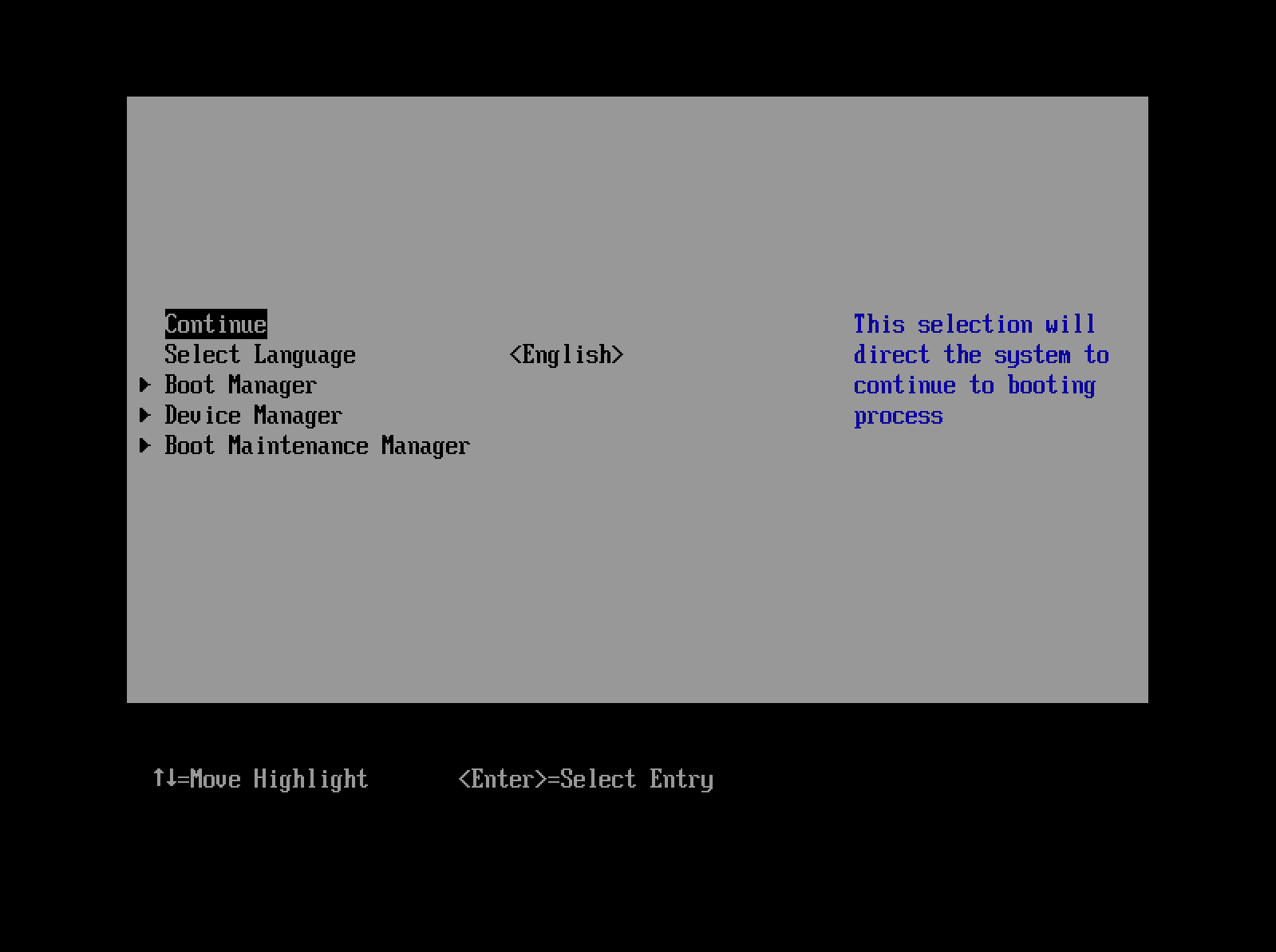
How to Access Bios on Acer Computers: A Step-by-step Guide
Are you looking for a comprehensive guide on how to access the BIOS settings on your Acer computer? Look no further! In this article, we will walk you through the steps to access the BIOS settings on various versions of Windows operating systems.
Understanding Bios And Uefi
Before we dive into the steps, it’s essential to understand what BIOS and UEFI are. BIOS (Basic Input/Output System) is a firmware that controls the computer’s hardware components. UEFI (Unified Extensible Firmware Interface) is an advanced version of BIOS that offers more features and improved performance.
Most modern computers come with UEFI instead of traditional BIOS. However, some older models may still have BIOS. In this guide, we will cover both scenarios.
Accessing Bios on Windows 11
If you’re using Windows 11, here’s how to access the BIOS settings:
- Press Win + I to open the Settings app.
- Click on System and then select Recovery from the left menu.
- Under Advanced Startup, click on Restart Now.
- When your computer restarts, you will see a blue screen with various options.
- To access the BIOS settings, click on Troubleshoot and then select Advanced Options.
- Click on Uefi Firmware Settings to enter the UEFI settings.
Accessing Bios on Windows 10
If you’re using Windows 10, here’s how to access the BIOS settings:
- Press Win + I to open the Settings app.
- Click on Update & Security, and then select Recovery from the left menu.
- Under Advanced Startup, click on Restart Now.
- When your computer restarts, you will see a blue screen with various options.
- To access the BIOS settings, click on Troubleshoot and then select Advanced Options.
- Click on Uefi Firmware Settings to enter the UEFI settings.
Accessing Bios on Windows 8.1
If you’re using Windows 8.1, Here’s how to access the BIOS settings:
- Press Win + I to open the Settings app.
- Click on Update & Recovery, and then select Recovery from the left menu.
- Under Advanced Startup, click on Restart Now.
- When your computer restarts, you will see a blue screen with various options.
- To access the BIOS settings, click on Troubleshoot and then select Advanced Options.
- Click on Uefi Firmware Settings to enter the UEFI settings.
Accessing Bios on Windows 7 And Earlier
If you’re using an older version of Windows (Windows 7 or earlier), here’s how to access the BIOS settings:
- Press Ctrl + Alt + Del to open the Task Manager.
- Click on Shut Down and then select Restart.
- When your computer restarts, press F2, F12, or Del (depending on your computer model) to access the BIOS settings.
Updating Bios
If you need to update your BIOS, follow these steps:
- Check if there are any updates available for your BIOS using the Acer website.
- Download the latest BIOS version and save it to a USB drive.
- Restart your computer and enter the UEFI settings (as described above).
- Select Update and then choose the USB drive as the update source.
- Follow the on-screen instructions to complete the update process.
Conclusion
In conclusion, accessing the BIOS settings on Acer computers is relatively straightforward. Whether you’re using Windows 11, Windows 10, or an older version of Windows, following these steps will guide you through the process.
Remember to always be cautious when updating your BIOS, as incorrect updates can cause serious issues with your computer’s hardware and software.
Frequently Asked Questions
- What is The Difference Between Bios And Uefi?
BIOS (Basic Input/Output System) is a firmware that controls the computer’s hardware components. UEFI (Unified Extensible Firmware Interface) is an advanced version of BIOS that offers more features and improved performance. - Why do I Need to Access The Bios Settings?
You may need to access the BIOS settings to update your BIOS, reset your computer’s settings to their original values, or troubleshoot hardware-related issues. - What Are The Risks Associated With Updating my Bios?
Incorrect updates can cause serious issues with your computer’s hardware and software, including data loss, system crashes, or even damage to your computer’s components. - Can I Update my Bios Using a Usb Drive?
Yes, you can update your BIOS using a USB drive. Make sure to follow the on-screen instructions carefully to avoid any issues. - What Should I do if I Encounter Issues While Updating my Bios?
If you encounter issues while updating your BIOS, restart your computer and try again. If the problem persists, consider seeking assistance from a qualified technician or Acer support.
References
- Acer Website: Www.Acer.Com
- Microsoft Support: Support.Microsoft.Com


