
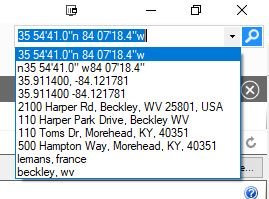
How to Insert Gps Coordinates on Your Browser
Are you tired of getting lost or struggling to find a specific location? Do you want to know how to insert GPS coordinates on your browser for easy navigation? Look no further! In this article, we will guide you through the step-by-step process of inserting GPS coordinates on various browsers, including Google Maps, Apple Maps, and more.
Why Insert Gps Coordinates on Your Browser?
Inserting GPS coordinates on your browser can be a game-changer for anyone who wants to navigate easily. With just a few clicks, you can find any location in the world and get directions to it. Whether you’re traveling, exploring new places, or simply trying to find a specific address, inserting GPS coordinates on your browser is a must-have skill.
How to Insert Gps Coordinates on Google Maps
Inserting GPS coordinates on Google Maps is easy peasy! Here’s how:
- Open Google Maps on your device.
- Type the name of the location or address you want to find in the search bar.
- Click on the exact dot where you want to see the coordinates.
- The coordinates will be displayed on the screen.
- To copy the coordinates, click on them and select “Copy” from the menu.
That’s it! You can now easily insert GPS coordinates on Google Maps and get directions to any location in the world.
How to Insert Gps Coordinates on Apple Maps
Inserting GPS coordinates on Apple Maps is also a breeze. Here’s how:
- Open Apple Maps on your device.
- Type the name of the location or address you want to find in the search bar.
- Click on the exact dot where you want to see the coordinates.
- The coordinates will be displayed on the screen.
- To copy the coordinates, tap and hold on them until they appear as a menu option.
Voilà! You can now insert GPS coordinates on Apple Maps with ease.
How to Insert Gps Coordinates on Other Browsers
But wait, there’s more! You can also insert GPS coordinates on other browsers like Waze, TomTom GO, and HERE WeGo. Here’s how:
- On Waze, tap on the search bar, type in the coordinates, and select “Search” from the menu.
- On TomTom GO, tap on the search bar, type in the coordinates, and select “Find” from the menu.
- On HERE WeGo, tap on the search bar, type in the coordinates, and select “Search” from the menu.
How to Insert Gps Coordinates on Garmin Browser
Inserting GPS coordinates on a Garmin browser is also possible. Here’s how:
- Open the Garmin browser on your device.
- Select the “Where do I go?” option from the menu.
- Choose the “Coordinates” option from the menu.
- Type in the coordinates you want to find.
- Select the “Visualize on map” option to see the location on a map.
Conclusion
Inserting GPS coordinates on your browser is a simple yet powerful skill that can make navigating easier than ever before. Whether you’re using Google Maps, Apple Maps, or other browsers, the process is straightforward and easy to follow. So next time you need to find a specific location or get directions, remember to insert GPS coordinates on your browser for a hassle-free experience.
Frequently Asked Questions (FAQs)
- What Are Gps Coordinates?
GPS coordinates refer to the geographic location of a place, expressed as latitude and longitude values. - Why do I Need to Insert Gps Coordinates on my Browser?
Inserting GPS coordinates on your browser allows you to find any location in the world and get directions to it with ease. - How do I Insert Gps Coordinates on Google Maps?
To insert GPS coordinates on Google Maps, type the name of the location or address you want to find in the search bar, click on the exact dot where you want to see the coordinates, and copy them from the menu. - Can I Insert Gps Coordinates on Other Browsers Like Waze And Tomtom Go?
Yes, you can insert GPS coordinates on other browsers like Waze, TomTom GO, and HERE WeGo by following their respective instructions. - How do I Insert Gps Coordinates on a Garmin Browser?
To insert GPS coordinates on a Garmin browser, select the “Where do I go?” option from the menu, choose the “Coordinates” option, type in the coordinates you want to find, and select the “Visualize on map” option to see the location on a map. - Can I Copy And Paste Gps Coordinates From One Browser to Another?
Yes, you can copy and paste GPS coordinates from one browser to another by selecting the coordinates and copying them using the menu options. - What Are Some Other Ways to Find Gps Coordinates?
You can also use online tools like What3Words or GeoNames to find GPS coordinates for any location in the world. - Can I Use Gps Coordinates on a Physical Map?
Yes, you can use GPS coordinates on a physical map by plotting them using a coordinate grid or by referencing a map with a coordinate system.
I hope this article has been helpful in answering your questions about inserting GPS coordinates on your browser!


