
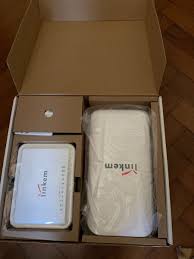
Accessing The Modem Linkem Panel: A Step-by-step Guide
Are you tired of feeling overwhelmed by the prospect of accessing your modem’s management panel? Look no further! In this article, we will guide you through a simple and straightforward process to access and modify the settings of your modem Linkem.
Understanding Your Modem Linkem
Before we dive into the steps, it’s essential to understand that your modem Linkem is connected to your computer via Ethernet or wireless. To access the management panel, you’ll need to ensure that your modem is powered on and functioning correctly.
Step 1: Accessing The Modem Panel
To begin, open a web browser (such as Google Chrome, Mozilla Firefox, or Safari) and type in the address 192.168.1.1 In the address bar. Press Enter to proceed.
Step 2: Entering Credentials
If this is your first time accessing the modem panel, you’ll need to enter the default credentials:
- Username: Guest
- Password: Linkem123
Click on the “Login” button to access the modem’s management panel.
Troubleshooting Access Issues
If you’re unable to access the modem panel using the above steps, check that you’ve entered the correct address and credentials. If you still encounter issues, try accessing the panel from a different device or browser. In some cases, you might need to restart your router or modem to resolve connectivity problems.
Modifying Modem Settings
Once you’ve accessed the modem panel, you can modify various settings to suit your needs. The following sections will guide you through the most common modifications:
Wi-fi Settings
To manage your Wi-Fi network, follow these steps:
- Click on the “Wireless” tab.
- Select the “Settings” option.
- Change the password and name (SSID) to your preference.
- Apply the changes.
Modem Management
To access advanced modem settings, follow these steps:
- Click on the “Management” tab.
- Select the “Account” section.
- Update your username and password for secure access.
- Confirm the changes.
Network Settings
To view network information and configure settings, follow these steps:
- Click on the “Network” tab.
- View the IP address of your modem.
- Configure LAN settings as needed.
- Open ports or enable features like eMule or uTorrent.
Firewall Settings
To manage firewall settings and DMZ, follow these steps:
- Click on the “Firewall” tab.
- Enable or disable the firewall as required.
- Configure DMZ settings to allow specific IP addresses.
Monitoring And Diagnostics
To monitor your modem’s performance and diagnose issues, follow these steps:
- Click on the “Monitoring” tab.
- View real-time data on transmission rates and errors.
- Run a diagnostic test to identify potential problems.
Troubleshooting Common Issues
If you encounter issues after modifying your modem settings, try the following troubleshooting steps:
- Restart your router or modem.
- Check for firmware updates.
- Contact Linkem’s customer support for assistance.
Conclusion
Accessing and modifying your modem Linkem panel is a straightforward process that can be completed with ease. By following these step-by-step guides, you’ll be able to configure settings, troubleshoot issues, and optimize your modem’s performance. Remember to always check the official Linkem website or consult their customer support for further assistance.
Frequently Asked Questions (FAQs)
- Q: What is The Default Password For my Linkem Modem?
A: The default password is linkem123. - Q: How do I Reset my Linkem Modem to Its Factory Settings?
A: You can restart your router or modem, or follow the instructions provided in the manual. - Q: What is Dmz And How Does it Work?
A: DMZ (Demilitarized Zone) allows specific IP addresses to bypass firewall restrictions. - Q: How do I Configure my Wi-fi Network Settings?
A: Follow the steps outlined in the “Wi-Fi Settings” section above. - Q: Can I Access my Modem’s Management Panel Remotely?
A: Yes, you can access your modem’s management panel using a web browser from any device on your network.
FAQs Continued:
- Q: What Are Some Common Issues That May Occur With my Linkem Modem?
A: Common issues include connectivity problems, password reset errors, and firewall configuration mistakes. - Q: How do I Troubleshoot Connectivity Issues?
A: Restart your router or modem, check for firmware updates, or contact customer support. - Q: What is The Process For Resetting my Linkem Modem’s Password?
A: Follow the instructions outlined in the “Modem Management” section above.
References
- Official Linkem website
- Manual provided with your Linkem modem


