
Accessing The Bios on Your Asus Pc: A Step-by-step Guide
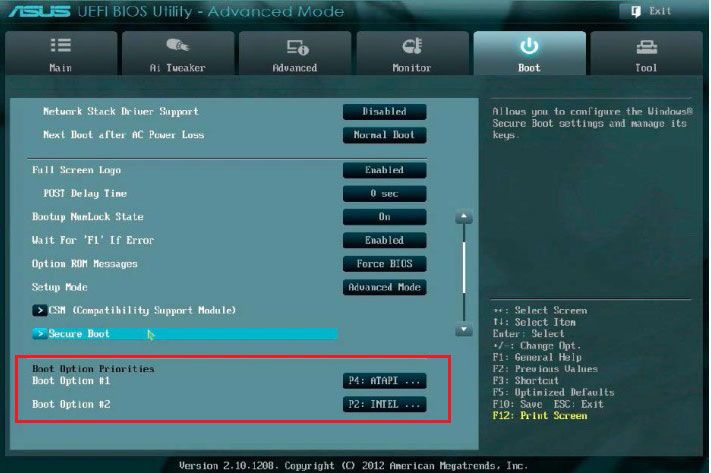
Are you struggling to modify settings in your PC’s BIOS but don’t know how to enter the BIOS? Don’t worry, this guide will walk you through the process of accessing the BIOS on your ASUS PC.
Why Access The Bios?
Before we dive into the steps, let’s quickly discuss why you might need to access the BIOS. The BIOS (Basic Input/Output System) is a crucial component that controls the basic functions of your computer, such as booting up and managing hardware components. Sometimes, you may need to modify settings in the BIOS to resolve issues or optimize performance.
Accessing The Bios on Asus Pcs With Windows 11
If you’re running Windows 11 on your ASUS PC, follow these steps:
- Click Right on The Start Button: Open the Start menu and click on the “Settings” icon.
- Select System: From the Settings window, select the “System” option.
- Choose Recovery: Click on the “Recovery” tab from the left-hand menu.
- Restart Your PC: Select the “Restart now” option to restart your computer in advanced mode.
- Access The Bios: On the next screen, click on the “Resolution of problems” button and then select the “Advanced Options > Settings firmware UEFI” option.
- Confirm: Click on the “Reboot” button to access the BIOS.
Alternative Method
If you find this method too lengthy, try the following:
- Hold Shift While Restarting: Press the Shift key while clicking on the Restart button in the Start menu.
- Access The Bios: On the next screen, click on the “Resolution of problems” button and then select the “Advanced Options > Settings firmware UEFI” option.
Accessing The Bios on Asus Pcs With Windows 10
If you’re running Windows 10 on your ASUS PC, follow these steps:
- Open The Start Menu: Click on the Start icon to open the Start menu.
- Select System: From the Start menu, select the “System” option.
- Choose Update & Security: Select the “Update & Security” tab from the left-hand menu.
- Select Recovery: Click on the “Recovery” tab from the left-hand menu.
- Restart Your PC: Select the “Restart now” option to restart your computer in advanced mode.
- Access The Bios: On the next screen, click on the “Resolution of problems” button and then select the “Advanced Options > Settings firmware UEFI” option.
Alternative Methods For Older Systems
If you’re using an older ASUS system with a legacy BIOS or old Windows 8.X operating system, follow these steps:
- Turn Off Your PC: Completely shut down your computer.
- Press F2 or Esc: Press the F2 or ESC key while powering on your PC to access the BIOS.
- Access The Bios: Follow the prompts to enter the BIOS setup screen.
Common Issues And Solutions
Are you experiencing issues with accessing the BIOS? Check our frequently asked questions section below for answers!
Frequently Asked Questions (FAQs)
-
What is The Bios, And Why do I Need to Access It?
The BIOS (Basic Input/Output System) is a critical component that controls your computer’s basic functions. You may need to access the BIOS to resolve issues or optimize performance. -
How Can I Access The Bios on my Asus PC With Windows 11?
Follow the steps outlined in our guide, or try the alternative method by pressing Shift while restarting. -
What is Uefi, And How Does it Differ From Traditional Bios?
UEFI (Unified Extensible Firmware Interface) is an advanced version of the BIOS that provides improved functionality and security features. UEFI differs significantly from traditional BIOS. -
Can I Still Use my Asus PC With a Legacy Bios or Old Windows 8.X Operating System?
Yes, but you’ll need to follow alternative methods for accessing the BIOS as outlined in our guide. -
What if I’m Having Trouble Accessing The Bios on my Asus Pc?
Try restarting your PC and attempting to access the BIOS again. If issues persist, consult online forums or contact an expert friend for assistance. -
Can I Modify Settings in The Bios Without Damaging my Computer’s Hardware?
Be cautious when modifying BIOS settings, as incorrect changes can cause serious damage to your computer’s hardware. Always exercise extreme caution and consider seeking professional advice before making any changes. -
What Are Some Common Issues Related to Accessing The Bios on Asus Pcs?
Common issues include difficulty restarting the PC or failing to access the BIOS setup screen. Consult our guide for solutions!
Conclusion
Accessing the BIOS on your ASUS PC is a straightforward process, especially with our step-by-step guide. Remember to be cautious when modifying settings in the BIOS to avoid damaging your computer’s hardware.
If you’re experiencing issues or need further assistance, don’t hesitate to reach out to an expert friend or consult online forums for guidance. Happy computing!


