
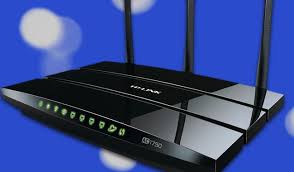
How to Access And Configure Your Tp-link Router
As a homeowner or office manager, you likely have a TP-Link router in your home or office to provide internet access to all devices connected to it. However, navigating the settings and configuration options can be daunting for those without technical expertise.
In this article, we will guide you through the process of accessing and configuring your TP-Link router using both web-based interface and mobile app.
Accessing Your Router
To begin, you need to access your TP-Link router’s web-based interface. This can be done by opening a web browser on any device connected to the router (computer, smartphone, or tablet).
Step 1: Open Your Web Browser
Open a web browser on the device you want to use to configure your router.
Step 2: Type in The Router’s IP Address
Type in the router’s IP address into the address bar of the web browser. The most common IP addresses for TP-Link routers are:
- Http://Tplinkwifi.Net
- 192.168.1.1
Step 3: Login to Your Router
Once you have accessed your router’s web interface, you will be prompted to enter a username and password. The default credentials can usually be found on the underside of the router or in the documentation provided.
Understanding Your Router’s Web Interface
The TP-Link router’s web interface is divided into several sections:
- Quick Setup: This section allows you to quickly configure your router for basic internet access.
- Basic Settings: This section contains settings related to the network, such as Wi-Fi settings and parental controls.
- Advanced Settings: This section provides more detailed settings for configuring your router, including advanced networking options.
Configuring Your Router
Now that we have accessed and understood the web interface of our TP-Link router, it’s time to configure some basic settings. We will focus on the following:
- Wi-Fi network name (SSID) and password
- Parental controls
- Quality of Service (QoS)
These configurations can be found in the Basic Settings section.
Configuring Your Router Using Mobile App
In addition to accessing your router’s web interface, you can also configure it using the TP-Link mobile app. This app allows you to manage your router remotely and access advanced settings.
Step 1: Download And Install The Tp-link App
Download and install the TP-Link app on your smartphone or tablet.
Step 2: Launch The App And Login
Launch the app, select “Login,” and enter your username and password. If you do not have an account, create one by following the prompts.
Step 3: Configure Your Router Settings
Once logged in, navigate to the Settings section of the app and configure your Wi-Fi network name (SSID) and password, parental controls, and QoS settings as desired.
Advanced Features
Your TP-Link router has many advanced features that can be configured using either the web interface or mobile app. Some examples include:
- Guest Network: This feature allows you to create a separate guest network for visitors.
- Port Forwarding: This feature enables you to forward specific ports on your router to allow incoming traffic to specific applications.
- Dynamic Dns (DDNS): This feature allows you to map a domain name to your dynamic IP address.
Troubleshooting Common Issues
Some common issues that may arise when configuring your TP-Link router include:
- Connection problems
- Slow internet speeds
- Difficulty logging in
If you experience any of these issues, refer to the troubleshooting guide provided by TP-Link or consult a professional if necessary.
Conclusion
Configuring and managing your TP-Link router can be daunting for those without technical expertise. However, with this guide, we have walked through the process of accessing and configuring your router using both web-based interface and mobile app. Whether you are looking to configure basic settings or advanced features, this article provides a comprehensive resource for doing so.
Frequently Asked Questions (FAQs)
- Q: What is The Default Username And Password For my Tp-link Router?
A: The default credentials can usually be found on the underside of the router or in the documentation provided.
- Q: How do I Access The Advanced Settings on my Tp-link Router?
A: You can access the advanced settings by logging into your router’s web interface and navigating to the Advanced Settings section.
- Q: Can I Configure my Tp-link Router Using a Mobile App?
A: Yes, you can configure your TP-Link router using the TP-Link mobile app available for both Android and iOS devices.
- Q: What is Quality of Service (QoS) on my Tp-link Router?
A: QoS allows you to prioritize network traffic based on applications or users, ensuring that critical services receive sufficient bandwidth.
- Q: How do I Troubleshoot Common Issues With my Tp-link Router?
A: Refer to the troubleshooting guide provided by TP-Link or consult a professional if necessary.
- Q: Can I Access my Tp-link Router Remotely Using The Mobile App?
A: Yes, you can access your TP-Link router remotely using the mobile app as long as it is connected to the internet and you have a valid account setup.
- Q: How do I Reset my Tp-link Router to Its Factory Settings?
A: You can reset your TP-Link router by pressing and holding the reset button for 10 seconds or until the lights on the router turn off and then back on again.
- Q: Can I Configure Multiple Tp-link Routers Using a Single App?
A: Yes, you can configure multiple TP-Link routers using a single app as long as they are connected to the same network.


