
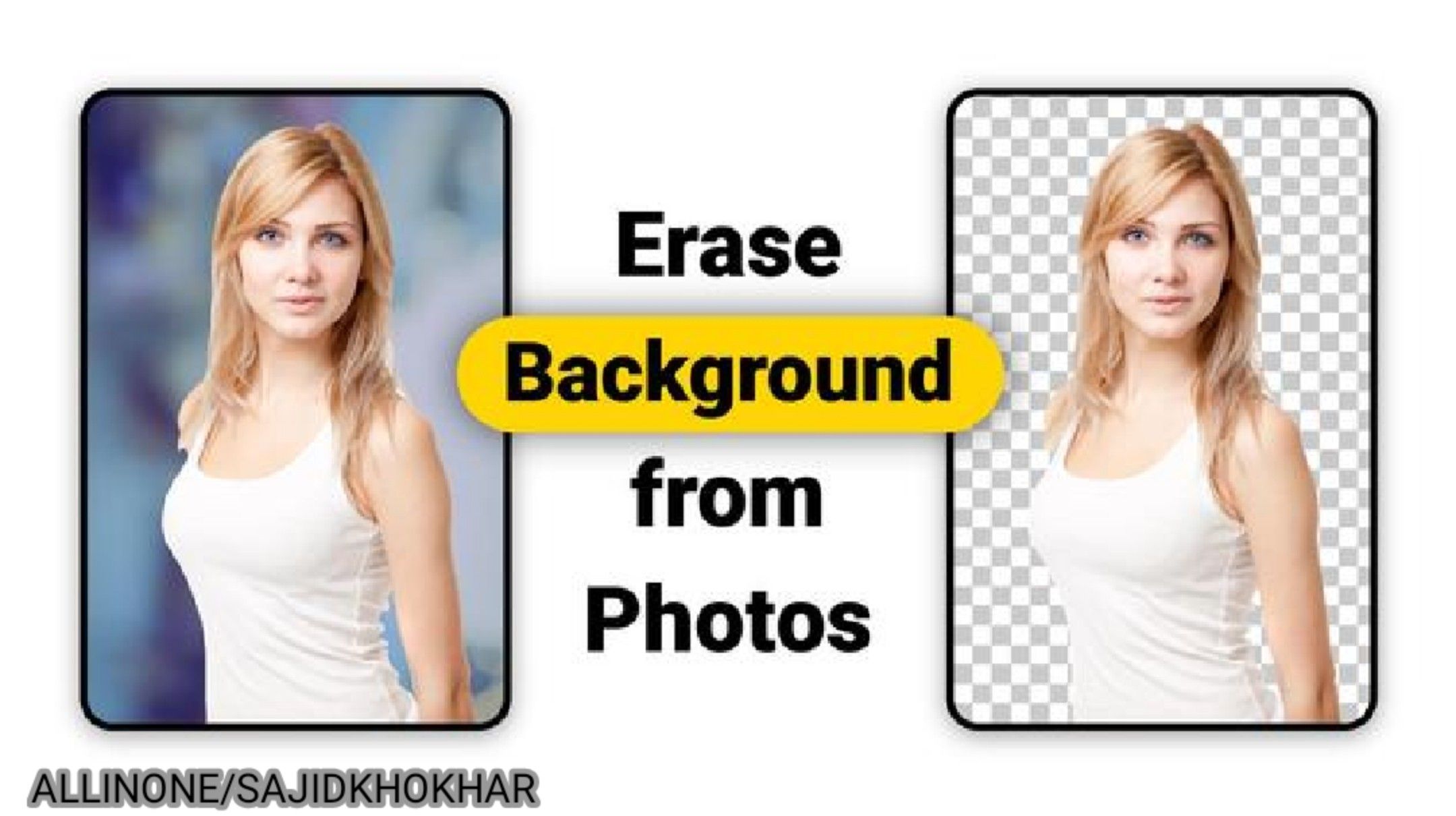
How to Erase The Background of a Photo: A Step-by-step Guide
Are you tired of having unwanted backgrounds in your photos? Do you want to remove distractions and make your images look more professional? Look no further! In this article, we will guide you through various methods on how to erase the background of a photo using different software and apps.
Why Erase The Background of a Photo?
Removing the background of a photo can be beneficial in various ways. It can help:
- Make your images look more professional
- Remove distractions and focus on the subject
- Use the image for different purposes, such as printing or digital use
Method 1: Using Adobe Photoshop
Adobe Photoshop is a powerful editing software that allows you to remove the background of an image with ease. Here’s how:
- Open the image in Adobe Photoshop.
- Go to “Image” > “Mode” and select “Grayscale”.
- Click on the “Layer” button at the top left corner of the screen.
- Select “New Layer” from the dropdown menu.
- Name the new layer as “Background”.
- Click on the “Magic Wand” tool.
- Select the area you want to remove from the background by clicking and dragging the wand.
- Go to “Select” > “Invert” to select the opposite area of the background.
- Press “Delete” or use the “Erase Tool” to remove the selected area.
Method 2: Using Microsoft Powerpoint
Microsoft PowerPoint is a popular presentation software that allows you to remove the background of an image with ease. Here’s how:
- Open your presentation in Microsoft PowerPoint.
- Insert the image by going to “Insert” > “Picture” or press “Ctrl + V”.
- Select the image and go to the “Format” tab.
- Click on the “Remove Background” button.
- PowerPoint will automatically remove the background of the image.
Method 3: Using Paint
Paint is a simple yet effective editing software that allows you to remove the background of an image with ease. Here’s how:
- Open the image in Paint.
- Select the “Background Eraser Tool” by clicking on it at the top left corner of the screen.
- Click and drag the tool over the area you want to remove from the background.
- Press “Delete” or use the “Eraser Tool” to remove the selected area.
Method 4: Using Online Tools
There are several online tools that allow you to remove the background of an image with ease. Some popular options include:
- Remove.Bg
- Adobe Express
- PhotoRoom
These tools usually require you to upload the image, select the area you want to remove from the background, and download the edited image.
Method 5: Using Android Apps
If you’re using an Android device, there are several apps that allow you to remove the background of an image with ease. Some popular options include:
- Remove.Bg
- PicsArt
- PhotoEditor
These apps usually require you to upload the image, select the area you want to remove from the background, and download the edited image.
Conclusion
Removing the background of a photo can be a useful skill to have, especially when working with images for different purposes. In this article, we’ve guided you through various methods on how to erase the background of a photo using Adobe Photoshop, Microsoft PowerPoint, Paint, online tools, and Android apps. Whether you’re a beginner or an expert, these methods are sure to help you achieve professional-looking results.
Frequently Asked Questions
- Q: Can I Remove The Background of a Photo Without Editing It?
A: Yes, many online tools allow you to remove the background of an image without editing it. - Q: How do I Use Adobe Photoshop to Remove The Background of a Photo?
A: To use Adobe Photoshop, open the image in the software and go to “Image” > “Mode” and select “Grayscale”. Then, click on the “Magic Wand” tool and select the area you want to remove from the background. - Q: Can I Remove The Background of a Photo Using Microsoft Powerpoint?
A: Yes, you can remove the background of an image by selecting it in the software and going to the “Format” tab. Then, click on the “Remove Background” button. - Q: How do I Use Online Tools to Remove The Background of a Photo?
A: To use online tools, upload the image, select the area you want to remove from the background, and download the edited image. - Q: Can I Remove The Background of a Photo Using Android Apps?
A: Yes, there are several Android apps that allow you to remove the background of an image with ease.


