
How to Exclude a File From Your Antivirus: A Step-by-step Guide
Are you tired of dealing with false positives from your antivirus software? Do you want to know how to exclude a file from your antivirus so that it doesn’t flag it as a threat anymore? Look no further! In this article, we’ll guide you through the process of excluding a file from various popular antivirus software, including Microsoft Windows Defender, Avast, Kaspersky, Bitdefender, AVG, and Avira.
Why Exclude a File From Your Antivirus?
Before we dive into the steps, let’s quickly discuss why you might want to exclude a file from your antivirus. Sometimes, your antivirus software may flag a file as malicious or suspicious when it’s actually harmless. This can be frustrating, especially if you’re using that file frequently. Excluding a file from your antivirus ensures that it won’t be flagged again, giving you peace of mind and avoiding any unnecessary disruptions.
Excluding a File From Microsoft Windows Defender
If you use Microsoft Windows Defender on your PC, here’s how to exclude a file:
- Click on The Start Menu and type “Windows Defender” in the search bar.
- Open Windows Defender and click on the gear icon (Settings).
- Select Virus & Threat Protection from the left menu.
- Click on The Manage Settings button.
- Scroll Down to Exclusions and click on it.
- Add an Exclusion by clicking on the + symbol next to “Add or remove exclusions.”
- Select The File Type you want to exclude (e.G., Executable files, folders, etc.).
- Choose The Path where your file is located.
- Confirm The Changes by clicking OK.
Excluding a File From Avast
If you use Avast antivirus on your PC or Mac, here’s how to exclude a file:
PC (Windows):
1. Double-click on The Avast Icon in the system tray.
2. Right-click on The Avast Icon and select “Open Avast User Interface.”
3. Click on The Menu button (three horizontal lines) in the top-right corner.
4. Select Settings from the menu.
5. Scroll Down to Exceptions and click on it.
6. Add an Exception by clicking on the + symbol next to “Add exception.”
7. Choose The File Type you want to exclude (e.G., Executable files, folders, etc.).
8. Select The File you want to exclude from the dropdown menu.
Mac:
1. Click on The Avast Icon in the top-right corner of your screen.
2. Select “Open Avast Security” from the drop-down menu.
3. Click on The Menu button (three horizontal lines) in the top-right corner.
4. Select Settings from the menu.
5. Scroll Down to Protections and click on it.
6. Add an Exception by clicking on the + symbol next to “Add exceptions.”
7. Choose The File Type you want to exclude (e.G., Executable files, folders, etc.).
8. Select The File you want to exclude from the dropdown menu.
Excluding a File From Kaspersky
If you use Kaspersky antivirus on your PC or Mac, here’s how to exclude a file:
PC (Windows):
1. Double-click on The Kaspersky Icon in the system tray.
2. Click on The Gear Icon (Settings) in the top-right corner.
3. Select Exclusion & Action from the menu.
4. Click on Manage Exclusions.
5. Add an Exclusion by clicking on the + symbol next to “Add exclusion.”
6. Choose The File Type you want to exclude (e.G., Executable files, folders, etc.).
7. Select The File you want to exclude from the dropdown menu.
Mac:
1. Click on The Kaspersky Icon in the top-right corner of your screen.
2. Select “Open Kaspersky” from the drop-down menu.
3. Click on The Menu button (three horizontal lines) in the top-right corner.
4. Select Settings from the menu.
5. Scroll Down to Threats and click on it.
6. Add an Exception by clicking on the + symbol next to “Add exceptions.”
7. Choose The File Type you want to exclude (e.G., Executable files, folders, etc.).
8. Select The File you want to exclude from the dropdown menu.
Excluding a File From Bitdefender
If you use Bitdefender antivirus on your PC or Mac, here’s how to exclude a file:
PC (Windows):
1. Double-click on The Bitdefender Icon in the system tray.
2. Click on The Gear Icon (Settings) in the top-right corner.
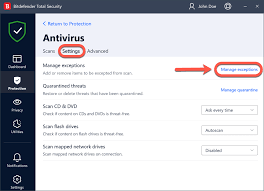
3. Select Antivirus from the menu.
4. Scroll Down to Exclusions and click on it.
5. Add an Exclusion by clicking on the + symbol next to “Add exception.”
6. Choose The File Type you want to exclude (e.G., Executable files, folders, etc.).
7. Select The File you want to exclude from the dropdown menu.
Mac:
1. Click on The Bitdefender Icon in the top-right corner of your screen.
2. Select “Open Bitdefender” from the drop-down menu.
3. Click on The Menu button (three horizontal lines) in the top-right corner.
4. Select Settings from the menu.
5. Scroll Down to Exclusions and click on it.
6. Add an Exclusion by clicking on the + symbol next to “Add exceptions.”
7. Choose The File Type you want to exclude (e.G., Executable files, folders, etc.).
8. Select The File you want to exclude from the dropdown menu.
Excluding a File From Avg
If you use AVG antivirus on your PC or Mac, here’s how to exclude a file:
PC (Windows):
1. Double-click on The Avg Icon in the system tray.
2. Right-click on The Avg Icon and select “Open AVG User Interface.”
3. Click on The Menu button (three horizontal lines) in the top-right corner.
4. Select Settings from the menu.
5. Scroll Down to Exceptions and click on it.
6. Add an Exception by clicking on the + symbol next to “Add exception.”
7. Choose The File Type you want to exclude (e.G., Executable files, folders, etc.).
8. Select The File you want to exclude from the dropdown menu.
Mac:
1. Click on The Avg Icon in the top-right corner of your screen.
2. Select “Open Avg Antivirus” from the drop-down menu.
3. Click on The Menu button (three horizontal lines) in the top-right corner.
4. Select Settings from the menu.
5. Scroll Down to Protections and click on it.
6. Add an Exception by clicking on the + symbol next to “Add exceptions.”
7. Choose The File Type you want to exclude (e.G., Executable files, folders, etc.).
8. Select The File you want to exclude from the dropdown menu.
Excluding a File From Avira
If you use Avira antivirus on your PC or Mac, here’s how to exclude a file:
PC (Windows):
1. Double-click on The Avira Icon in the system tray.
2. Click on The Gear Icon (Settings) in the top-right corner.
3. Select Antivirus from the menu.
4. Scroll Down to Exclusions and click on it.
5. Add an Exclusion by clicking on the + symbol next to “Add exception.”
6. Choose The File Type you want to exclude (e.G., Executable files, folders, etc.).
7. Select The File you want to exclude from the dropdown menu.
Mac:
1. Click on The Avira Icon in the top-right corner of your screen.
2. Select “Open Avira” from the drop-down menu.
3. Click on The Menu button (three horizontal lines) in the top-right corner.
4. Select Settings from the menu.
5. Scroll Down to Exclusions and click on it.
6. Add an Exception by clicking on the + symbol next to “Add exceptions.”
7. Choose The File Type you want to exclude (e.G., Executable files, folders, etc.).
8. Select The File you want to exclude from the dropdown menu.
That’s it! By following these steps, you can exclude a file from your antivirus and avoid any unnecessary disruptions. Remember to always be cautious when adding exclusions, as this can potentially make your system more vulnerable to threats.
I hope this article has been helpful in providing a step-by-step guide on how to exclude a file from various popular antivirus software. If you have any questions or need further assistance, feel free to ask!


