
How to Block Unwanted Calls on Iphone
Are you tired of receiving unwanted calls on your iPhone? Do you wish there was a way to block these pesky calls without having to deal with the hassle of getting off the phone or putting it on silent mode? Well, you’re in luck! In this article, we’ll show you how to block unwanted calls on your iPhone using various methods.
What Are Unwanted Calls?
Unwanted calls can take many forms. They might be from telemarketers, spammers, or even friends and family members who just want to chat with you but don’t respect your time. Whatever the reason, these calls can be frustrating and disrupt your daily life.
Method 1: Blocking Contacts
The first method to block unwanted calls on your iPhone is by blocking specific contacts. Here’s how:
- Open the “Settings” app
- Tap on “Phone”
- Scroll down and tap on “Contacts Blocked”
- Tap on “Add New Contact”
You can add as many contacts as you want, and these numbers will be blocked from calling or texting you.
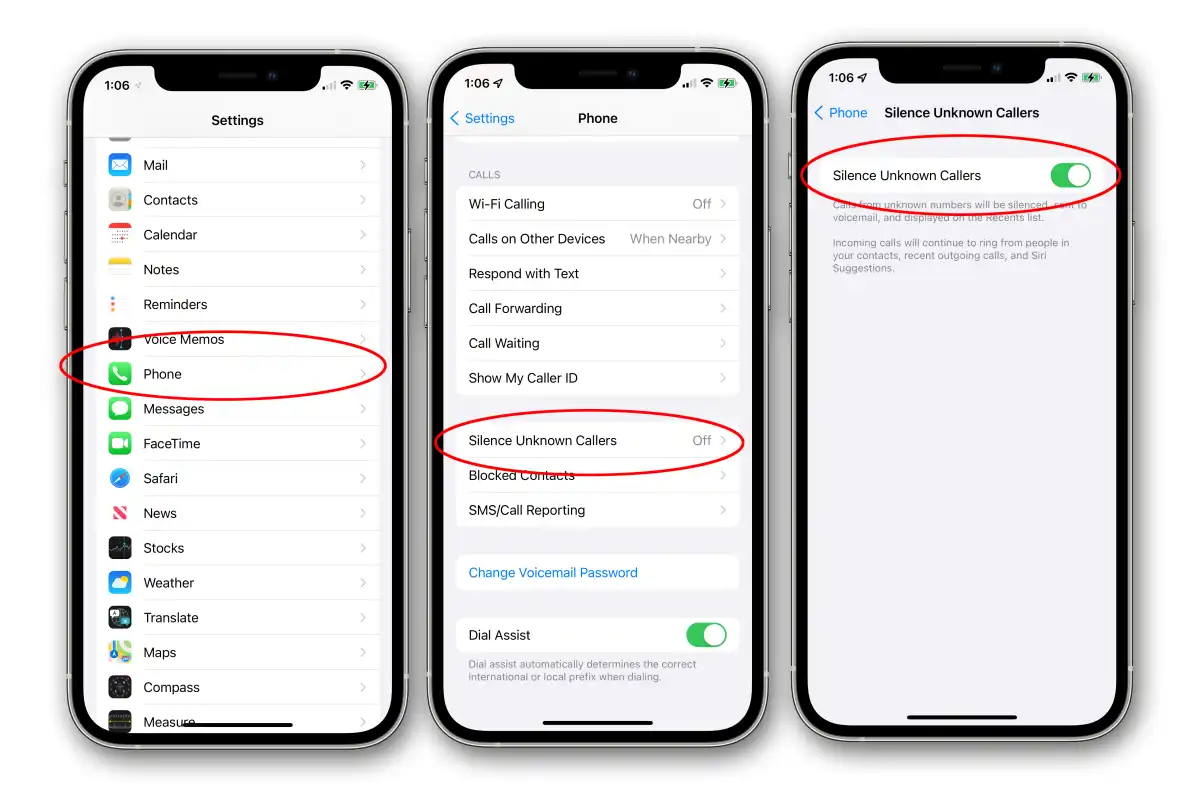
Method 2: Blocking Unknown Numbers
Another way to block unwanted calls is by blocking unknown numbers. Here’s how:
- Open the “Settings” app
- Tap on “Phone”
- Scroll down and tap on “Silence Unknown Callers”
This will silence all incoming calls from unknown numbers, so you won’t even hear the ring.
Method 3: Using Truecaller
Truecaller is a popular app that can help you block unwanted calls. Here’s how to use it:
- Download and install Truecaller from the App Store
- Open the app and tap on “Start”
- Tap on “Open Settings” and toggle on the switch for “Block and Identify”
- Choose your country and phone number, then tap on “Continue”
Truecaller will then block unwanted calls and provide you with information about the caller.
Method 4: Using Other Apps
There are other apps available that can help you block unwanted calls. Some popular options include Tellows and Should I Answer. These apps use different methods to identify and block spam calls, so it’s worth trying out a few to see which one works best for you.
Conclusion
Blocking unwanted calls on your iPhone is easier than you think! Whether you choose to block specific contacts, unknown numbers, or use an app like Truecaller, there are plenty of options available. So go ahead and take back control of your phone – it’s time to say goodbye to those pesky unwanted calls!
Frequently Asked Questions
Q: How do I unblock a contact that I accidentally blocked?
A: To unblock a contact, go to Settings > Phone > Contacts Blocked and swipe right on the contact you want to unblock.
Q: Can I block all unknown numbers, including friends and family members who might call me from a different number?
A: Yes, you can block all unknown numbers by going to Settings > Phone > Silence Unknown Callers.
Q: Are there any other apps available that can help me block unwanted calls?
A: Yes, there are many other apps available that can help you block unwanted calls. Some popular options include Tellows and Should I Answer.
Q: How do I use Truecaller to block unwanted calls?
A: To use Truecaller, download and install the app from the App Store, then follow the instructions provided in this article.
Q: Can I use multiple methods to block unwanted calls on my iPhone?
A: Yes, you can use multiple methods to block unwanted calls. For example, you could block specific contacts using Method 1, block unknown numbers using Method 2, and use an app like Truecaller or Tellows for extra protection.
Q: Will blocking unwanted calls affect my ability to receive important calls from emergency services?
A: No, blocking unwanted calls will not affect your ability to receive important calls from emergency services. These calls will still go through even if you have blocked specific contacts or unknown numbers.
Q: Can I block all calls on my iPhone for a period of time?
A: Yes, you can block all calls on your iPhone for a period of time by going to Settings > Phone > Do Not Disturb and setting the duration for which you want to silence notifications.


