
How to Expand Memory on Android: A Step-by-step Guide
Are you tired of running out of space on your Android device? Do you find yourself constantly deleting apps, photos, and videos just to make room for new ones? Look no further! In this article, we’ll show you how to expand memory on your Android device using various methods.
Method 1: Using a Microsd Card
If your Android device has a microSD card slot, you can easily expand its memory by inserting a microSD card. Here’s how:
- Purchase a Microsd Card: Buy a microSD card that is compatible with your device and has enough storage capacity to suit your needs.
- Insert The Microsd Card: Insert the microSD card into your device’s microSD card slot.
- Format The Microsd Card: Format the microSD card as an internal storage device or as an external storage device, depending on your preference.
Method 2: Cleaning Up Space
If you don’t have a microSD card slot, don’t worry! You can still free up space on your device by deleting unnecessary apps, photos, and videos. Here’s how:
- Delete Unused Apps: Delete any apps that you no longer use or need.
- Delete Unwanted Photos And Videos: Delete any photos and videos that you no longer want to keep.
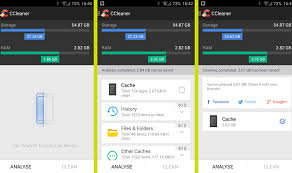
- Use a File Manager App: Use a file manager app like ES File Explorer to delete any unnecessary files and folders.
Method 3: Using Cloud Storage
Another way to expand memory on your Android device is by using cloud storage services. Here’s how:
- Choose a Cloud Storage Service: Choose a cloud storage service like Google Drive, Microsoft OneDrive, or Dropbox.
- Upload Your Files: Upload your files and folders to the cloud storage service.
- Delete Unnecessary Files: Delete any unnecessary files from your device.
Method 4: Using External Storage Devices
If you need more storage space, you can use external storage devices like USB drives. Here’s how:
- Purchase a Usb Drive: Buy a USB drive that is compatible with your device.
- Connect The Usb Drive: Connect the USB drive to your device using a USB OTG adapter.
- Transfer Files: Transfer your files and folders from your device to the USB drive.
Conclusion
Expanding memory on your Android device is easier than you think! With these four methods, you can free up space, expand storage capacity, and keep your device running smoothly. So go ahead, give them a try, and enjoy a clutter-free device!
Frequently Asked Questions (FAQs)
Here are some frequently asked questions about expanding memory on Android devices:
- Q: What is The Best Way to Expand Memory on my Android Device?
A: The best way to expand memory on your Android device depends on your needs and preferences. You can use a microSD card, delete unnecessary files, use cloud storage services, or use external storage devices. - Q: How do I Format my Microsd Card as an Internal Storage Device?
A: To format your microSD card as an internal storage device, go to Settings > Storage > Format SD Card. Choose the option to format the microSD card as an internal storage device. - Q: Can I Use a Usb Drive to Expand Memory on my Android Device?
A: Yes, you can use a USB drive to expand memory on your Android device. Connect the USB drive to your device using a USB OTG adapter and transfer your files and folders from your device to the USB drive. - Q: What Are Some Cloud Storage Services That I Can Use to Expand Memory on my Android Device?
A: Some popular cloud storage services include Google Drive, Microsoft OneDrive, and Dropbox. You can upload your files and folders to these services and access them from any device with an internet connection.
Conclusion
Expanding memory on your Android device is a breeze! With these four methods, you can free up space, expand storage capacity, and keep your device running smoothly. So go ahead, give them a try, and enjoy a clutter-free device!
References:
- “How to Expand Memory on Android” by TechRadar
- “5 Ways to Free Up Space on Your Android Device” by CNET
- “Cloud Storage for Android” by PCMag
- “Using External Storage Devices with Android” by Android Authority


