
How to Export Android Contacts to Other Devices
Are you looking for a way to export your Android contacts to other devices, such as an iPhone or computer? Look no further! In this article, we will guide you through the process of exporting your Android contacts to other devices, including iPhones, computers, and more.
Introduction
Exporting your Android contacts to other devices can be a convenient way to access your contact list on different devices. Whether you’re switching to a new phone or computer, or simply want to have a backup of your contacts, this article will show you how to do it.
Synchronizing With Gmail
One of the easiest ways to export your Android contacts is by synchronizing them with Gmail. This method allows you to access your contacts on any device connected to your Google account. To synchronize your Android contacts with Gmail:
- Go to Settings > Account > Account and Synchronization.
- Select Google and enter your login credentials.
- Make sure the switch next to Contacts is turned on.
Once synchronized, your Android contacts will be automatically updated on your Google account, which can then be accessed on any device connected to that account.
Exporting to Vcf
Another way to export your Android contacts is by creating a VCF file. A VCF file contains all your contact information in a format that can be easily imported into other devices. To create a VCF file:
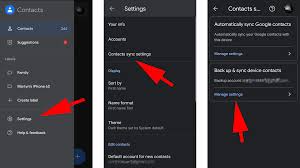
- Open the Contacts app.
- Tap on the menu icon (≡) and go to Settings > Export.
- Select “Export in rows VCF” and tap on OK.
This will create a VCF file containing all your contacts, which can then be transferred to another device.
Exporting to Csv
If you prefer to export your contacts to a CSV file, you can do so by converting the VCF file to CSV. To convert a VCF file to CSV:
- Use a third-party app like Free VCF rows to CSV Converter.
- Open the VCF file and select “Convert to CSV”.
- Save the CSV file.
This will create a CSV file containing all your contact information, which can then be imported into other devices.
Exporting to Iphone
If you’re switching from an Android device to an iPhone, you can export your contacts directly from your Android device to your iPhone using the following steps:
- Make sure your Android device is connected to your Google account and that your contacts are synchronized.
- Add your Google account to your iPhone by going to Settings > Password & Account > Add Account > Google.
- Verify that the switch next to Contacts is turned on.
This will synchronize your Android contacts with your iPhone, allowing you to access them on your new device.
Exporting to Computer
If you want to export your contacts to a computer, you can do so by synchronizing them with Gmail and then accessing your Google account on your computer. To export your contacts to a computer:
- Synchronize your Android contacts with Gmail.
- Access your Google account on your computer.
- Click on the “Contacts” tab.
This will display all your contact information, which you can then copy and paste into other devices.
Conclusion
Exporting your Android contacts to other devices is a straightforward process that can be completed using various methods. Whether you’re switching to a new device or simply want to have a backup of your contacts, this article has shown you how to export your Android contacts to iPhones, computers, and more.
Frequently Asked Questions (FAQs)
- Q: How do I Synchronize my Android Contacts With Gmail?
A: To synchronize your Android contacts with Gmail, go to Settings > Account > Account and Synchronization, select Google, and enter your login credentials. - Q: Can I Export my Contacts Directly From my Android Device to an Iphone?
A: Yes, you can export your contacts directly from your Android device to an iPhone by synchronizing them with Gmail and adding your Google account to your iPhone. - Q: How do I Convert a Vcf File to Csv?
A: You can convert a VCF file to CSV using a third-party app like Free VCF rows to CSV Converter. - Q: Can I Export my Contacts to a Computer?
A: Yes, you can export your contacts to a computer by synchronizing them with Gmail and accessing your Google account on your computer. - Q: How do I Import my Contacts Into Another Device?
A: To import your contacts into another device, create a VCF or CSV file containing all your contact information and then transfer it to the other device.
Table 1: Exporting Android Contacts
| Method | Description |
|---|---|
| Synchronizing with Gmail | Synchronize your Android contacts with Gmail to access them on any device connected to your Google account. |
| Exporting to VCF | Create a VCF file containing all your contact information, which can then be transferred to another device. |
| Exporting to CSV | Convert the VCF file to CSV using a third-party app and then transfer it to another device. |
Table 2: Importing Contacts Into Another Device
| Method | Description |
|---|---|
| **Exporting contacts from Android to iPhone | Export your Android contacts directly from your Android device to an iPhone using Gmail synchronization. |
| Importing VCF file into another device | Create a VCF file containing all your contact information and then transfer it to another device. |
Exporting Contacts From Android to Computer | Export your contacts to a computer by synchronizing them with Gmail and accessing your Google account on your computer. |
Table 3: Converting Vcf to Csv
| Method | Description |
|---|---|
| Using Free VCF rows to CSV Converter | Convert the VCF file to CSV using this third-party app. |


