
How to Export Contacts From Gmail: A Step-by-step Guide
Are you looking to export your contacts from Gmail, but not sure how? Look no further! In this article, we’ll guide you through the process of exporting your contacts from Gmail, whether you’re using the web version or a mobile device.
Why Export Your Contacts?
Exporting your contacts from Gmail is a great way to save them in another format, such as CSV or vCard. This can be useful if you want to use them with another email service or client, or if you simply want to back up your contacts.
How to Export Contacts From Gmail (Web)
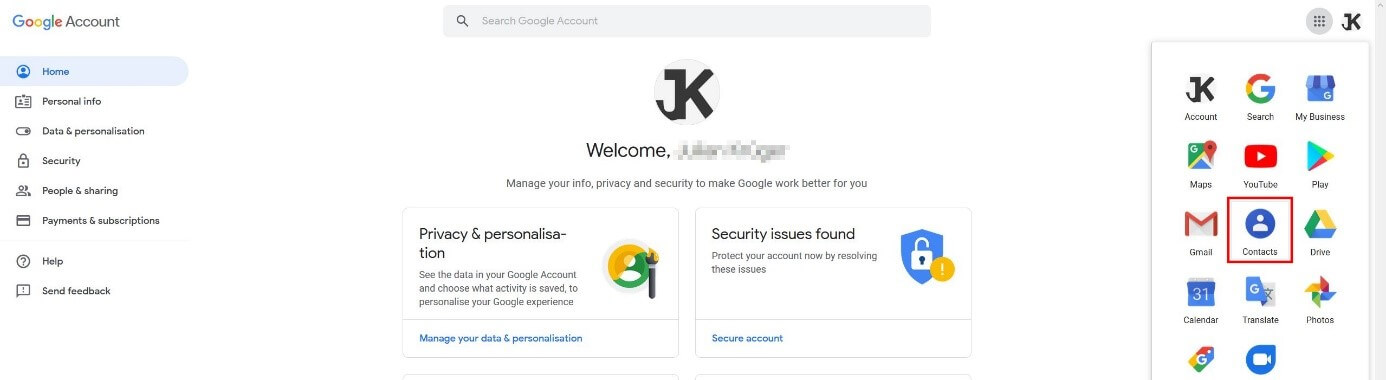
If you’re using the web version of Gmail, exporting your contacts is a straightforward process. Here’s how:
- Log in to Your Gmail Account: Go to the Gmail website and sign in with your email address and password.
- Click on The Gear Icon: In the upper right corner of the page, click on the gear icon and select “Contacts” from the drop-down menu.
- Select The Contacts You Want to Export: If you only want to export specific contacts, select them by checking the boxes next to their names.
- Click on The Three Vertical Dots: Next to the search bar at the top of the page, click on the three vertical dots and select “Export” from the menu.
- Choose a Format: Select the format in which you want to export your contacts (CSV, Outlook CSV, or vCard).
- Click on Export: Click on the “Export” button to save your contacts.
How to Export Contacts From Gmail (Android)
If you’re using an Android device, exporting your contacts is a bit different. Here’s how:
- Download And Install The Google Contacts App: If you don’t have the Google Contacts app installed on your device, download it from the Play Store.
- Open The Google Contacts App: Open the app and sign in with your Google account credentials.
- Tap on The Three Vertical Dots: Tap on the three vertical dots in the top right corner of the screen and select “Settings”.
- Select The Contacts You Want to Export: If you only want to export specific contacts, tap on them to select them.
- Tap on Share: Tap on the “Share” button at the bottom of the screen.
- Choose a Format: Select the format in which you want to export your contacts (CSV or vCard).
How to Export Contacts From Gmail (iOS)
If you’re using an iOS device, exporting your contacts is a bit different. Here’s how:
- Add Your Google Account to Your Iphone: Go to Settings > Accounts & Passwords and add your Google account.
- Enable Contacts Sync: Make sure that the “Contacts” switch is turned on in the Accounts & Passwords section.
- Download And Install a Third-party App: Download and install an app like My Contacts Backup to export your contacts.
Conclusion
Exporting your contacts from Gmail is a simple process, whether you’re using the web version or a mobile device. By following these steps, you can save your contacts in a format that’s easy to use with another email service or client.
Frequently Asked Questions (FAQs)
- Q: How do I Export my Contacts From Gmail?
A: To export your contacts from Gmail, follow the steps outlined above. - Q: What Formats Can I Export my Contacts In?
A: You can export your contacts in CSV, Outlook CSV, or vCard format. - Q: Can I Export Specific Contacts From Gmail?
A: Yes, you can select specific contacts to export by checking the boxes next to their names. - Q: How do I Export my Contacts From Gmail on an Android Device?
A: To export your contacts from Gmail on an Android device, follow the steps outlined above. - Q: How do I Export my Contacts From Gmail on an Ios Device?
A: To export your contacts from Gmail on an iOS device, follow the steps outlined above and use a third-party app like My Contacts Backup. - Q: Can I Export my Contacts From Gmail to Another Email Service?
A: Yes, you can export your contacts from Gmail and import them into another email service or client. - Q: How do I Backup my Contacts in Gmail?
A: You can backup your contacts by exporting them as outlined above and saving the file on your device. - Q: Can I Share my Contacts With Others Using Gmail?
A: Yes, you can share your contacts with others by exporting them as outlined above and sharing the file with them.


