
How to Export Mail From Outlook: A Step-by-step Guide
Are you looking for a way to export your emails from Outlook? Perhaps you’ve recently acquired a new computer and want to transfer all your important messages to the latest device. You’re not alone! Many users face this issue, but don’t worry; we’ve got the solution for you.
Exporting Mail From Outlook Made Easy
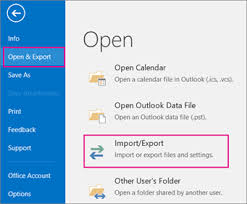
The process of exporting mail from Outlook is surprisingly straightforward. Using the built-in function in Outlook, you can copy your emails from one computer to another or even transfer them to a different email client.
To begin with, make sure you have Outlook 2019 installed on both devices (Windows and macOS). The instructions provided below will guide you through the process of exporting mail from Outlook.
Step-by-step Instructions: Exporting Mail From Outlook
- Open Outlook: Launch the application on your device.
- Click on The “File” Tab: Select the “File” tab in the top left corner of the screen.
- Choose “Export to a File”: Click on the option that says “Export to a file.”
- Select The File Format: Choose the .Pst file format as your export option.
- Specify The Location: Decide where you want to save the exported email files.
- Add Password (Optional): If desired, add a password to protect the exported emails.
- Click “Finish”: Confirm that you’re ready to export the emails.
Exporting Mail From Outlook on Mac
If you’re using a Mac, follow these steps:
- Open Outlook: Launch the application.
- Select “File” > “Export”: Click on “File” and then select “Export.”
- Choose The Export Format: Select the .Olm file format as your export option.
- Specify The Location: Decide where you want to save the exported email files.
- Click “Export”: Confirm that you’re ready to export the emails.
Importing Mail Into Outlook on Mac
If you’ve already exported mail from another device or email client, follow these steps:
- Open Outlook: Launch the application.
- Select “File” > “Import”: Click on “File” and then select “Import.”
- Choose The Import Format: Select the .Olm file format as your import option.
Exporting Mail Into Other Email Clients
If you want to export mail from Outlook into another email client, follow these steps:
- Use an External Tool (PST to Mbox): Download and install a tool like PST to MBOX, which converts the exported .Pst file into a format compatible with other email clients.
- Import Emails: Use the external tool’s import function to transfer the emails from Outlook.
Saving Mail in Pdf Format
If you want to save individual emails in PDF format, follow these steps:
- Open The Email: Open the email you want to save in a new window.
- Click on The “…” Icon: Click on the three dots icon at the top right corner of the email window.
- Choose “Save As”: Select “Save As” from the dropdown menu.
- Select Pdf Format: Choose the PDF format as your file type.
Saving Mail in Eml Format
If you want to save individual emails in EML format, follow these steps:
- Open Outlook: Launch the application.
- Click on a Folder: Select the folder where the email is stored.
- Right-click on The Email: Right-click on the email and select “Save As.”
- Choose Eml Format: Choose the EML format as your file type.
Synchronizing Outlook With Gmail
If you want to export mail from Outlook into Gmail, follow these steps:
- Open Outlook: Launch the application.
- Click on The Three Dots Icon: Click on the three dots icon at the top right corner of the email window.
- Select “Settings”: Select “Settings” from the dropdown menu.
- Choose “Export”: Choose the export option to transfer emails from Outlook.
Saving Mail in Pdf Format (Outlook Web)
If you want to save individual emails in PDF format using Outlook web, follow these steps:
- Open Outlook Web: Launch the application.
- Click on a Folder: Select the folder where the email is stored.
- Right-click on The Email: Right-click on the email and select “Save As.”
- Choose Pdf Format: Choose the PDF format as your file type.
Conclusion
Exporting mail from Outlook can be achieved with ease using the built-in export function or external tools. By following these steps, you’ll be able to transfer your emails from one device to another or even import them into different email clients.
Faqs: Exporting Mail From Outlook
- What is The Best Format For Exporting Mail?
The .Pst file format is ideal for transferring emails between devices. - How do I Export Mail From Outlook on Mac?
Use the “File” > “Export” option to select the desired export format. - Can I Import Emails Into Outlook Using External Tools?
Yes, use a tool like PST to MBOX to convert exported .Pst files into compatible formats. - How do I Save Individual Emails in Pdf Format?
Open the email in a new window and click on the “…” Icon at the top right corner to select “Save As” and choose PDF format. - Can I Export Mail From Outlook Web?
Yes, open Outlook web, click on a folder, right-click on an email, and select “Save As” to choose PDF or EML format.
By following these steps and answering your FAQs, you’ll be able to successfully export mail from Outlook onto your new device.


