
How to Export Iphone Contacts: A Step-by-step Guide
Are you looking to transfer your iPhone contacts to a computer or a new smartphone? Look no further! In this article, we will guide you through the process of exporting your iPhone contacts in various formats, including vCard and CSV.
Why Export Iphone Contacts?
Exporting your iPhone contacts can be useful for several reasons:
- Transferring contacts to a new phone
- Backing up contacts before selling or trading-in an old phone
- Sharing contacts with friends or family members
Method 1: Using The My Contacts Backup App
One of the most convenient ways to export your iPhone contacts is by using the My Contacts Backup app. This app allows you to export your contacts in vCard (.Vcf) and CSV formats.
- Download And Install The App: Search for “My Contacts Backup” in the App Store and download the free version.
- Launch The App: Open the app on your iPhone and grant it permission to access your contacts.
- Choose The Export Format: Select either vCard or CSV as the export format.
- Backup Your Contacts: Tap the “Backup” button to start the exporting process.
- Email The File: The app will send an email with the exported file attached. Open this email on your computer and download the file.
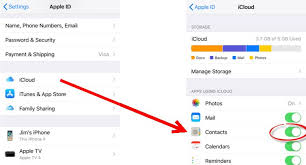
Method 2: Using Icloud
ICloud is another way to export your iPhone contacts, but it requires a bit more setup.
- Enable Icloud Contacts: Go to Settings > [Your Name] > iCloud > iCloud Backup and toggle on “Contacts.”
- Set Up Icloud Contacts: On your new iPhone, go to Settings > [Your Name] > iCloud > iCloud Backup and toggle on “Contacts.” This will sync your contacts from the old phone.
- Export Contacts: Open the Contacts app on your new iPhone and tap the “Lists” tab. Select all contacts by tapping the “All Contacts” button and then tap the “Share Contact List” button.
Method 3: Using Google Sync
If you have a Google account, you can use it to sync your iPhone contacts with your Android device.
- Export Iphone Contacts: Use Method 1 or Method 2 to export your iPhone contacts.
- Sync Google Contacts: Go to the Google Contacts website and sign in with your Google account. Click on the “More” button and select “Import.”
- Upload Your File: Upload the exported file (.Vcf or .Csv) to the Google Contacts website.
Tips And Variations
- If you have a large contact list, you may need to use Method 1 or Method 2.
- If you want to export specific contacts, you can do so by selecting individual contacts in the My Contacts Backup app.
- To transfer contacts between iPhones, use Method 3: Using Google Sync.
Frequently Asked Questions
Q: How do I export my iPhone contacts?
A: You can use the My Contacts Backup app (Method 1), iCloud (Method 2), or Google Sync (Method 3).
Q: Can I export my iPhone contacts in CSV format?
A: Yes, you can export your iPhone contacts in CSV format using Method 1.
Q: How do I transfer contacts between iPhones?
A: Use Method 3: Using Google Sync to sync your contacts between iPhones.
Q: Can I use iCloud to backup all of my data, including contacts?
A: Yes, go to Settings > [Your Name] > iCloud and toggle on “Contacts,” as well as other data types you want to backup.
Q: Is there a free version of the My Contacts Backup app?
A: Yes, there is a free version that allows you to export up to 500 contacts.
Q: How do I transfer contacts from an old iPhone to a new Android device?
A: Use Method 3: Using Google Sync to sync your contacts between iPhones and then transfer them to your Android device using the Google Contacts app.


