
Exporting Your Outlook Contacts: A Step-by-step Guide
Are you tired of losing your precious contacts when switching devices or platforms? Look no further! In this article, we’ll guide you through the process of exporting your Outlook contacts in various formats and importing them into other email clients, Excel, and even Google’s contact app.
Why Export Your Outlook Contacts?
Before we dive into the how-to section, let’s quickly discuss why you might want to export your Outlook contacts. Here are a few scenarios:
- You’re switching from Outlook to another email client and want to transfer your contacts.
- You’re upgrading to a new device or platform and need to access your contacts on the go.
- You want to back up your contacts for safekeeping or share them with friends and family.
Exporting Your Outlook Contacts: The Basics
To export your Outlook contacts, follow these general steps:
- Log in to your Outlook account using your browser (Outlook.Com) or desktop application (Windows, macOS).
- Click on the three horizontal lines (☰) at the top left of the screen and select “All contacts.”
- In the navigation bar, click on “Manage contacts” and then select “Export contacts.”
Exporting Your Outlook Contacts For Windows
If you’re using a Windows device with Outlook 365 installed, follow these steps:
- Launch Outlook 365 by clicking on its icon in the application menu.
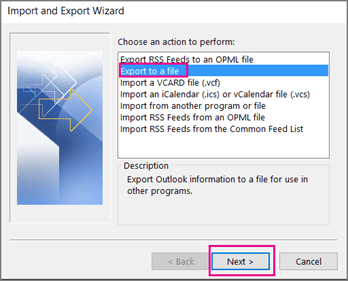
- Click on the three horizontal lines (☰) at the top left of the screen and select “Open and export.”
- Choose the option to “Export” and select “Export in a file.”
- Select the format as CSV (Comma Separated Values).
- Choose the location where you want to save the file.
- Click on the “Save” button.
Exporting Your Outlook Contacts For Macos
If you’re using a Mac with Outlook installed, follow these steps:
- Launch Outlook by clicking on its icon in the Dock or Launchpad.
- Click on the two men icon at the top left of the screen and select “Contacts.”
- Select “All contacts” to export all your contacts or choose specific folders containing the contacts you want to export.
- Drag the contacts into a new folder or right-click (or control-click) on them and select “Export as VCF.”
Exporting Your Outlook Contacts For Android
If you’re using an Android device with the Outlook app installed, follow these steps:
- Launch the Outlook app by clicking on its icon in your home screen or drawer.
- Tap on the menu icon (three horizontal lines) at the top left of the screen and select “Settings.”
- Scroll down to “Contacts” and toggle the switch next to “Synchronize contacts” to turn it off.
- Open the default contact app, Google Contacts, and go to its settings section.
- Toggle the switch next to “Show Outlook contacts” on.
Exporting Your Outlook Contacts For Ios
If you’re using an iPhone or iPad with the Outlook app installed, follow these steps:
- Launch the Settings app by tapping on its icon in your home screen or dock.
- Scroll down to “Contacts” and toggle the switch next to “Outlook” to turn it off.
- Open the built-in contact app, Apple Contacts, and go to its settings section.
- Toggle the switch next to “Show Outlook contacts” on.
Exporting Your Outlook Contacts in Excel
If you have a CSV or VCF file exported from your Outlook contacts, follow these steps:
For Windows users:
- Open the Microsoft Excel application using your browser (Excel.Com) or desktop application.
- Click on the “File” tab and select “Open.”
- Navigate to the location where you saved the CSV file.
- Select the file and click on the “Open” button.
For macOS users:
- Launch Microsoft Excel by clicking on its icon in your Dock or Launchpad.
- Click on the “File” menu and select “Open.”
- Navigate to the location where you saved the CSV file.
- Select the file and click on the “Open” button.
Exporting Your Outlook Contacts For Iphone/ipad
If you have a CSV file exported from your Outlook contacts, follow these steps:
- Open the Microsoft Excel app by tapping its icon in your home screen or dock.
- Tap on the “+” icon at the top right of the screen to create a new document.
- Select the CSV file as the data source.
- Tap on the “Open” button.
In Conclusion
Exporting your Outlook contacts is a simple process that can be completed in just a few steps, regardless of whether you’re using Windows, macOS, Android, or iOS devices. We hope this article has helped you understand how to export and import your Outlook contacts into various platforms. Happy exporting!


