
How to Export Contacts From Outlook
Are you tired of losing your contacts when switching between different email clients? Look no further! In this article, we will guide you on how to export contacts from Outlook, whether it’s on your Windows PC, Mac, Android device, or iPhone.
Why Export Contacts From Outlook?
Exporting contacts from Outlook is a straightforward process that allows you to transfer your contact list to another email client, such as Gmail or Excel. This is especially useful when switching between different email providers or devices.
How to Export Contacts From Outlook on Windows
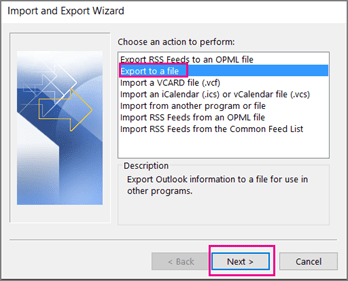
To export contacts from Outlook on Windows, follow these steps:
- Open Microsoft 365 and click on the menu icon in the top-left corner.
- Click on “Open” and select “Export.”
- Choose “CSV (Comma delimited)” or “VCF (vCard)” as the file format.
- Select the contacts you want to export by checking the boxes next to each contact.
- Click on “Save” to save the exported file.
How to Export Contacts From Outlook on Mac
To export contacts from Outlook on a Mac, follow these steps:
- Open Microsoft 365 and click on the menu icon in the top-right corner.
- Click on “Export.”
- Choose “VCF (vCard)” or “CSV (Comma delimited)” as the file format.
- Select the contacts you want to export by checking the boxes next to each contact.
- Click on “Save” to save the exported file.
How to Export Contacts From Outlook.Com
To export contacts from Outlook.Com, follow these steps:
- Log in to your Outlook account and click on the three dots in the top-right corner.
- Click on “Contacts.”
- Select the contacts you want to export by checking the boxes next to each contact.
- Click on “Export” and choose “CSV (Comma delimited)” or “VCF (vCard).”
How to Export Contacts From Outlook on Android
To export contacts from Outlook on an Android device, follow these steps:
- Open the Outlook app and tap on the three dots in the top-right corner.
- Tap on “Settings” and select “Contacts.”
- Select the contacts you want to export by checking the boxes next to each contact.
- Tap on “Share” and choose “VCF (vCard)” or “CSV (Comma delimited).”
How to Export Contacts From Outlook on Iphone
To export contacts from Outlook on an iPhone, follow these steps:
- Open the Settings app and select “Contacts.”
- Select the contacts you want to export by checking the boxes next to each contact.
- Tap on “Share” and choose “VCF (vCard)” or “CSV (Comma delimited).”
How to Import Contacts Into Excel
To import contacts from Outlook into Excel, follow these steps:
- Open Microsoft Excel and click on “File” > “Open.”
- Select the CSV file exported from Outlook.
- Click on “Import Data” to import the contacts into Excel.
How to Import Contacts Into Gmail
To import contacts from Outlook into Gmail, follow these steps:
- Log in to your Gmail account and click on the three dots in the top-right corner.
- Select “Contacts.”
- Choose “Import” and select the CSV file exported from Outlook.
- Click on “Import” to import the contacts into Gmail.
Conclusion
Exporting contacts from Outlook is a simple process that allows you to transfer your contact list to another email client or device. By following the steps outlined in this article, you can export contacts from Outlook on Windows, Mac, Android, and iPhone devices. Additionally, you can import contacts into Excel or Gmail using the steps provided.
Faqs
Q: How do I export contacts from Outlook on a Mac?
A: To export contacts from Outlook on a Mac, follow the same steps as exporting contacts on a Windows PC.
Q: Can I export multiple contacts at once?
A: Yes, you can select multiple contacts to export by checking the boxes next to each contact.
Q: How do I import contacts into Excel?
A: To import contacts into Excel, open Microsoft Excel and click on “File” > “Open.” Select the CSV file exported from Outlook and click on “Import Data.”
Q: Can I import contacts into Gmail?
A: Yes, you can import contacts into Gmail by following the steps outlined in this article.
Q: How do I export contacts from Outlook.Com?
A: To export contacts from Outlook.Com, log in to your account and click on the three dots in the top-right corner. Select “Contacts” and choose “Export.”
Q: Can I export contacts from Outlook on an Android device?
A: Yes, you can export contacts from Outlook on an Android device by following the steps outlined in this article.
Q: How do I import contacts into Excel on a Mac?
A: To import contacts into Excel on a Mac, follow the same steps as importing contacts into Excel on a Windows PC.


