
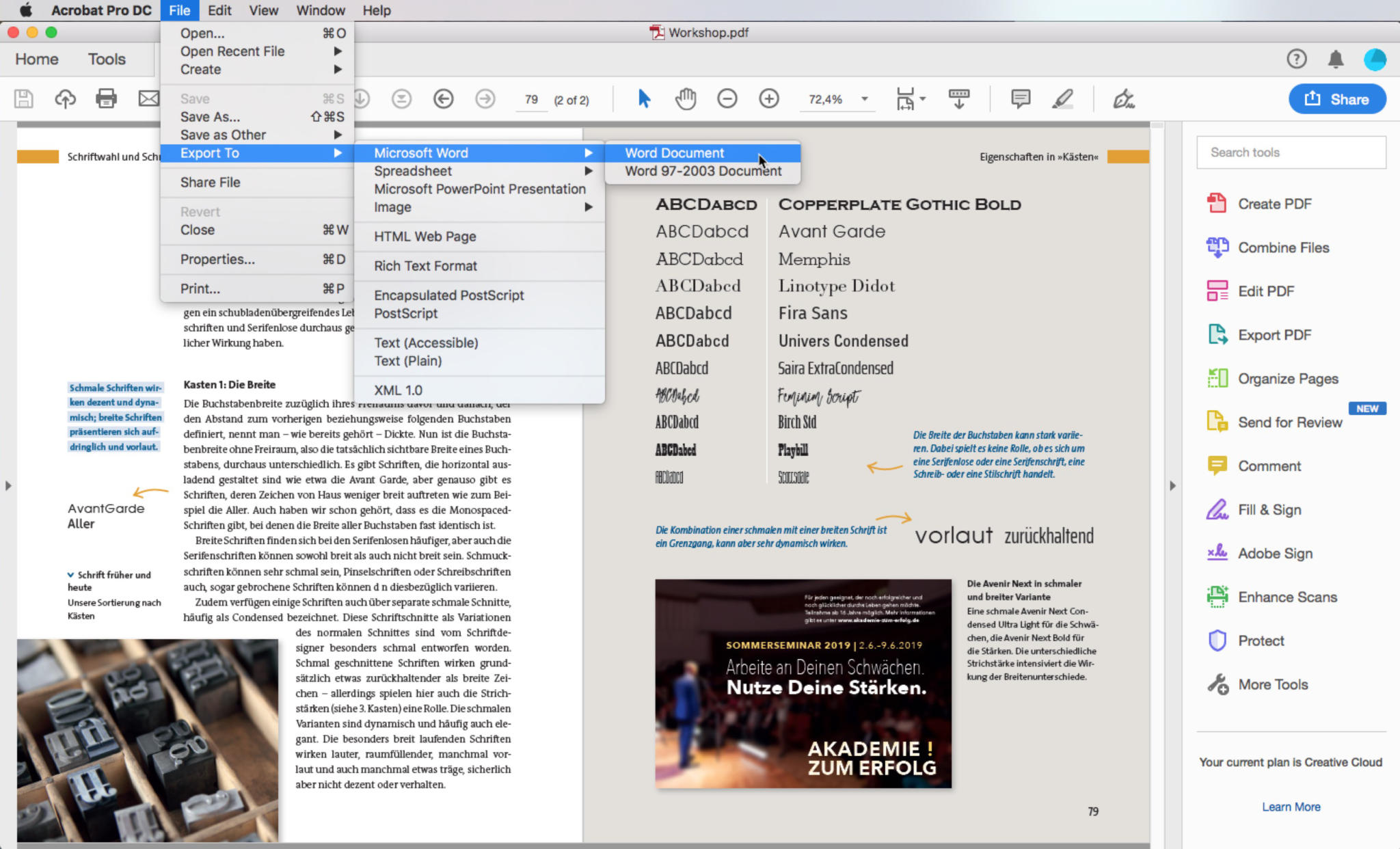
Exporting Pdf to Word: A Step-by-step Guide
Are you tired of struggling to convert your PDF files to Word documents? Look no further! In this article, we will guide you through the process of exporting PDF to Word using various methods, including software, online services, and mobile apps.
Why Export Pdf to Word?
Exporting PDF to Word is a common task that many users face. Whether you need to edit a PDF document or simply want to convert it into a more editable format, this guide will show you how to do it easily and efficiently.
Method 1: Using Microsoft Word
The first method we will discuss is using Microsoft Word to export PDF to Word. This method is suitable for Windows and macOS users who have Microsoft Office installed on their computers.
- Step 1: Download and install Microsoft Word from the official website.
- Step 2: Open Microsoft Word and click on “File” in the top menu bar.
- Step 3: Select “Open” and choose the PDF file you want to convert.
- Step 4: Click on “Save As” and select the location where you want to save the converted Word document.
- Step 5: Choose the format as .Docx or .Doc.
Method 2: Using Libreoffice
The second method we will discuss is using LibreOffice, a free and open-source productivity suite that can be used on Windows, macOS, and Linux operating systems.
- Step 1: Download and install LibreOffice from the official website.
- Step 2: Open LibreOffice and click on “File” in the top menu bar.
- Step 3: Select “Open” and choose the PDF file you want to convert.
- Step 4: Click on “Save As” and select the location where you want to save the converted Word document.
- Step 5: Choose the format as .Docx or .Doc.
Method 3: Using Online Services
If you don’t have Microsoft Office or LibreOffice installed on your computer, you can use online services like CloudConvert to export PDF to Word. These services are free and can be used from any device with a web browser.
- Step 1: Go to the CloudConvert website and select the “Document” option.
- Step 2: Choose the PDF file you want to convert and click on “Upload”.
- Step 3: Select the output format as .Docx or .Doc.
- Step 4: Click on “Convert” and wait for the process to complete.
- Step 5: Download the converted Word document.
Method 4: Using Mobile Apps
If you prefer using mobile apps, there are several options available that can export PDF to Word. Some popular mobile apps include:
- Ilovepdf: This app is available for Android and iOS devices and offers a range of features including PDF conversion.
- Able2doc Pdf to Word Converter: This app is also available for Android and iOS devices and allows users to convert PDF files to Word documents.
- Converter Pdf to Word: This app is available for Android and iOS devices and provides an easy way to export PDF to Word.
Conclusion
Exporting PDF to Word is a simple process that can be done using various methods. Whether you prefer using software like Microsoft Word or LibreOffice, or online services like CloudConvert, or mobile apps like iLovePDF, there are plenty of options available. By following the steps outlined in this guide, you should be able to export your PDF files to Word with ease.
Frequently Asked Questions
- Q: What is The Best Method For Exporting Pdf to Word?
- A: The best method depends on personal preference and the specific needs of the user. However, using Microsoft Office or LibreOffice is generally considered more reliable than online services.
- Q: Can I Export Pdf to Word For Free?
- A: Yes, there are several free methods available including using Microsoft Office or LibreOffice, and online services like CloudConvert.
- Q: How Long Does it Take to Export Pdf to Word?
- A: The time it takes to export PDF to Word depends on the method used and the size of the file. Online services like CloudConvert are generally faster than software-based methods.
- Q: Can I Edit a Converted Word Document?
- A: Yes, you can edit a converted Word document just like any other Word document.
- Q: Is it Safe to Use Online Services For Exporting Pdf to Word?
- A: Most online services are safe and secure. However, it’s always a good idea to read reviews and check the service’s reputation before using it.
Exporting Pdf to Word Made Easy
Exporting PDF to Word is a simple process that can be done using various methods. Whether you prefer using software like Microsoft Word or LibreOffice, or online services like CloudConvert, or mobile apps like iLovePDF, there are plenty of options available. By following the steps outlined in this guide, you should be able to export your PDF files to Word with ease.


