
How to Open And Extract 7z Files: A Comprehensive Guide
Are you struggling to open or extract files in the 7z format? Look no further! This article will guide you through the process of opening and extracting 7z files on your PC, Mac, smartphone, or tablet.
Understanding 7z Files
Before we dive into the instructions, let’s briefly understand what 7z files are. 7Z is a compressed file format that allows users to store multiple files in a single archive. It’s similar to other popular formats like ZIP and RAR but has some unique features that make it useful for specific scenarios.
Opening 7z Files on PC
If you’re using a Windows PC, you have several options to open 7z files:
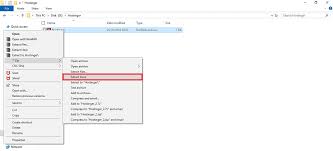
- Explorer: You can right-click on the file and select “Extract all” from the context menu. This will extract the contents of the file into a new folder.
- 7-Zip: Download and install the free 7-Zip software, which supports opening and extracting 7z files.
- Peazip: Another free option is PeaZip, which can open and extract 7z files on Windows.
Opening 7z Files on Mac
On a Mac, you have two main options:
- Keka: Download and install the Keka app, which supports opening and extracting 7z files.
- Finder: You can right-click (or control-click) on the file and select “Open with” followed by choosing an application to open the file.
Opening 7z Files on Smartphone or Tablet
If you’re using a smartphone or tablet, you have several options:
- Built-in File Manager: On some devices, like Huawei smartphones, you can use the built-in file manager app to open and extract 7z files.
- Third-party Apps: You can download and install third-party apps like ZArchiver (for Android) or iZip (for iOS) to open and extract 7z files.
Online Tools
If you don’t have access to a PC, Mac, or smartphone, you can use online tools like 123apps’ Archive Extractor to open and extract 7z files directly from your browser.
Conclusion
Opening and extracting 7z files is relatively straightforward once you understand the process. By following these instructions, you should be able to successfully open and extract 7z files on your PC, Mac, smartphone, or tablet.
Frequently Asked Questions (FAQs)
Q: What is a 7z file?
A: A 7z file is a compressed archive that can store multiple files in a single package.
Q: How do I open a 7z file on Windows?
A: You can right-click on the file and select “Extract all” from the context menu, or use the free 7-Zip software to open and extract it.
Q: Can I open a 7z file on Mac?
A: Yes, you can download and install Keka or use Finder’s built-in features to open and extract 7z files.
Q: What app should I use to open a 7z file on Android?
A: You can use the built-in file manager app or download and install ZArchiver to open and extract 7z files.
Q: Is there an online tool that can help me open and extract 7z files?
A: Yes, you can use 123apps’ Archive Extractor to open and extract 7z files directly from your browser.


