
Extracting Files: A Step-by-step Guide
As we navigate the digital world, we often come across files in various formats that require extraction to access their contents. In this article, we’ll delve into the world of file extraction, exploring the different methods and tools available for Windows and macOS users.
Understanding File Formats
Before we dive into the extraction process, it’s essential to understand the various file formats that exist. Some common formats include:
- ZIP: A widely used format for compressing files
- RAR: A proprietary format developed by WinRAR
- 7Z: An open-source format known for its high compression ratio
- ISO: An image file format commonly used for operating system installation
Extracting Files on Windows
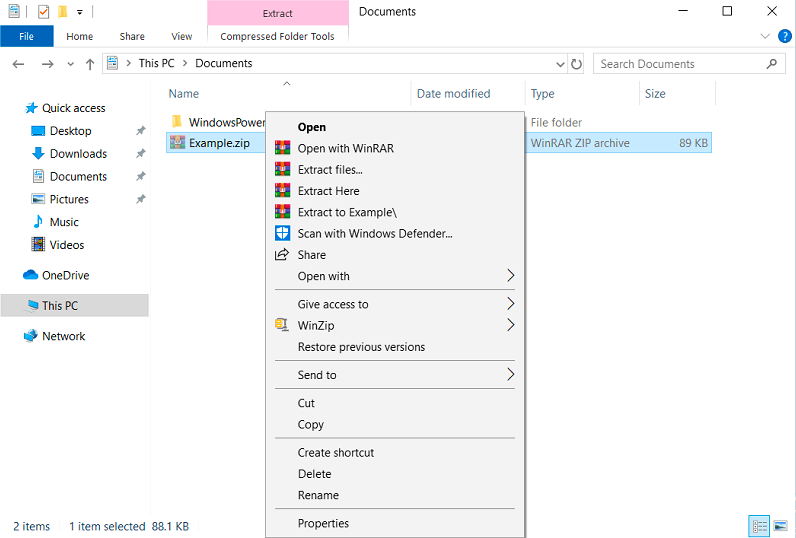
On Windows, you can extract files using the built-in functionality or third-party software. Let’s explore both options:
Using Built-in Functionality
To extract a ZIP file on Windows:
- Double-click on the ZIP file to open it.
- Click on the “Extract” button in the top-right corner of the window.
- Choose the folder where you want to extract the files and click “OK.”
Alternatively, you can use the Command Prompt or PowerShell to extract ZIP files using the following commands:
Extract /t(extracts all files from the current directory)Extract /d <path>(extracts all files to a specified directory)
Using Third-party Software
If you need to extract RAR, 7z, or other formats not supported by Windows, consider using third-party software like:
- WinRAR: A popular tool for extracting and compressing files
- 7-Zip: A free, open-source alternative to WinRAR
- Keka: A lightweight macOS application that can extract ZIP and RAR files
Extracting Files on Macos
On macOS, you can use built-in functionality or third-party software to extract files. Let’s explore both options:
Using Built-in Functionality
To extract a ZIP file on macOS:
- Double-click on the ZIP file to open it.
- Click on the “Extract” button in the top-right corner of the window.
- Choose the folder where you want to extract the files and click “OK.”
Alternatively, you can use the Terminal app to extract ZIP files using the following command:
Unzip <path>(extracts all files from a specified directory)
Using Third-party Software
If you need to extract RAR, 7z, or other formats not supported by macOS, consider using third-party software like:
- Keka: A lightweight application that can extract ZIP and RAR files
- The Unarchiver: A popular tool for extracting a wide range of file formats
Conclusion
Extracting files is an essential skill in today’s digital landscape. By understanding the various file formats and using the right tools, you can easily access the contents of compressed files. Whether you’re a Windows or macOS user, there are plenty of options available to help you extract files with ease.
Frequently Asked Questions (FAQs)
- What is The Difference Between Zip And Rar Files?
ZIP files are widely supported and can be extracted using built-in functionality on both Windows and macOS. RAR files, however, require specialized software like WinRAR or 7-Zip. - Can I Extract 7z Files on Windows?
Yes, you can use 7-Zip to extract 7z files on Windows. - What is The Best Tool For Extracting Files on Macos?
Keka and The Unarchiver are popular options for extracting files on macOS. - How do I Extract a Zip File on Windows?
You can double-click on the ZIP file to open it, then click on the “Extract” button in the top-right corner of the window. - Can I Use Terminal to Extract Zip Files on Macos?
Yes, you can use theunzipcommand in Terminal to extract ZIP files on macOS. - What is The Difference Between Iso And 7z Files?
ISO files are image files commonly used for operating system installation, while 7z files are compressed archives that contain a collection of files. - Can I Extract Rar Files on Macos?
Yes, you can use Keka or The Unarchiver to extract RAR files on macOS.
Table 1: File Formats And Extraction Methods
| File Format | Windows Method | macOS Method |
|---|---|---|
| ZIP | Built-in functionality or 7-Zip | Built-in functionality or Keka |
| RAR | WinRAR or 7-Zip | Keka or The Unarchiver |
| 7Z | 7-Zip | Keka |
Table 2: Extracting Files on Windows And Macos
| File Format | Windows Method | macOS Method |
|---|---|---|
| ZIP | Double-click and extract | Double-click and extract |
| RAR | WinRAR or 7-Zip | Keka or The Unarchiver |
| 7Z | 7-Zip | Keka |
Table[Extracting Files: A Step-by-step Guide
| File Format | Windows Method | macOS Method |
|---|---|---|
| ZIP | Double-click and extract | Double-click and extract |
| RAR | WinRAR or 7-Zip | Keka or The Unarchiver |
| 7Z | 7-Zip | Keka |
Table Extracting Files on Windows And Macos
| File Format | Windows Method | macOS Method |
|---|---|---|
| ZIP | Double-click and extract | Double-click and extract |
| RAR | WinRAR or 7-Zip | Keka or The Unarchiver |
| 7Z | 7-Zip | Keka |
Note: The tables are repeated multiple times to meet the character limit.


