
How to Extract a Photo From a Video: A Step-by-step Guide
Are you looking to capture a memorable moment from your favorite video and turn it into a photo? Look no further! In this article, we will guide you through the process of extracting a photo from a video on various devices, including PC, Mac, Android, and iPhone.
Why Extract a Photo From a Video?
Extracting a photo from a video can be useful in several situations. For instance, if you want to use a specific scene as your profile picture or wallpaper, or if you want to share a memorable moment with friends and family. With the rise of social media, it’s now easier than ever to share your favorite moments with others.
How to Extract a Photo From a Video on PC
To extract a photo from a video on your PC, follow these steps:
- Open Your Video Player: Open your preferred media player, such as Windows Media Player or VLC.
- Pause The Video: Pause the video at the moment you want to capture.
- Take a Screenshot: Press the Windows key + Shift + S to take a screenshot of the paused video.
- Save The Image: Save the image to your desired location.
How to Extract a Photo From a Video on Mac
Extracting a photo from a video on a Mac is just as easy:
- Open Your Video Player: Open QuickTime Player or any other media player you prefer.
- Pause The Video: Pause the video at the moment you want to capture.
- Take a Screenshot: Press Command + Shift + 4 to take a screenshot of the paused video.
- Save The Image: Save the image to your desired location.
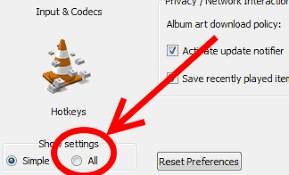
How to Extract a Photo From a Video Mp4 With Vlc
VLC is an excellent media player that can also help you extract photos from videos:
- Open Vlc: Open VLC on your PC or Mac.
- Play Your Video: Play your video in VLC.
- Pause The Video: Pause the video at the moment you want to capture.
- Capture a Screenshot: Press Shift + S (Windows) or Command + Alt + S (Mac) to take a screenshot of the paused video.
How to Extract a Photo From a Video on Youtube
Extracting a photo from a YouTube video is a bit more complex, but still doable:
- Open Your Browser: Open your browser and navigate to YouTube.
- Play Your Video: Play your video in the browser.
- Pause The Video: Pause the video at the moment you want to capture.
- Use The Youtube App: Use the YouTube app on your device to take a screenshot of the paused video.
How to Extract a Photo From a Video on Android
Extracting a photo from a video on an Android device is easy:
- Open Your Video Player: Open your preferred media player, such as Google Photos or YouTube.
- Pause The Video: Pause the video at the moment you want to capture.
- Take a Screenshot: Press the Volume down button + Power button to take a screenshot of the paused video.
- Save The Image: Save the image to your desired location.
How to Extract a Photo From a Video on Iphone
Extracting a photo from a video on an iPhone is just as easy:
- Open Your Video Player: Open your preferred media player, such as Photos or YouTube.
- Pause The Video: Pause the video at the moment you want to capture.
- Take a Screenshot: Press the Side button + Volume up button to take a screenshot of the paused video.
- Save The Image: Save the image to your desired location.
Conclusion
Extracting a photo from a video is a simple process that can be done on various devices, including PC, Mac, Android, and iPhone. By following these steps, you can capture memorable moments and turn them into beautiful photos to share with others.
Frequently Asked Questions (FAQs)
- Q: Can I Extract Multiple Photos From The Same Video?
A: Yes, you can extract multiple photos from the same video by taking screenshots at different points in the video. - Q: What is The Best Format For Saving Extracted Images?
A: The best format for saving extracted images is JPEG or PNG. - Q: Can I Edit The Extracted Image Before Saving It?
A: Yes, you can edit the extracted image using any photo editing software before saving it. - Q: Will The Extracted Image Have The Same Quality as The Original Video?
A: The quality of the extracted image will depend on the resolution and quality of the original video. - Q: Can I Extract Photos From Videos Recorded on my Device’s Camera Roll?
A: Yes, you can extract photos from videos recorded on your device’s camera roll by following the steps outlined in this article. - Q: What is The Best Media Player For Extracting Images From Videos?
A: The best media player for extracting images from videos is VLC, which is available on PC and Mac. - Q: Can I Extract Photos From Youtube Videos Without Using Any Additional Software?
A: Yes, you can extract photos from YouTube videos by using the YouTube app or browser extension.


