
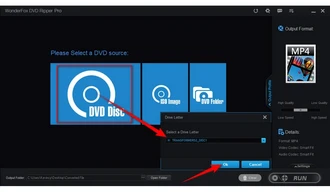
How to Extract Video From a Dvd: A Step-by-step Guide
Are you looking for ways to extract video from a DVD? Perhaps you want to transfer some of your favorite films onto your tablet or computer, but don’t know how. Worry no more! In this article, we’ll guide you through the process of extracting video from a DVD using various software options.
Why Extract Video From a Dvd?
Extracting video from a DVD can be useful for several reasons:
- You want to transfer your favorite films onto your tablet or smartphone for easy viewing on-the-go.
- You need to create backups of your DVD collection in case the original discs get damaged or lost.
- You want to convert your DVDs into digital formats that are compatible with your computer or other devices.
Software Options For Extracting Video From a Dvd
There are several software options available that can help you extract video from a DVD. Here are some popular ones:
- Vlc: VLC is a free and open-source media player that can be used to extract video from DVDs.
- Handbrake: HandBrake is another popular software option for extracting video from DVDs.
- Black: Black is a paid software suite that offers advanced features for DVD ripping and copying.
- Cdburnerxp: CDBurnerXP is a free software tool that can be used to burn CDs and DVDs, as well as extract video from DVDs.
- Video to Video Converter: This software option allows you to convert video from one format to another.
How to Extract Video From a Dvd With Vlc
Here’s a step-by-step guide on how to extract video from a DVD using VLC:
- Download and install VLC on your computer.
- Insert the DVD into the drive.
- Open VLC and select the “Media” tab.
- Choose the “Convert / Save” option.
- Select the DVD as the input device and choose the desired output format.
- Click on the “Browse” button to select the output location.
- Click on the “Save” button to start the conversion process.
How to Extract Video From a Dvd With Handbrake
Here’s a step-by-step guide on how to extract video from a DVD using HandBrake:
- Download and install HandBrake on your computer.
- Insert the DVD into the drive.
- Open HandBrake and select the “Source” tab.
- Choose the DVD as the input device and select the desired output format.
- Click on the “Browse” button to select the output location.
- Click on the “Start” button to start the conversion process.
How to Extract Video From a Dvd With Other Software Options
If you’re looking for alternative software options, here are some other choices:
- Black: This software suite offers advanced features for DVD ripping and copying.
- Cdburnerxp: This free software tool can be used to burn CDs and DVDs, as well as extract video from DVDs.
- Video to Video Converter: This software option allows you to convert video from one format to another.
Tips And Precautions
Before extracting video from a DVD, make sure:
- You have the necessary software installed on your computer.
- The DVD is in good condition and not scratched or damaged.
- You have enough storage space on your computer for the extracted video file.
- You are aware of any copyright restrictions that may apply to the content.
Conclusion
Extracting video from a DVD can be a useful way to transfer your favorite films onto your tablet, smartphone, or computer. With various software options available, you can choose the one that best suits your needs. Remember to follow the step-by-step guides provided above and take necessary precautions before extracting video from a DVD.
Faqs
Here are some frequently asked questions related to extracting video from a DVD:
- Q: What is The Best Software For Extracting Video From a Dvd?
A: The best software option depends on your specific needs and preferences. - Q: Can I Extract Video From a Dvd That Has Copy Protection?
A: No, some DVDs have copy protection that prevents you from extracting video using standard software options. - Q: How Long Does it Take to Extract Video From a Dvd?
A: The time it takes depends on the complexity of the process and the speed of your computer. - Q: Can I Convert my Extracted Video Into Different Formats?
A: Yes, most software options allow you to convert your extracted video into various formats. - Q: Is Extracting Video From a Dvd Legal?
A: Yes, extracting video from a DVD for personal use is generally considered legal. However, be aware of any copyright restrictions that may apply.
I hope this article has provided helpful information on how to extract video from a DVD using various software options. If you have any further questions or concerns, feel free to ask!


