
How to Extract Zip Files on Windows, Mac, Android, And Iphone
Are you tired of struggling with compressed files? Look no further! In this article, we’ll guide you through the process of extracting ZIP files on various platforms, including Windows, Mac, Android, and iPhone.
What Are Zip Files?
Before we dive into the nitty-gritty, let’s briefly explain what ZIP files are. A ZIP file is a compressed file format that contains one or more files or folders. It’s like a digital suitcase that holds all your essential files in a single, compact package.
Extracting Zip Files on Windows
If you’re using a PC with the Windows operating system, extracting ZIP files is relatively straightforward. Here are the steps:
Using Windows’ Built-in Functionality
- Locate the ZIP file you want to extract.
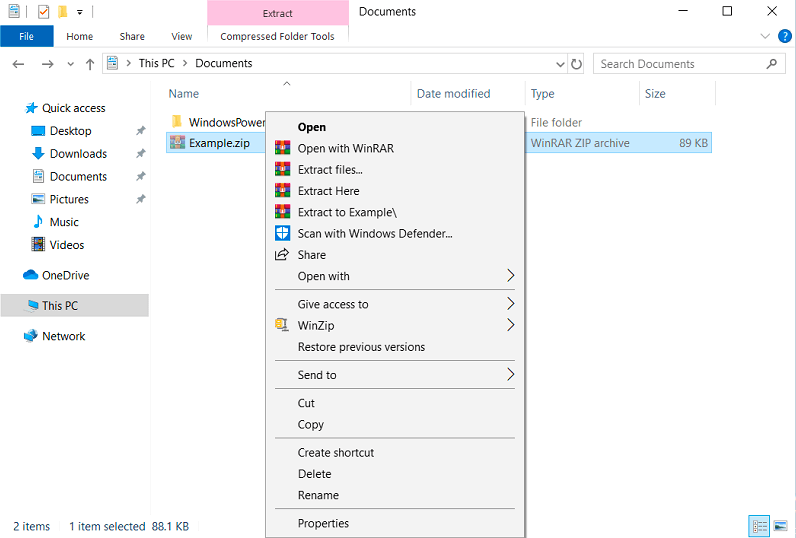
- Right-click on the file and select “Extract All” from the context menu.
- Choose the destination folder where you want to extract the files.
- Click “Extract” to begin the extraction process.
That’s it! Your files should now be extracted and ready for use.
Using 7-Zip
If you don’t have Windows’ built-in functionality or prefer a more powerful tool, consider using 7-Zip. This free software is widely used and can handle various file formats, including ZIP.
- Download and install 7-Zip on your PC.
- Locate the ZIP file you want to extract.
- Right-click on the file and select “7-Zip” > “Extract files” from the context menu.
- Choose the destination folder where you want to extract the files.
- Click “OK” to begin the extraction process.
Other Programs to Extract Zip Files on Windows
If you’re looking for alternative software, consider these options:
- WinRAR: A popular compression and extraction tool that supports various file formats.
- PeaZip: A free, open-source software that can handle multiple compressed files.
- WinZip: Another well-known compression and extraction utility.
Extracting Zip Files on Mac
If you’re using a Mac with the macOS operating system, extracting ZIP files is just as easy. Here’s how:
Using Built-in Functionality
- Locate the ZIP file you want to extract.
- Double-click on the file to open it in the built-in Archive Utility.
- The files will be extracted and saved in a new folder.
That’s it! Your files should now be extracted and ready for use.
Using Keka
If you prefer a more powerful tool, consider using Keka. This free software is widely used and can handle various file formats, including ZIP.
- Download and install Keka on your Mac.
- Locate the ZIP file you want to extract.
- Right-click on the file and select “Extract with Keka” from the context menu.
- Choose the destination folder where you want to extract the files.
- Click “OK” to begin the extraction process.
Other Programs to Extract Zip Files on Mac
If you’re looking for alternative software, consider these options:
- The Unarchiver: A free app that can handle multiple compressed files.
- PeaZip: A free, open-source software that can handle various file formats.
- BetterZip: A powerful compression and extraction utility.
Extracting Zip Files With a Password
If you receive a ZIP file protected by a password, don’t worry! Extracting it is still relatively easy. Here’s how:
- Locate the ZIP file and double-click on it to open it in the built-in Archive Utility.
- Enter the correct password when prompted.
- The files will be extracted and saved in a new folder.
Extracting Multiple Zip Files
If you have multiple ZIP files that need to be extracted, consider using 7-Zip or a similar tool. Here’s how:
- Create a new folder where you want to extract the files.
- Add all the ZIP files you want to extract to this folder.
- Right-click on one of the ZIP files and select “7-Zip” > “Extract files” from the context menu.
- Choose the destination folder where you want to extract the files.
- Click “OK” to begin the extraction process.
Extracting Zip Files on Android
If you’re using an Android device, extracting ZIP files is relatively easy. Here’s how:
- Open the Google Files app or download it from the Play Store if you don’t have it.
- Locate the ZIP file you want to extract.
- Tap on the file to open it in the app.
- Tap on the “Extract” button to begin the extraction process.
That’s it! Your files should now be extracted and ready for use.
Extracting Zip Files on Iphone
If you’re using an iPhone or iPad, extracting ZIP files is just as easy. Here’s how:
- Open the Files app.
- Locate the ZIP file you want to extract.
- Tap on the file to open it in the app.
- Tap on the “Decompress” button to begin the extraction process.
And that’s a wrap! You should now be able to extract ZIP files with ease on various platforms, including Windows, Mac, Android, and iPhone.


