
Finding a Photo on Google: A Step-by-step Guide
Are you trying to find a specific photo on Google, but don’t know where to start? You’re not alone! With the vast number of images available online, it can be overwhelming to search for a particular picture. In this article, we’ll guide you through the process of finding a photo on Google, whether you’re using a computer or a mobile device.
Understanding Reverse Image Search
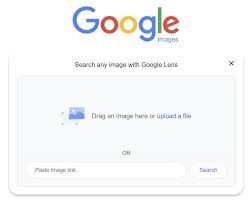
Before we dive into the step-by-step instructions, let’s talk about reverse image search. This feature allows you to upload an image and find similar photos online. It’s like asking Google, “I have this picture, can you show me more images like it?”
Using Google Images on a Computer
To use Google Images on your computer, follow these steps:
- Open Google Images: Go to the Google Images website (www.Google.Com/imghp).
- Search For an Image: Type in the keywords related to the image you’re looking for in the search bar.
- Use Filters: Click on the “Filters” icon (represented by a lens) and select from various options such as color, size, type, and more.
- Refine Your Search: Use the “Search tools” menu to narrow down your results based on factors like date, usage rights, and more.
Using Google Images on a Mobile Device
If you’re using a mobile device, follow these steps:
- Open Google Images: Go to the Google Images app (available for Android and iOS devices).
- Search For an Image: Type in the keywords related to the image you’re looking for in the search bar.
- Use Filters: Tap on the “Filters” icon (represented by a lens) and select from various options such as color, size, type, and more.
- Refine Your Search: Use the “Search tools” menu to narrow down your results based on factors like date, usage rights, and more.
Finding a Photo on Google of Your Phone or Tablet
If you have a photo stored on your phone or tablet, you can use the Google Photos app to find it. Follow these steps:
- Open Google Photos: Go to the Google Photos app (available for Android and iOS devices).
- Search For an Image: Type in the keywords related to the image you’re looking for in the search bar.
- Use Filters: Tap on the “Filters” icon (represented by a lens) and select from various options such as color, size, type, and more.
Finding a Photo of a Contact on Google
If you want to find a photo associated with a contact on Google, follow these steps:
- Open Google Contacts: Go to the Google Contacts website (www.Google.Com/contacts).
- Search For a Contact: Type in the name or email address of the contact you’re looking for.
- View Their Profile Picture: Click on the contact’s name, and you’ll see their profile picture.
Alternative Ways to Find Images on Google
If you’re not satisfied with Google Images, there are other alternatives that can help you find images online. Some popular options include:
- Bing: Microsoft’s search engine allows you to upload an image and find similar photos.
- DuckDuckGo: A private search engine that doesn’t store your search history.
Conclusion
Finding a photo on Google is easier than ever! By following these step-by-step instructions, you can use Google Images on your computer or mobile device to search for a specific image. Remember to use filters and refine your search to get the best results. If you’re looking for a photo associated with a contact, try using Google Contacts. And if you want more options, consider trying alternative search engines like Bing or DuckDuckGo.
Frequently Asked Questions
- Q: How do I Find a Specific Image on Google?
A: You can type in keywords related to the image you’re looking for in the search bar. - Q: Can I Use Filters to Refine my Search Results?
A: Yes, you can use filters such as color, size, type, and more to narrow down your results. - Q: How do I Find a Photo Associated With a Contact on Google?
A: Go to the Google Contacts website, search for the contact’s name or email address, and view their profile picture. - Q: Are There Other Alternatives to Finding Images on Google?
A: Yes, you can try using Bing or DuckDuckGo, which offer similar image search features. - Q: How do I Use Reverse Image Search on Google Images?
A: You can upload an image and find similar photos online by using the “Reverse Image Search” feature. - Q: Can I Save a Photo From my Computer to my Google Account?
A: Yes, you can save images from your computer to your Google account by using the Google Photos app. - Q: How do I Access my Photos on Google When I’m Using a Mobile Device?
A: You can download and install the Google Photos app on your Android or iOS device to access your photos. - Q: Can I Share a Photo From Google Images With Others?
A: Yes, you can share a photo by clicking on the “Share” button.


